Your account
This guide is for everyone who signs in to the dashboard. Your account holds what is about you, rather than your projects or your organisation. This page walks through it one section at a time, naming each screen and button just as the dashboard shows them. Why we keep what we keep, and for how long, is in the privacy notice.
Your profile and picture
Section titled “Your profile and picture”The top of Your account says who you are here, and how you signed in this time.
-
Open Your account: press your picture and login, at the foot of the menu on a computer, or at the top right on a phone or on a page with no menu, then press Your account (the account menu).
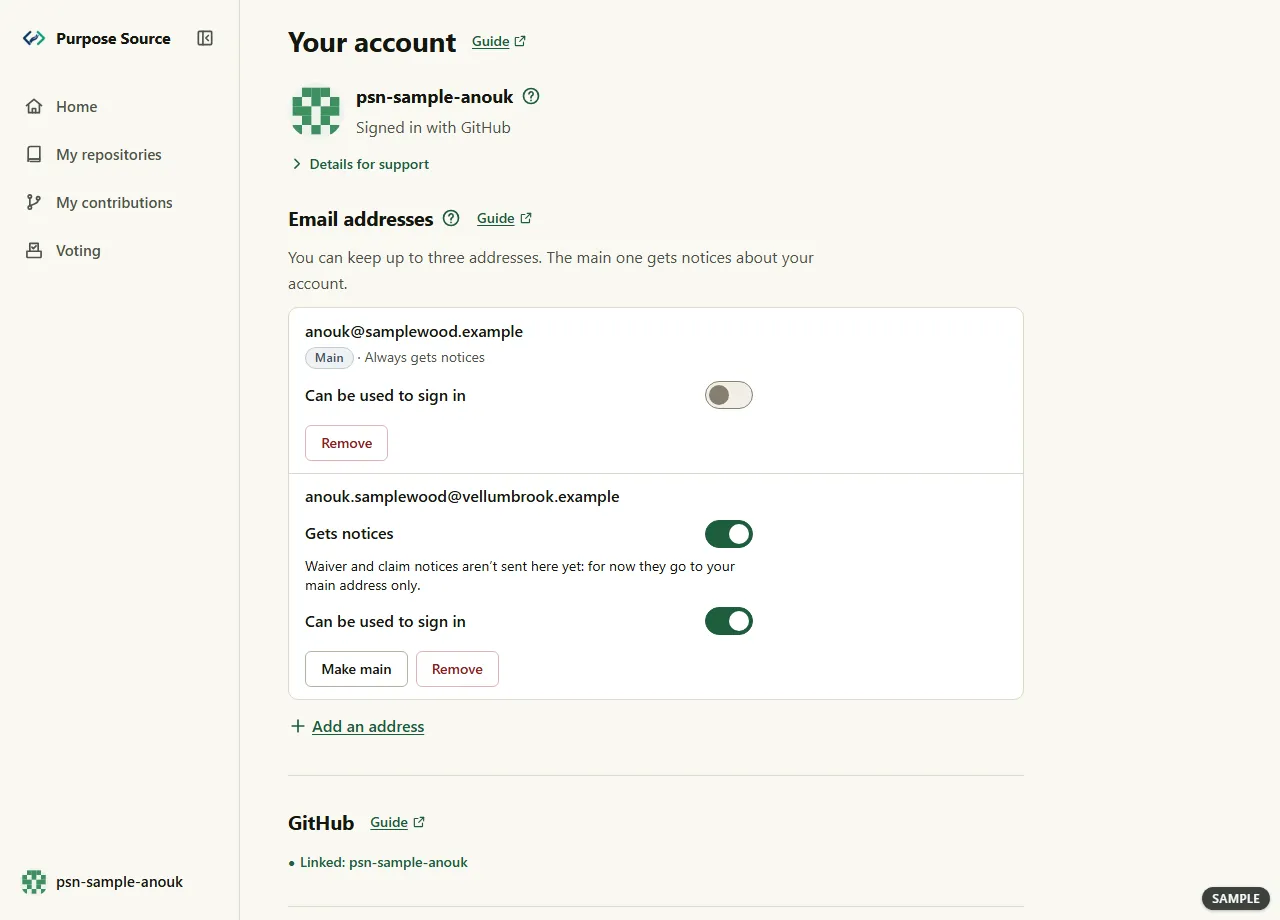
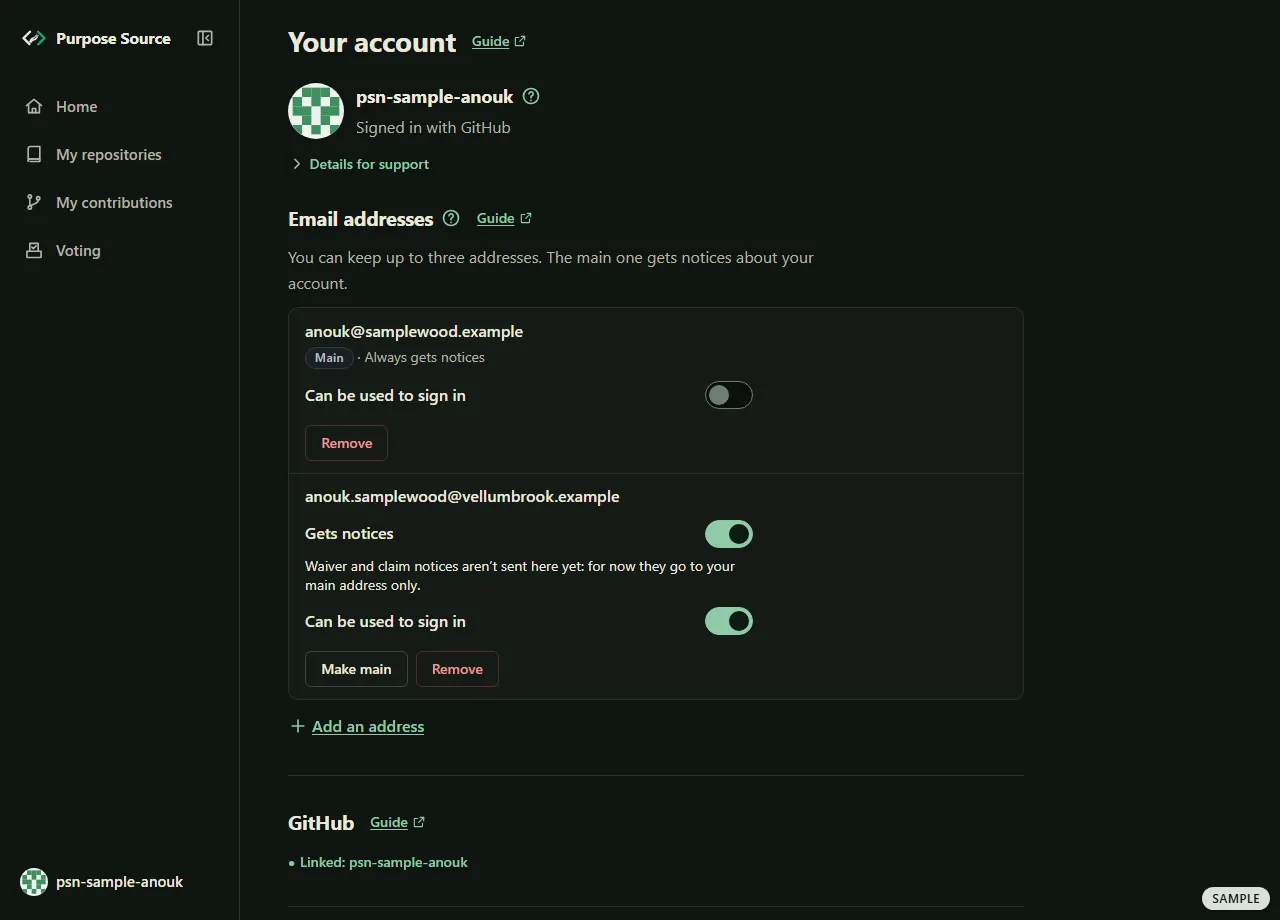
Your account. Sample screen: made-up names. -
Check your picture and login. The line under them says how this session signed in: Signed in with GitHub or Signed in with your email address.
-
The ? beside your login, Where does your picture come from?, says that the picture comes from GitHub, and that we don’t copy or keep it. An account without a picture shows two letters instead.
-
Writing to us about your account? Open Details for support and give us your Account id.
What happens next: there’s nothing to edit here: your login and picture come from GitHub. An account with only an email address shows its main address in place of a login.
Answer an invitation to an organisation
Section titled “Answer an invitation to an organisation”When an organisation’s owner invites you, Invitations to organisations appears under your profile while the invitation waits for you. Home shows the same invitation, under Invitations waiting for you.
-
Read the offer. It names the organisation, with its country, and the role it offers you. The ? beside the role says what that role can do.
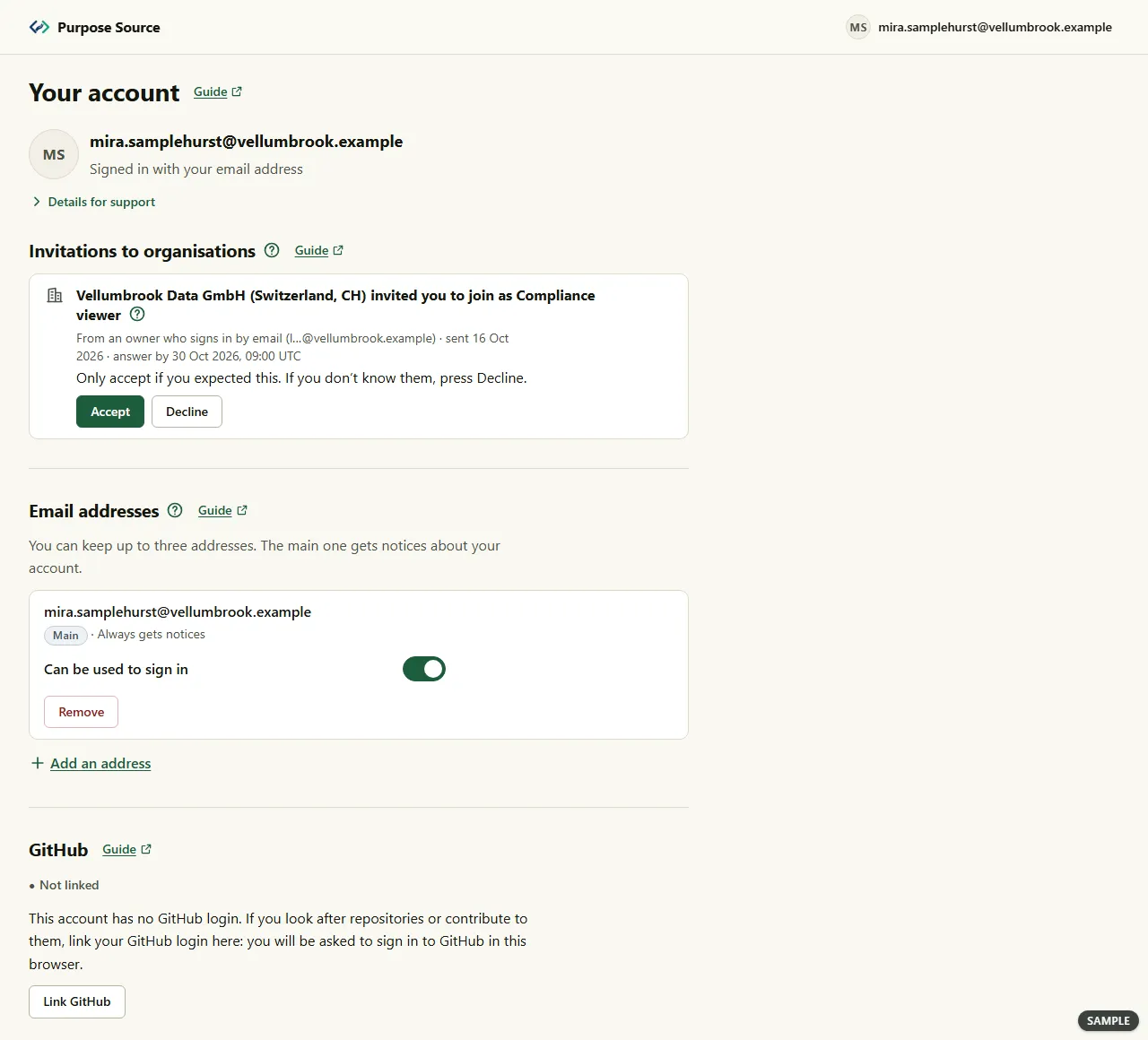
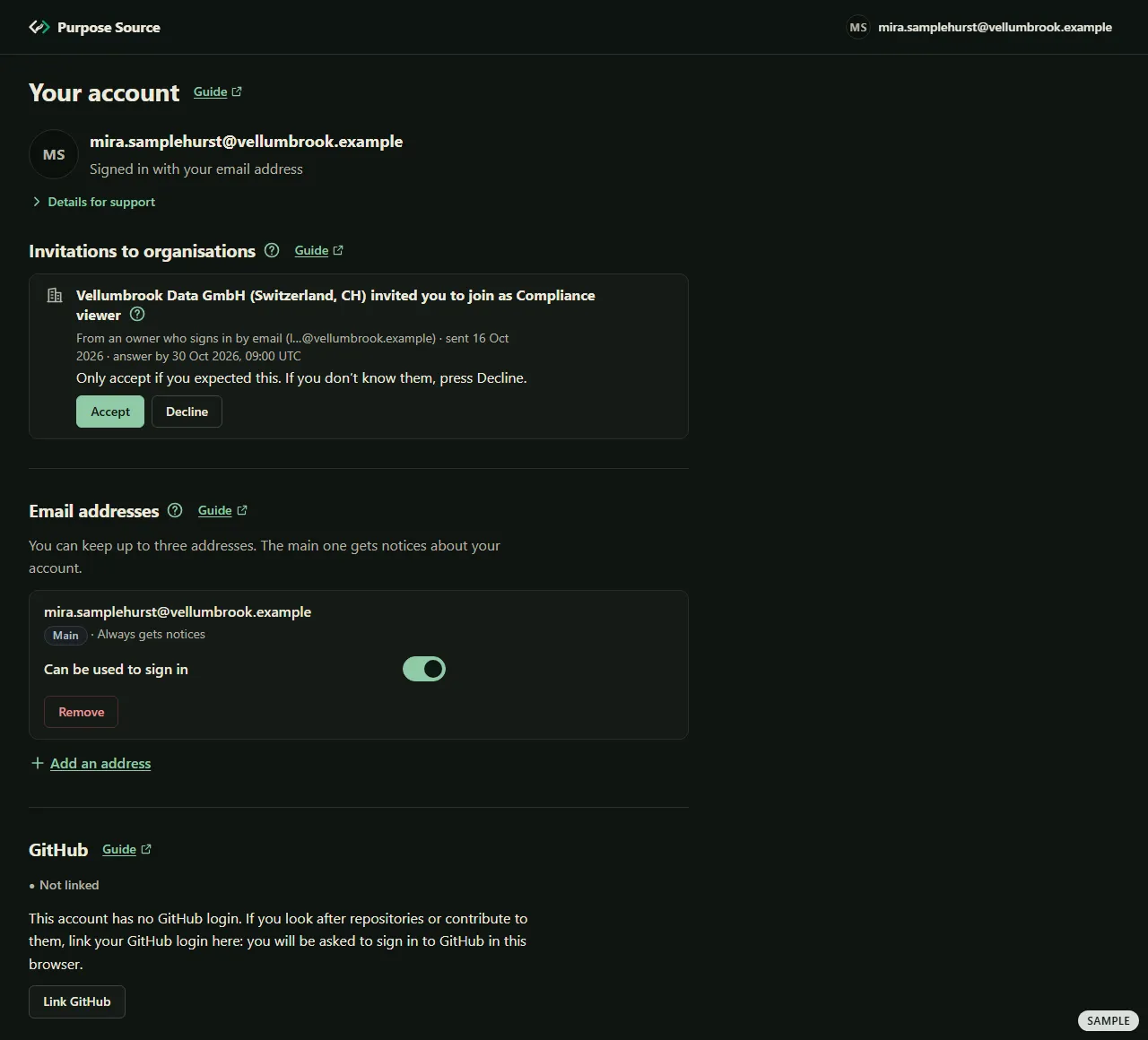
An invitation on Your account. Sample screen: made-up names. -
Check who sent it, and the deadline after answer by. An owner who signs in by email shows as the first letter and the domain of their address.
-
Only accept if you expected it, as the line above the buttons says. Press Accept. If you don’t know them, press Decline.
What happens next: pressing Accept opens the organisation’s overview (the overview). Decline says Invitation declined. Nothing was changed on your account. As the ? beside the heading says, until you press Accept you’re not a member, and the organisation can’t act as you.
Add and manage your email addresses
Section titled “Add and manage your email addresses”An account can keep up to three email addresses. One of them is the main address, which always gets notices about your account. As the ?, What can an email address do here?, says, signing in with an address opens the company tools only: repositories and contributions always need your GitHub login.
-
Find Email addresses on Your account (the first picture on this page shows it). Each address has its own row. The main one says Main · Always gets notices.
-
For each other address, choose whether it Gets notices. As the note under the switch says, waiver and claim notices go to your main address only, for now.
-
For each address, choose whether it Can be used to sign in. A switch saves as soon as you move it, and its row says Saved.
-
To make another address the main one, press Make main on its row.
-
To take an address off, press Remove on its row. The section says The address was removed. A notice about it will be sent to it and to your other addresses.
What happens next: switching sign-in on or off, making an address main, removing one and adding one may each ask you to confirm it’s you first. Notices about your addresses are sent whatever you chose for notices: when you add an address or make one main, a notice goes to your other addresses; when you remove one, or switch whether it can be used to sign in, it goes to every address, that one included (email addresses, in the privacy notice). If you remove the main address, the oldest remaining one becomes main (without a GitHub login, the oldest one that can sign in). Removing a sign-in address, or switching sign-in off, also signs out any other browser that signed in with an email address. Without a GitHub login, the main address must stay a sign-in address, and the last address you sign in with can’t be removed.
Add an address
Section titled “Add an address”-
Under the list, press Add an address, the line with the plus sign. When the account already has three, the section says This account already has three addresses. Remove one to add another. instead.
-
Type the Address and press Send a code. We email a 6-digit code to it.
-
Type the code into Code, in this browser, within 10 minutes, as the notice above it says.
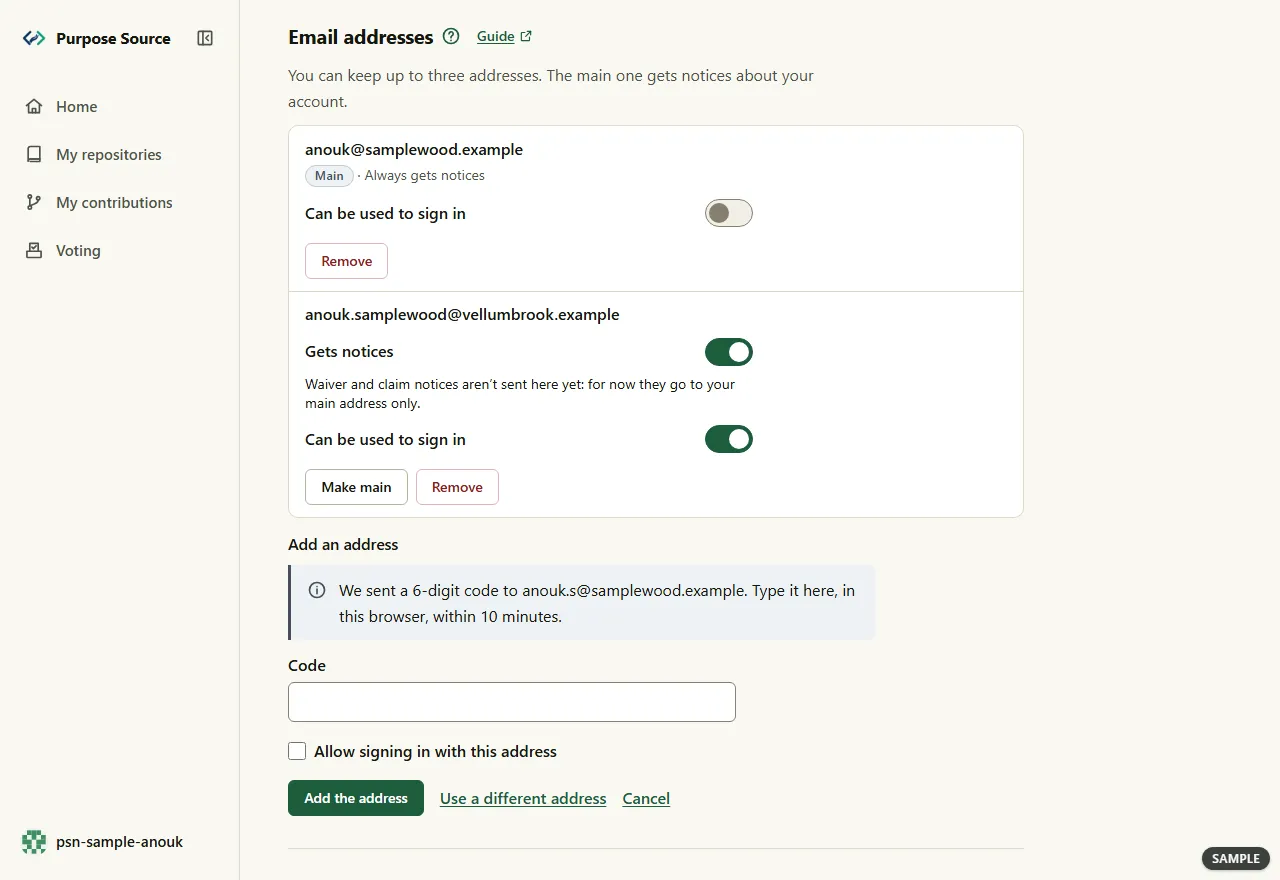
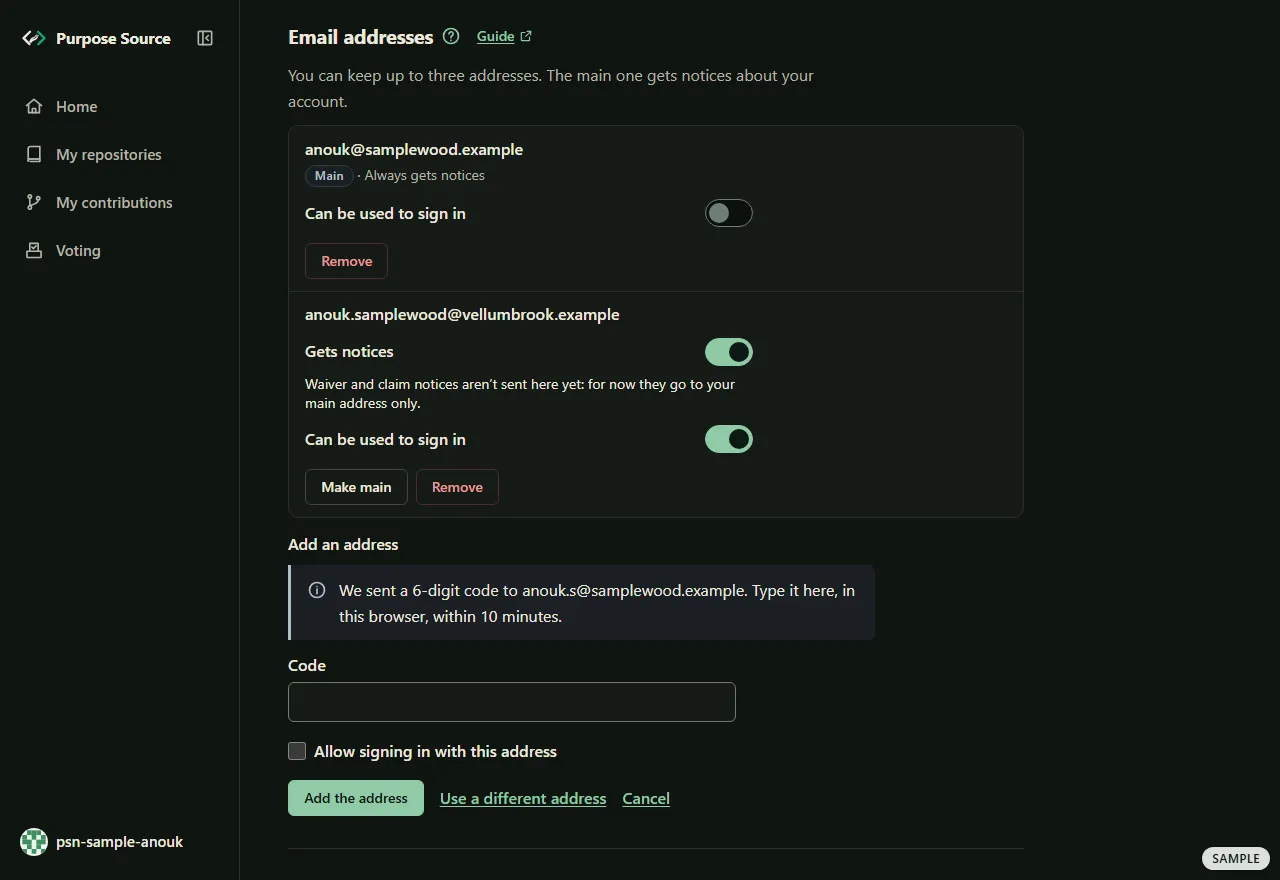
Add an address. Sample screen: made-up names. -
Tick Allow signing in with this address if you want to sign in with it. The box starts unticked when your account has a GitHub login, and ticked when it hasn’t.
-
Press Add the address. Typed the wrong address? Press Use a different address. Changed your mind? Press Cancel.
What happens next: the address joins the list. An address that is already on another Purpose Source account can’t be added, and the form says so.
Link your GitHub login
Section titled “Link your GitHub login”The GitHub section says whether your account has a GitHub login, which repositories and contributions always need.
-
Find GitHub on Your account. With a GitHub login, it says Linked: and the login. Without one, it says Not linked, as in the invitation picture above.
-
To link your GitHub login, press Link GitHub. GitHub asks you to sign in there, in this browser, and to confirm. We never see your password.
-
Back on Your account, the section says GitHub is linked. Repository and contributor tools are open in this session.
What happens next: linking may ask you to confirm it’s you first. If the link doesn’t go through, the section says why, and that nothing was changed. A GitHub login that already has its own Purpose Source account can’t be linked here: sign in with GitHub to use that account. Once a login is linked, a notice goes to every address on your account, whatever you chose for notices.
Signed in by email on an account that has a GitHub login? Repository and contributor tools are closed in that session: press Continue with GitHub to open them.
See where you’re signed in, and sign out elsewhere
Section titled “See where you’re signed in, and sign out elsewhere”Where you’re signed in lists every browser your account is signed in on.
-
Find Where you’re signed in on Your account. Each row names the browser, or says A browser we couldn’t name. The one you’re using says this device. Each row says when it signed in, when it was last active and, where we kept it, the start of its internet address.
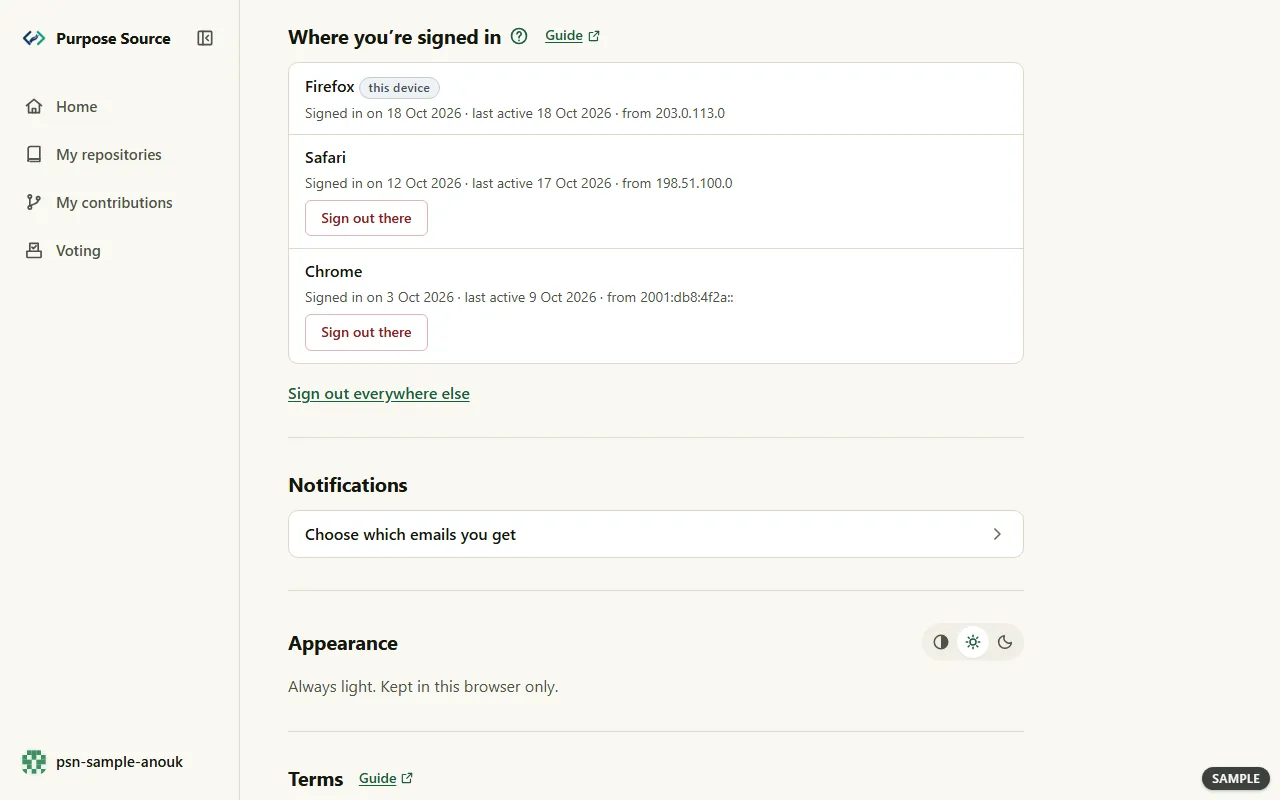
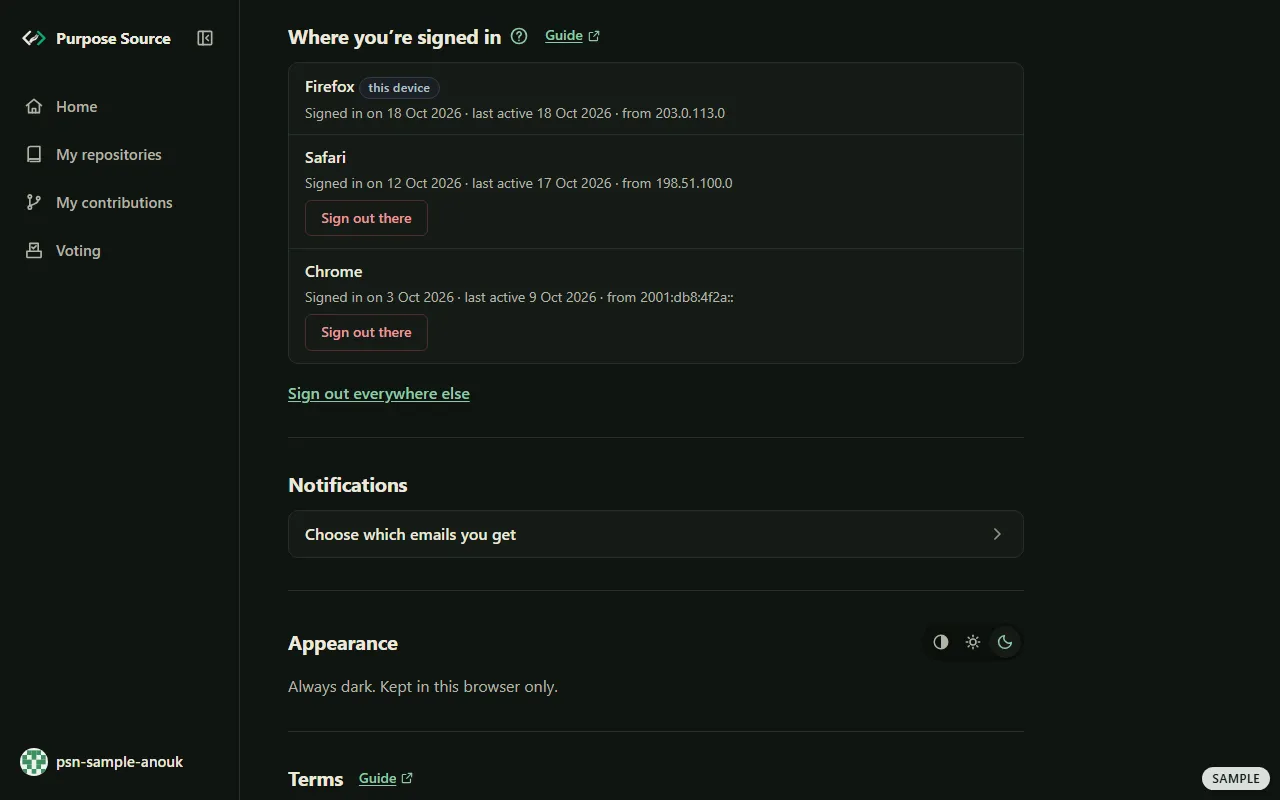
Where you're signed in. Sample screen: made-up names. -
Don’t recognise a browser, or left yourself signed in somewhere? Press Sign out there on its row.
-
To sign out every other browser at once, press Sign out everywhere else. The section says how many browsers it signed out.
-
To sign out of the browser you’re using, press Sign out in the account menu.
What happens next: a browser you signed out has to sign in again. The ?, Do you keep my internet address?, answers: we only keep the first part of each internet (IP) address, never the whole address. A session also ends by itself after 14 days without use, or 90 days after sign-in at the latest (sessions, in the privacy notice). Under the browsers come Notifications (below) and Appearance, as in the account menu.
Choose your notifications
Section titled “Choose your notifications”Notifications holds your inbox and the emails you get. Open it from the account menu, or from Choose which emails you get on Your account.
-
Under Inbox, read your notices. A dot marks one you haven’t read yet.
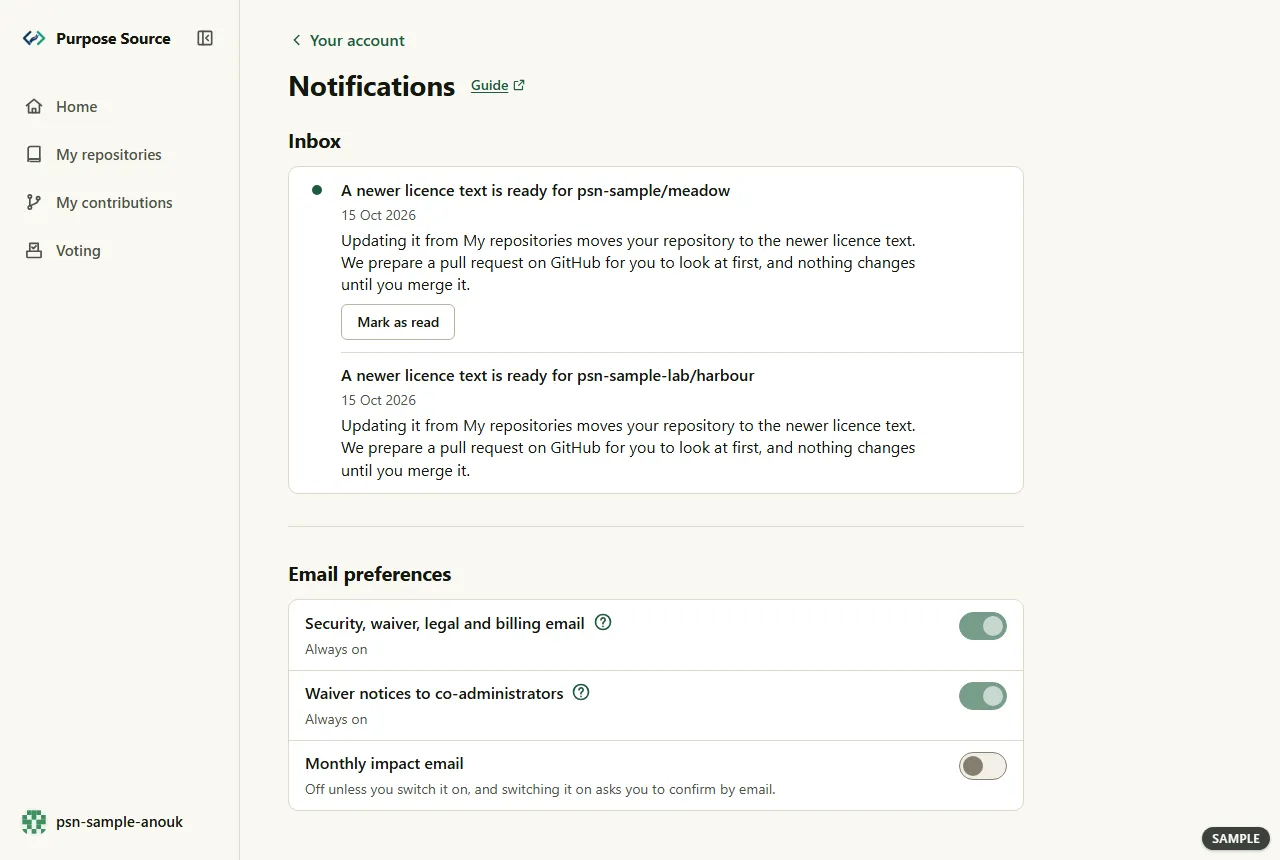
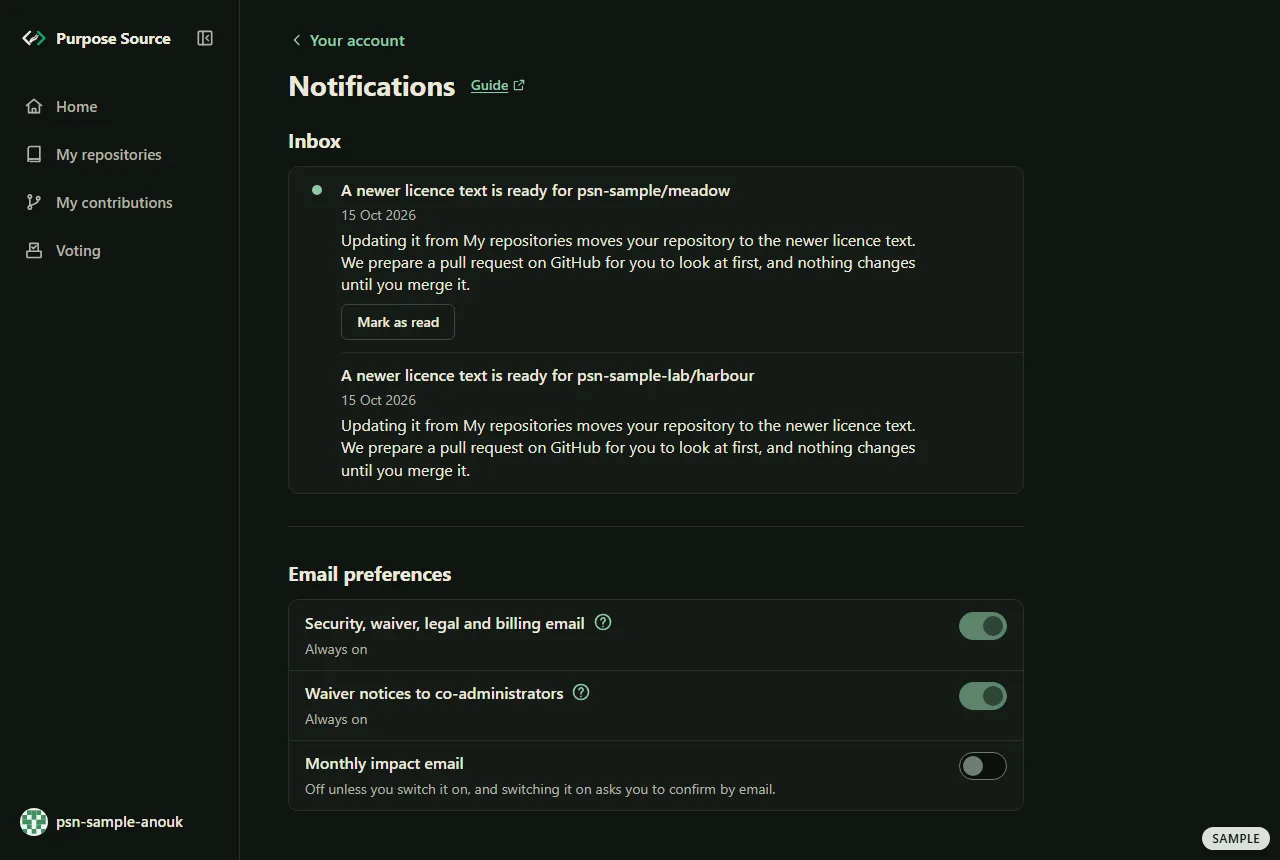
Notifications. Sample screen: made-up names. -
Press Mark as read on a notice you’ve dealt with.
-
Under Email preferences, Security, waiver, legal and billing email and Waiver notices to co-administrators are Always on. Their ? say why: the first are necessary to the agreement, and a waiver is a decision every co-administrator is entitled to hear about.
-
Switch Monthly impact email on if you want it. It’s off unless you switch it on, and switching it on asks you to confirm by email.
What happens next: the switch saves at once: Saving…, then Preferences saved. You can switch it off again whenever you like. Waiver, claim and the other notices about your account are emailed to your main address; receipts, renewal reminders and purchased certificates go to the purchase’s billing contact; notices about a change to your addresses or a GitHub link go out as email addresses and GitHub say.
Check the Terms you accepted
Section titled “Check the Terms you accepted”-
Find Terms on Your account, further down (the picture in the next section shows it at its top). Usually it says You’ve accepted the current Terms. Press Read the Terms to read them in a new tab.
-
When it says A newer version needs your acceptance., or You haven’t accepted the Terms yet., press Read the Terms, then I accept the Terms.
-
To see the versions, open Details: Accepted is the version you accepted, and Published is the current one.
What happens next: the section says Accepted. On Your account, the Terms don’t cover the page as they do elsewhere (accepting the Terms), so you can look at your account before you accept them. The Terms themselves: Terms of use.
Download a copy of your data
Section titled “Download a copy of your data”As the section says, Download your data gets you a copy of everything we’ve recorded about this account, and it can take up to a day.
-
Under Download your data, press Request a copy. You may be asked to confirm it’s you first. The section says Requested., and that the copy is prepared by a job that runs once a day. While the page is open, it checks again every 30 seconds.
-
Come back later. When the copy is ready, the section says Ready to download., with the day you asked for it and when the copy is deleted.
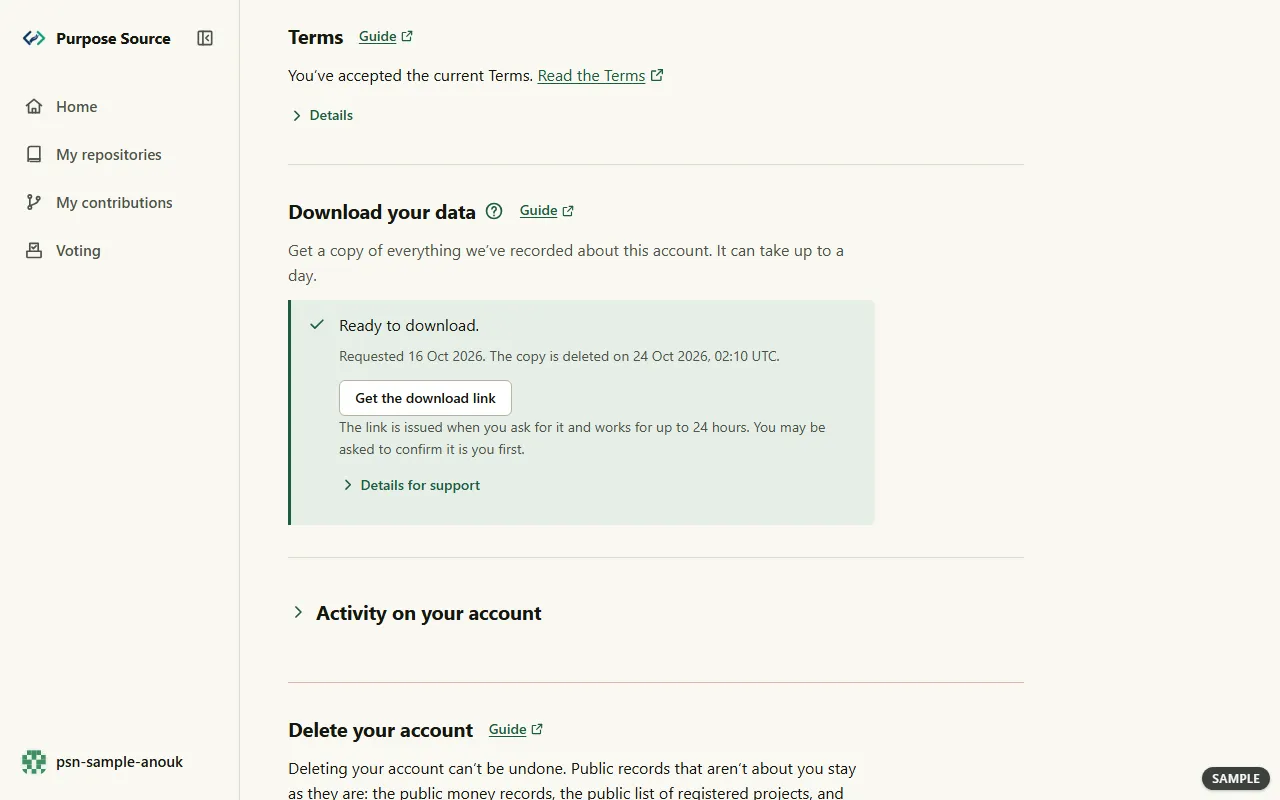
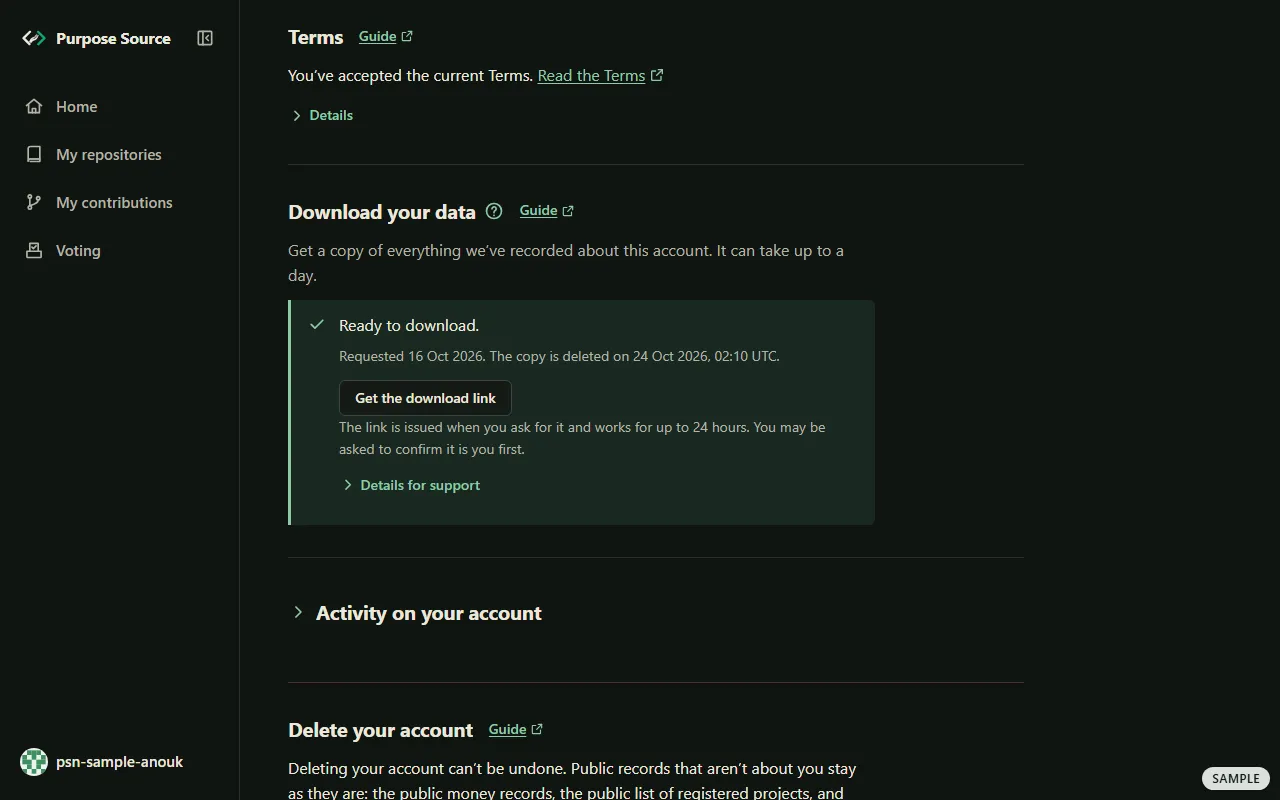
Terms and Download your data. Sample screen: made-up names. -
Press Get the download link. You may be asked to confirm it’s you first.
-
Press Download your copy. The line under it says until when the link works.
What happens next: the ?, How long does a copy take, and how long is it kept?, says: we prepare copies once a day; we keep yours for 7 days, and each download link works for 24 hours. When the download has expired, or the copy couldn’t be prepared, the section says so, and Request a copy is back. Your rights over your data, and the other ways to use them: your rights.
Read the activity on your account
Section titled “Read the activity on your account”Activity on your account lists what happened on your account, in plain words.
-
Press Activity on your account, near the foot of Your account, to open the list.
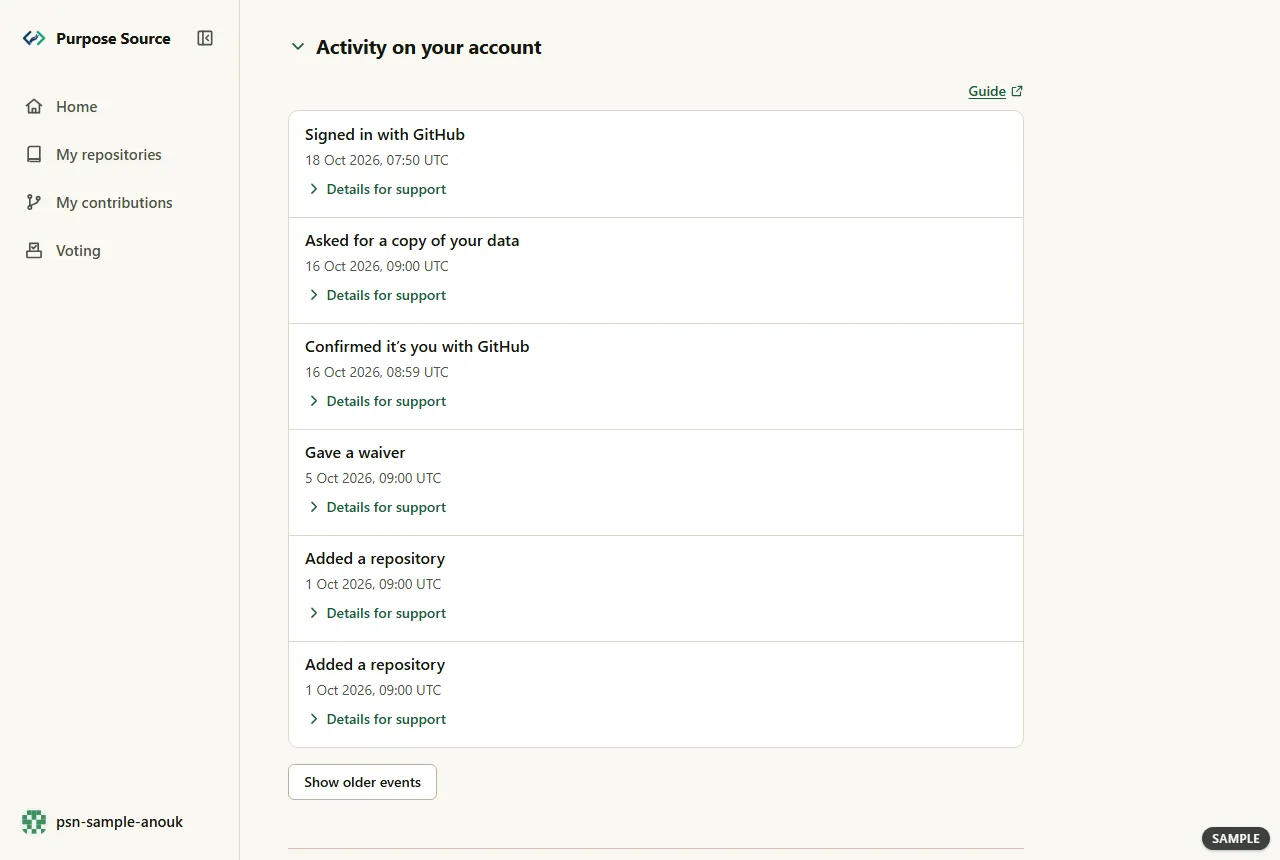
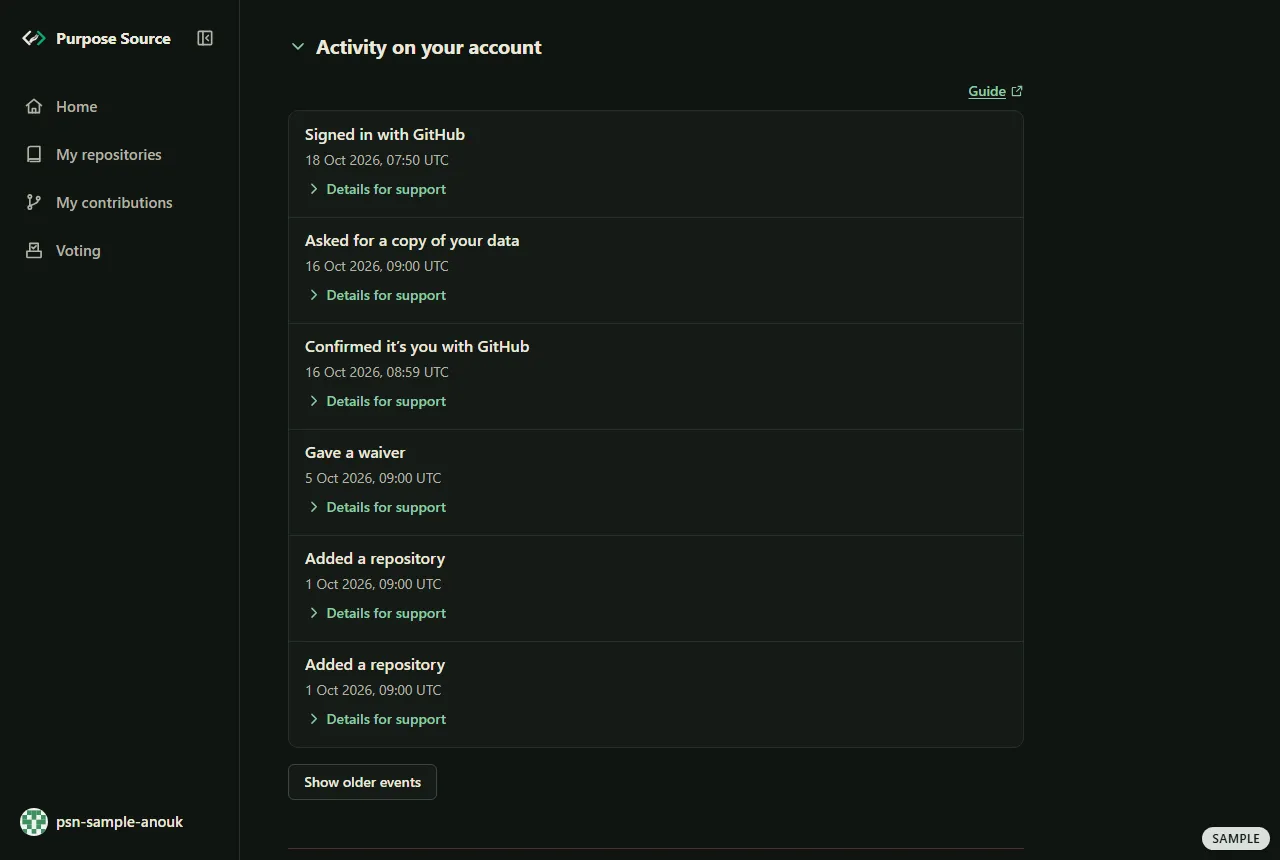
Activity on your account. Sample screen: made-up names. -
Read the rows, newest first. Each says what happened, such as Signed in with GitHub or Confirmed it’s you with GitHub, and when, with the time in UTC. When it wasn’t you, the row says who, for example by our staff or automatically.
-
To see more, press Show older events. At the end, the list says That is the whole log.
-
Writing to us about an event? Open its Details for support and give us what it shows.
What happens next: nothing changes: the list only shows what happened. If you see a sign-in that wasn’t you, sign that browser out under where you’re signed in.
Delete your account
Section titled “Delete your account”Delete your account is at the foot of Your account. It takes two presses and a typed word, and everything the deletion does is on the screen before the last button.
-
Read the line under Delete your account: “Deleting your account can’t be undone. Public records that aren’t about you stay as they are: the public money records, the public list of registered projects, and certificates already issued.”
-
Press Delete my account…. The section opens, with everything the deletion does.
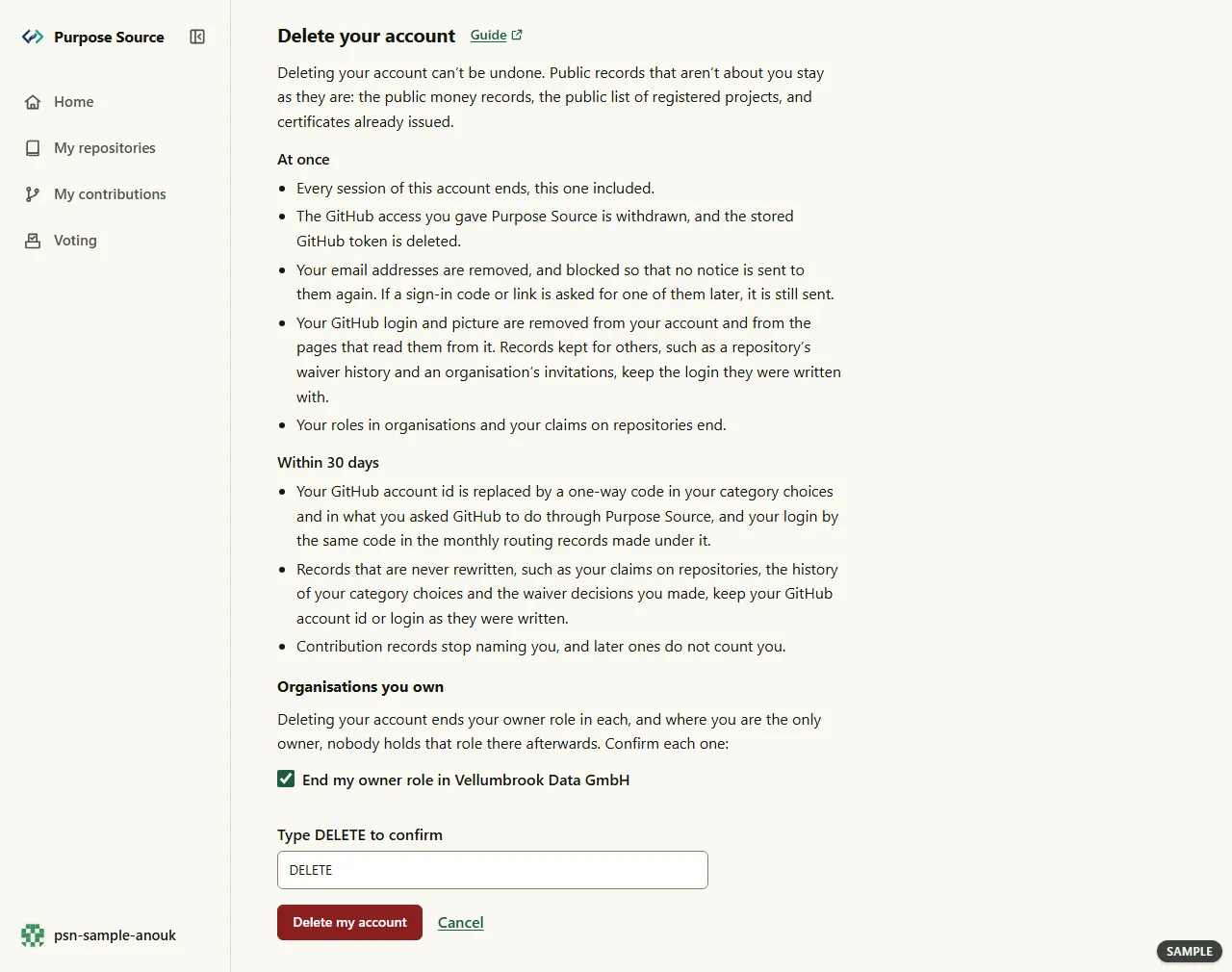
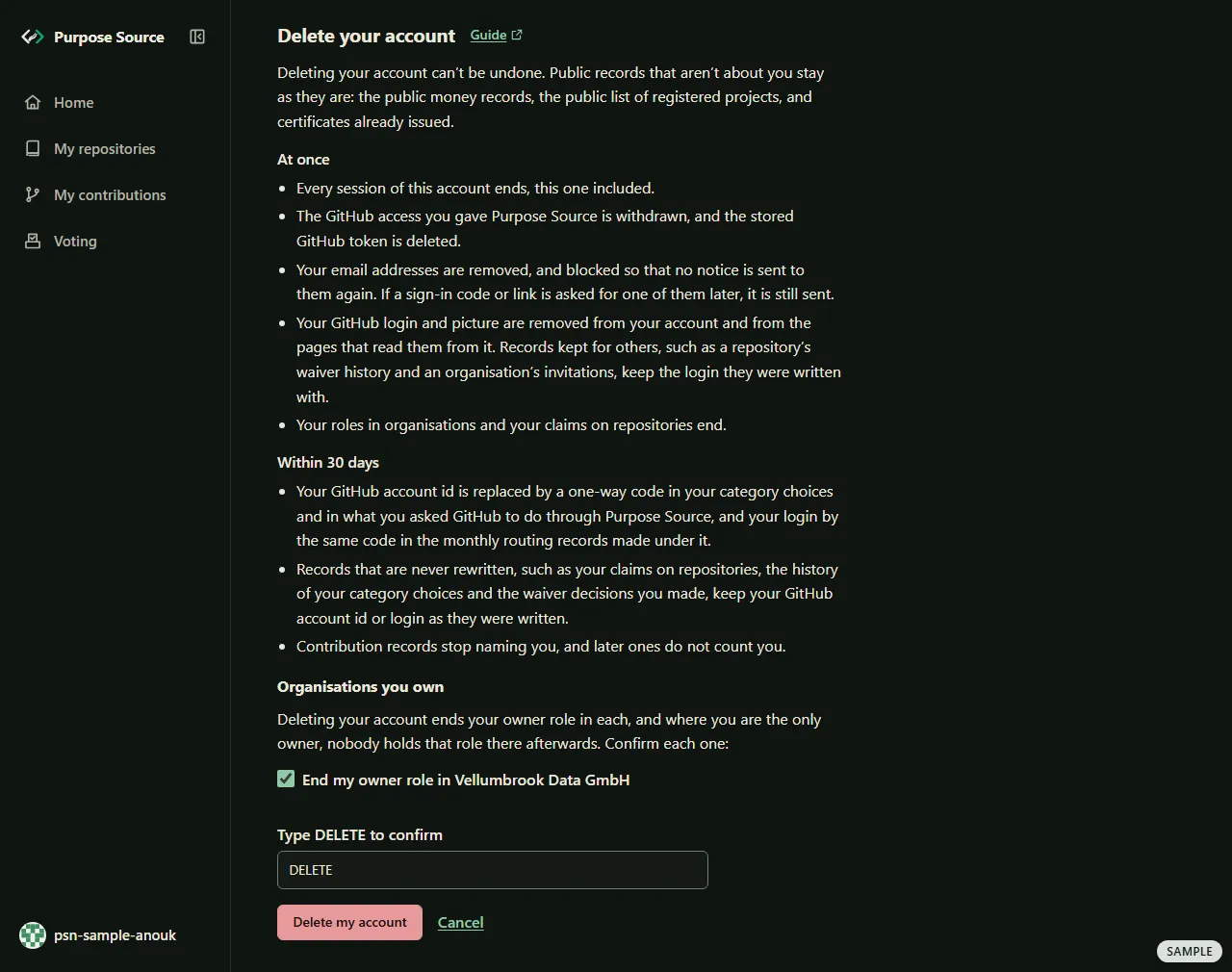
Delete your account. Sample screen: made-up names. -
Read the two lists. Under At once:
- Every session of this account ends, this one included.
- The GitHub access you gave Purpose Source is withdrawn, and the stored GitHub token is deleted.
- Your email addresses are removed, and blocked so that no notice is sent to them again. If a sign-in code or link is asked for one of them later, it is still sent.
- Your GitHub login and picture are removed from your account and from the pages that read them from it. Records kept for others, such as a repository’s waiver history and an organisation’s invitations, keep the login they were written with.
- Your roles in organisations and your claims on repositories end.
Under Within 30 days:
- Your GitHub account id is replaced by a one-way code in your category choices and in what you asked GitHub to do through Purpose Source, and your login by the same code in the monthly routing records made under it.
- Records that are never rewritten, such as your claims on repositories, the history of your category choices and the waiver decisions you made, keep your GitHub account id or login as they were written.
- Contribution records stop naming you, and later ones do not count you.
-
Own an organisation? Under Organisations you own, tick End my owner role in and its name, for each one.
-
Type DELETE into Type DELETE to confirm.
-
Press the red Delete my account. It works only once every box is ticked and the word is typed exactly. You may be asked to confirm it’s you first. Changed your mind? Press Cancel: it forgets what you typed and ticked.
What happens next: the page Your account is deleted opens. It says that we signed you out everywhere, including here, what stays, and by when we finish erasing the rest. Press Back to the start to leave.
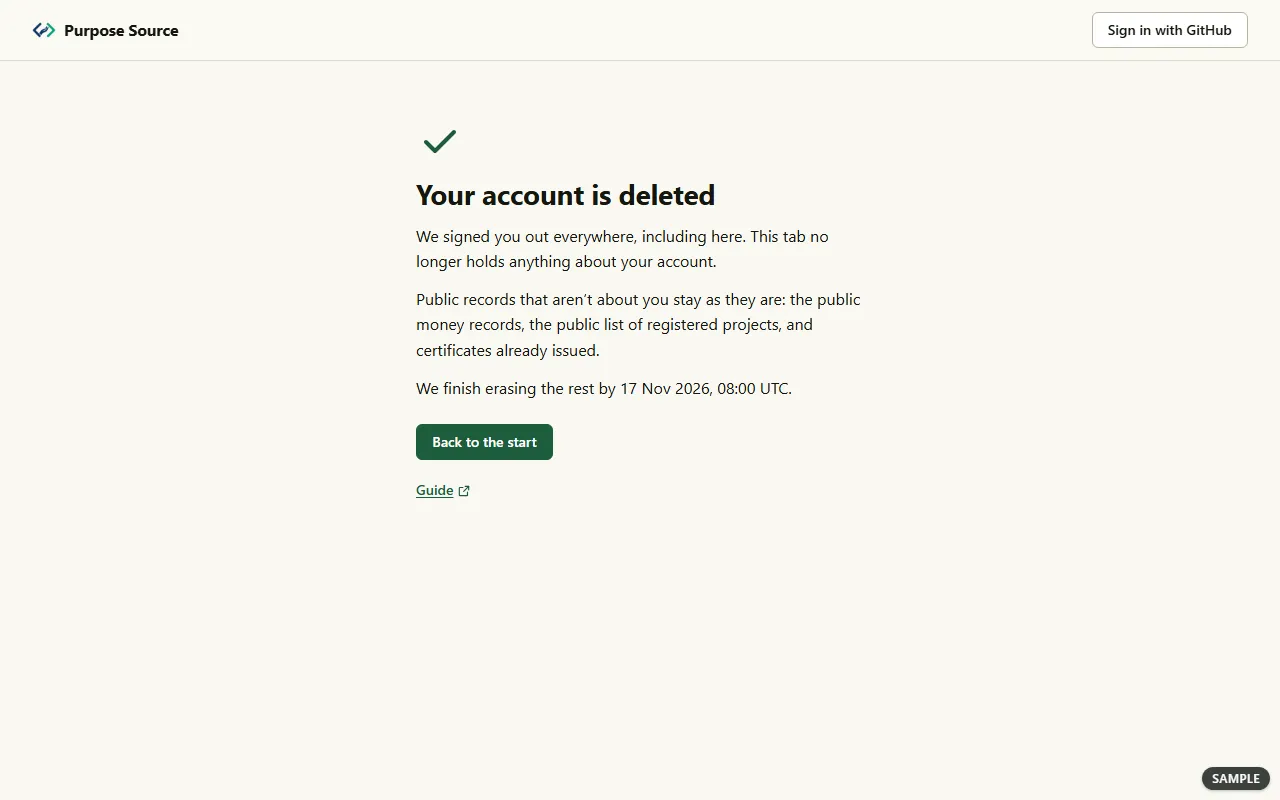
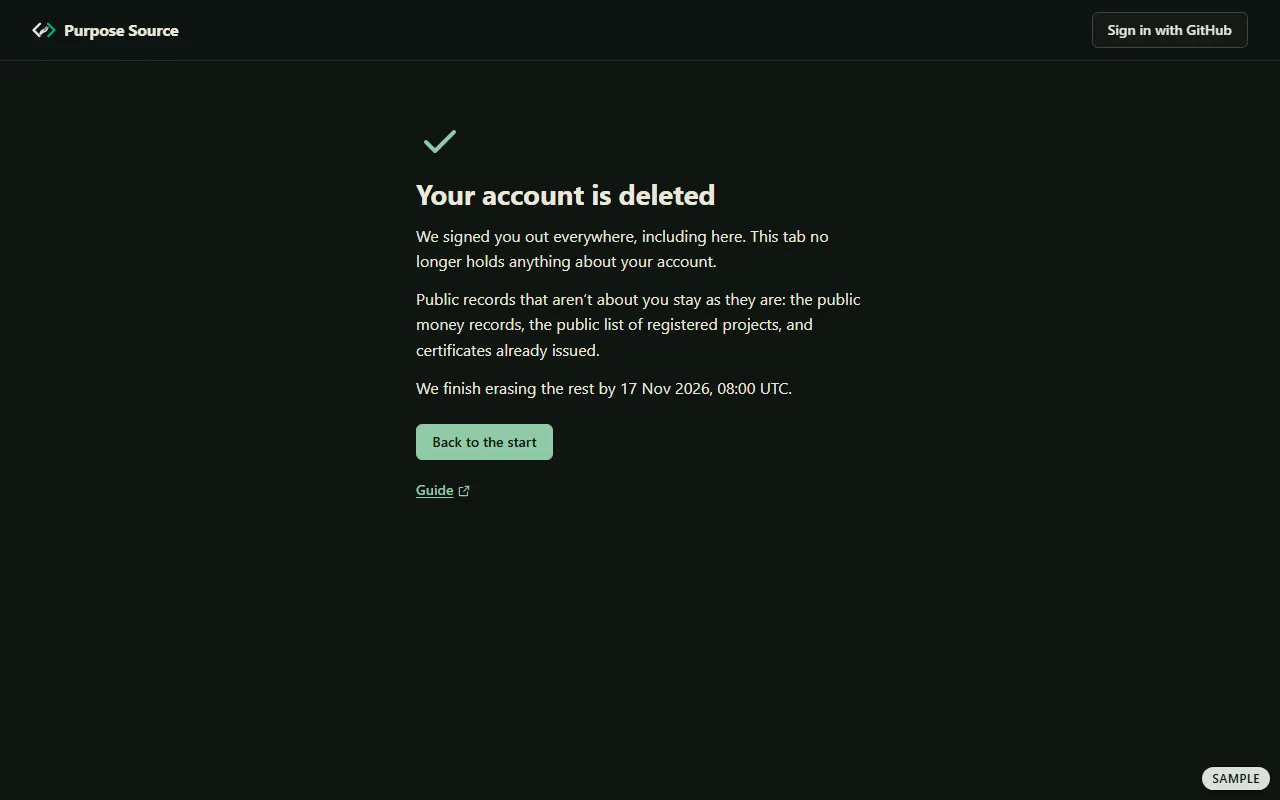
If GitHub didn’t confirm that it removed the access you gave Purpose Source, the page says so: you can remove it yourself in your GitHub settings, under Applications. If your addresses were removed but couldn’t be recorded as blocked, the page says that too, and that we can’t promise that no notice from us reaches them. If you came to own another organisation after you opened the page, the deletion is refused and that organisation’s box appears: tick it too.
The privacy notice gives the full list of what is removed and what is kept, including what happens to a contributor page and to certificates, and why: deleting your account and retention.
Where next
Section titled “Where next”- Signing in, the menu and the account menu: getting started.
- You look after a repository: the guide for maintainers.
- You buy licences for an organisation: the guide for companies.
- What we keep about you, why and for how long: the privacy notice. The rules you accepted: the Terms of use.