Guide for companies
This guide is for you if you buy licences for a company, an association or a public body, or if an owner of one invited you. It walks through the company side of the dashboard one task at a time, naming each screen and button just as the dashboard shows them. The rules behind each task live on buying and complying, and each task links to them.
Before you start
Section titled “Before you start”- Check whether you need a licence. An organisation below the size threshold owes nothing, registers nothing and needs no licence (the threshold).
- You need only your work email. There’s no password: we email you a 6-digit code (signing in). Already use GitHub? Use it here too, so you keep one account.
- One account, two sides. The company side has its own menu. If you also look after projects on GitHub, you switch sides in the account menu.
- Registering is free. Registering your organisation and inviting colleagues cost nothing and buy nothing. Only a licence costs money, and the prices are on the pricing page.
- Your role decides what you can do. An owner manages people and settings. An owner, or someone with the Billing role, buys, renews and cancels licences (roles).
Sign in with your work email
Section titled “Sign in with your work email”The company door signs you in with a code we email you. If no account has your address yet, the first code you sign in with creates one.
-
On the sign-in page, press Sign in with your work email in the Company licences door (the two doors). The page Sign in with your work email opens.
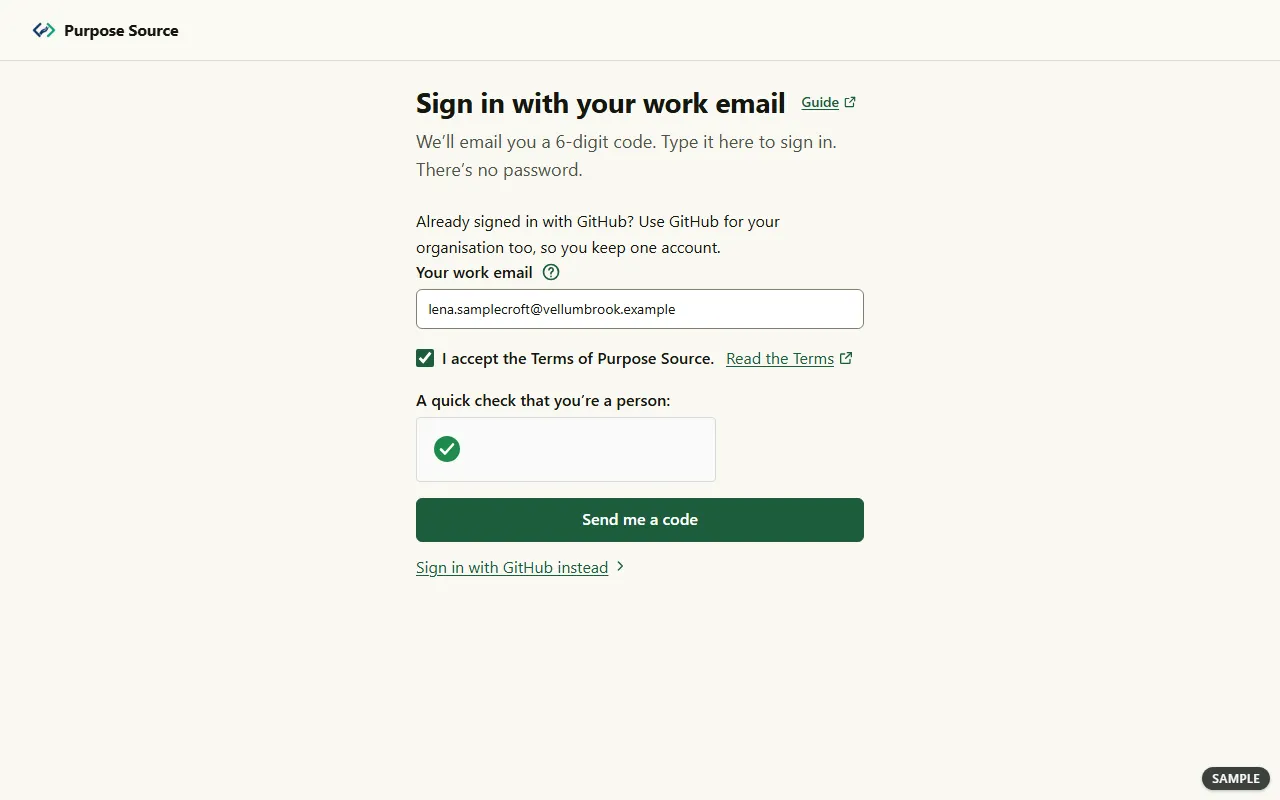
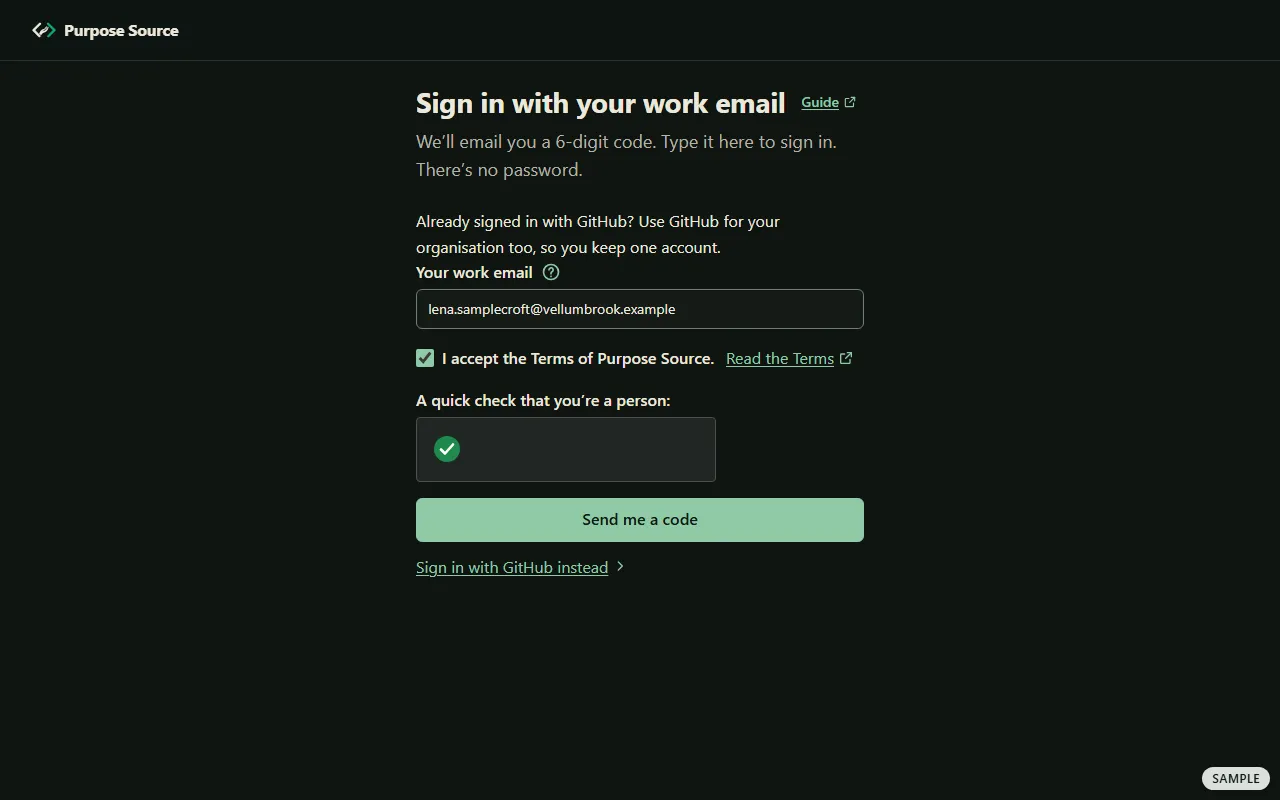
Sign in with your work email. Sample screen: made-up names. -
Type Your work email. Its ?, Why a code?, says what a code proves: only that you can read this mailbox, not who you are.
-
Tick I accept the Terms of Purpose Source. Read the Terms opens them in a new tab.
-
Let the quick check that you’re a person finish. It’s a small box from Cloudflare, and it usually passes by itself.
-
Press Send me a code. The page says Check your email.
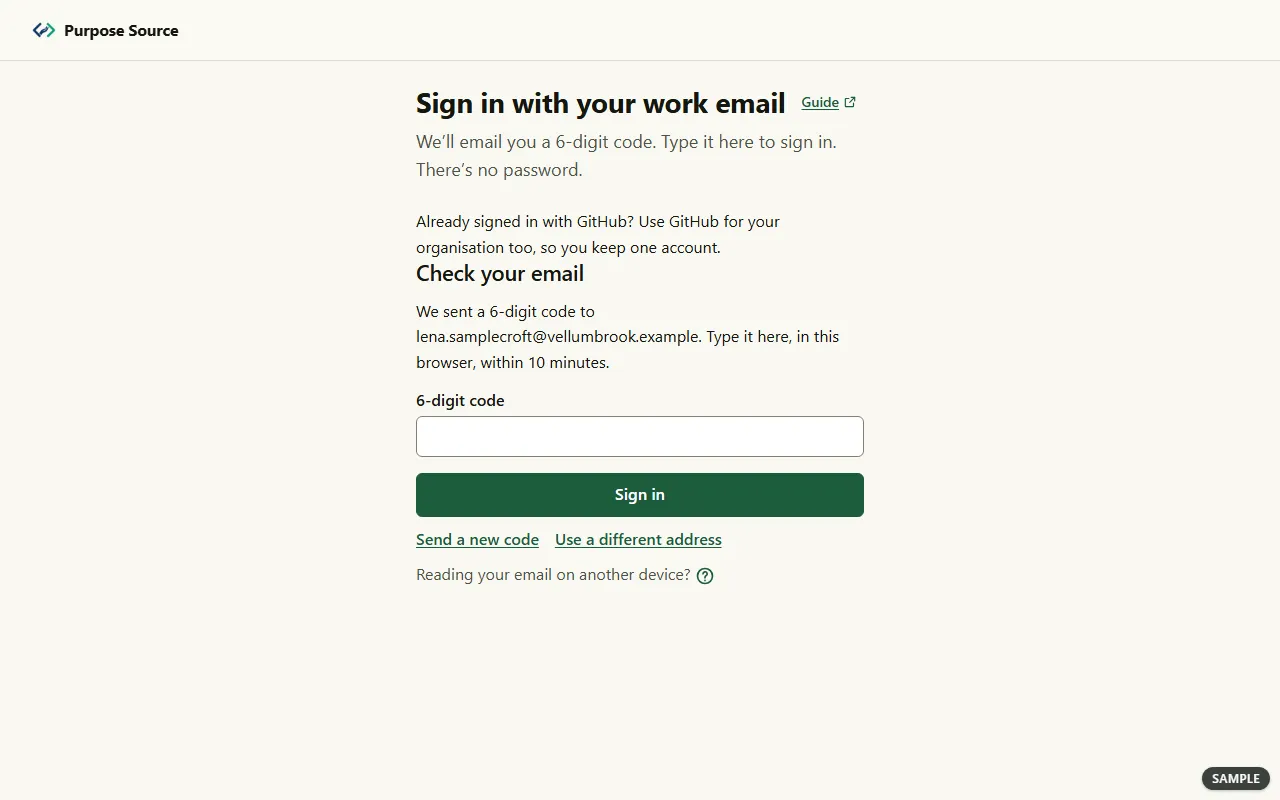
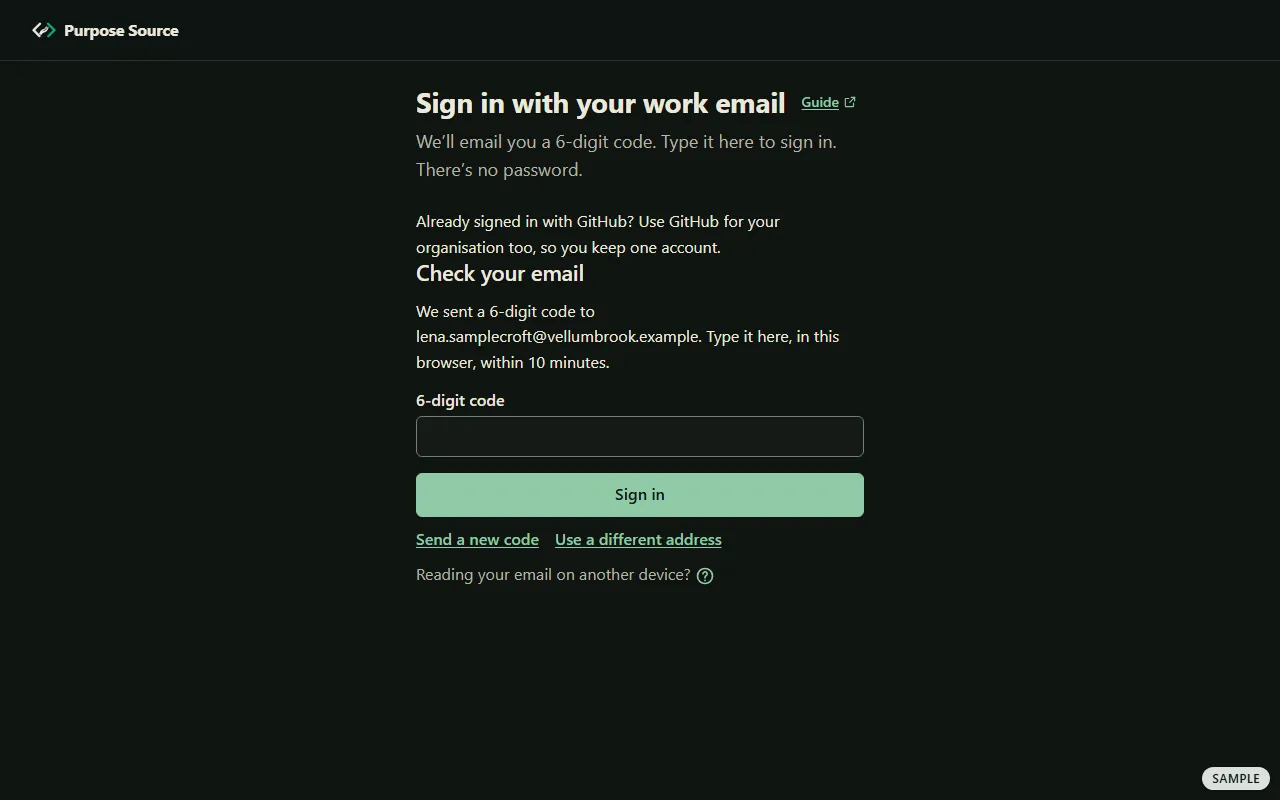
Check your email. Sample screen: made-up names. -
Type the code from the email into 6-digit code, in this browser, within 10 minutes, and press Sign in. No email? Press Send a new code. Typed the wrong address? Press Use a different address.
What happens next: you’re signed in on the company side (your first screen), and the Terms you ticked are recorded. An account that signs in by email opens the company tools only: repositories and contributions always need a GitHub login.
Open the emailed link on another device
Section titled “Open the emailed link on another device”Reading your email on another device? The email also carries a link that signs you in on the device where you open it.
-
Open the link from the email. The page Confirm your sign-in says which address it signs in, showing only the first letter and the domain.
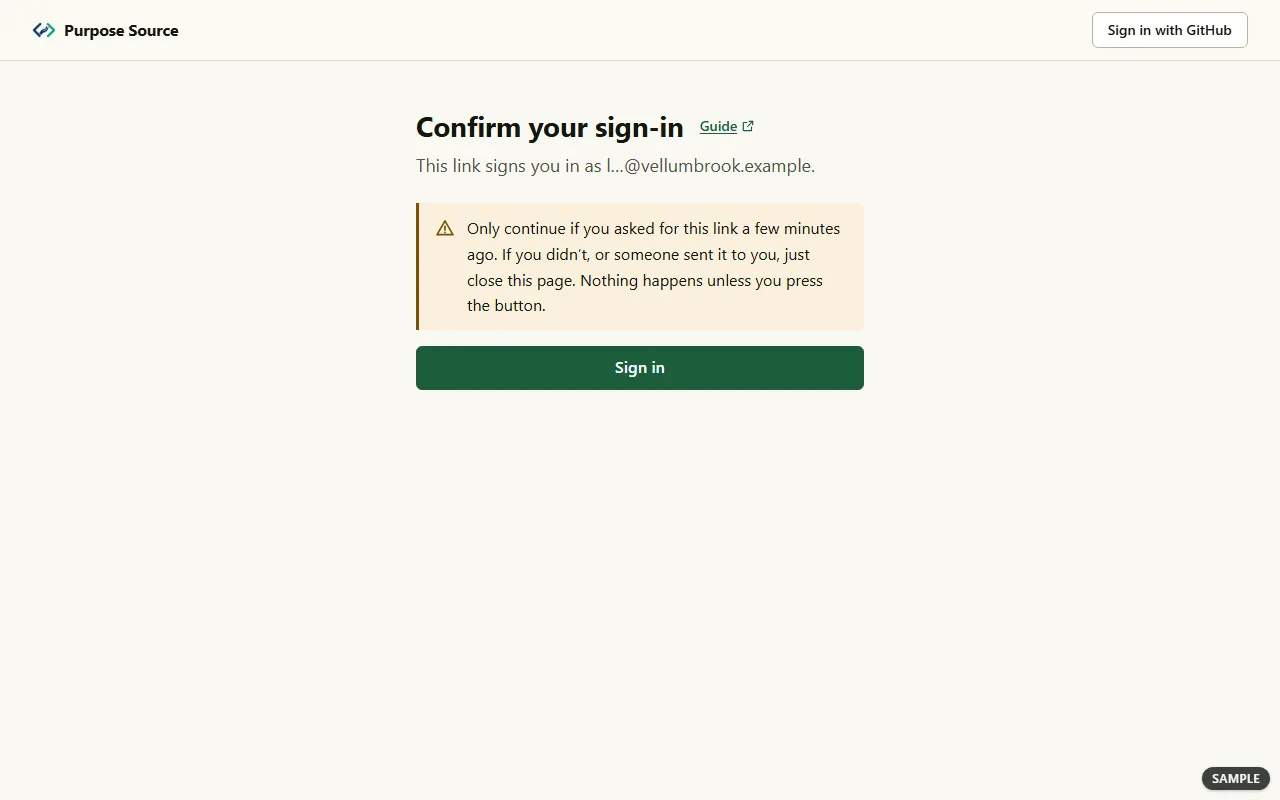
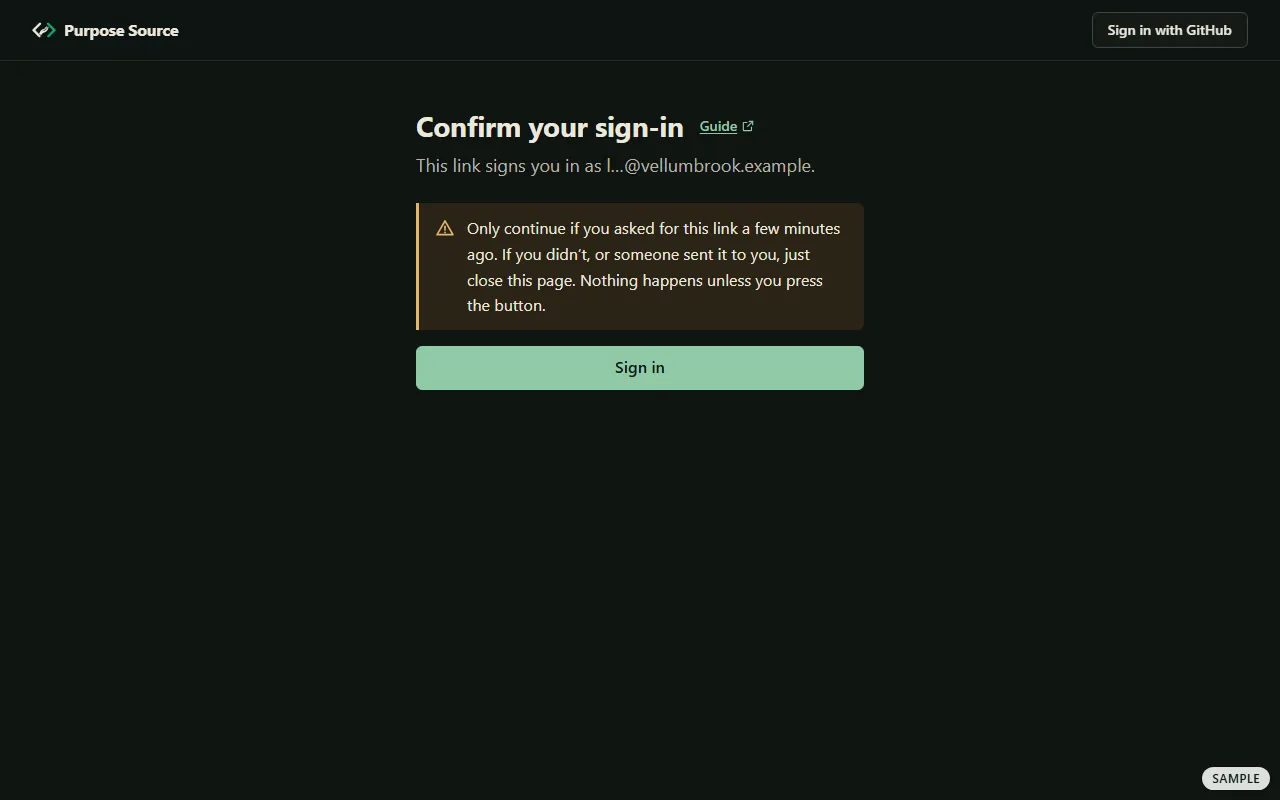
Confirm your sign-in. Sample screen: made-up names. -
Read the warning. Continue only if you asked for this link a few minutes ago. If you didn’t, or someone sent it to you, close the page: nothing happens unless you press the button.
-
Press Sign in.
What happens next: you’re signed in on this device. Opening the link alone signs nobody in; only the button does. A link works once, for 15 minutes; after that, the page offers Get a new code.
Your first screen: register your organisation or accept an invitation
Section titled “Your first screen: register your organisation or accept an invitation”When you belong to no organisation yet, the company side asks What would you like to do? There’s no menu yet: just the logo and your account button.
-
Buying for your organisation, and nobody has registered it here? Press Register your organisation (registering). It’s free and doesn’t buy anything.
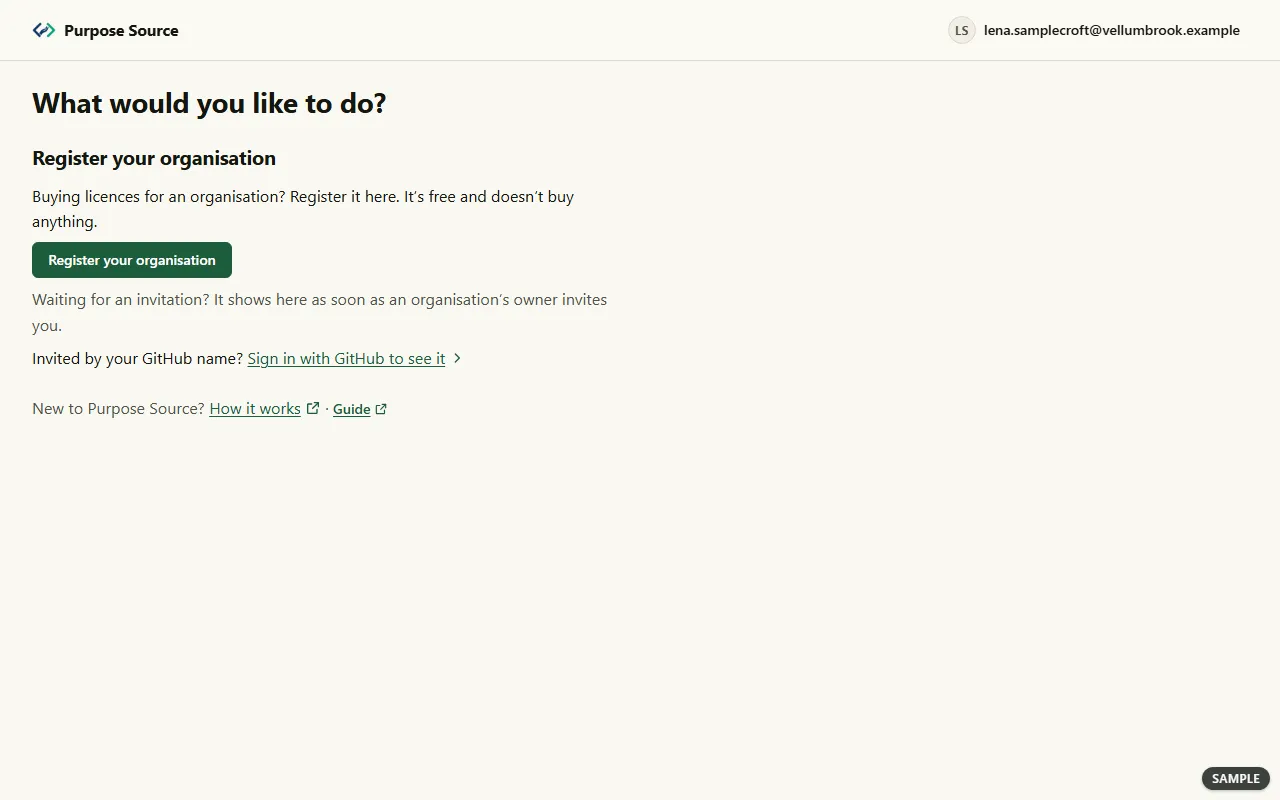
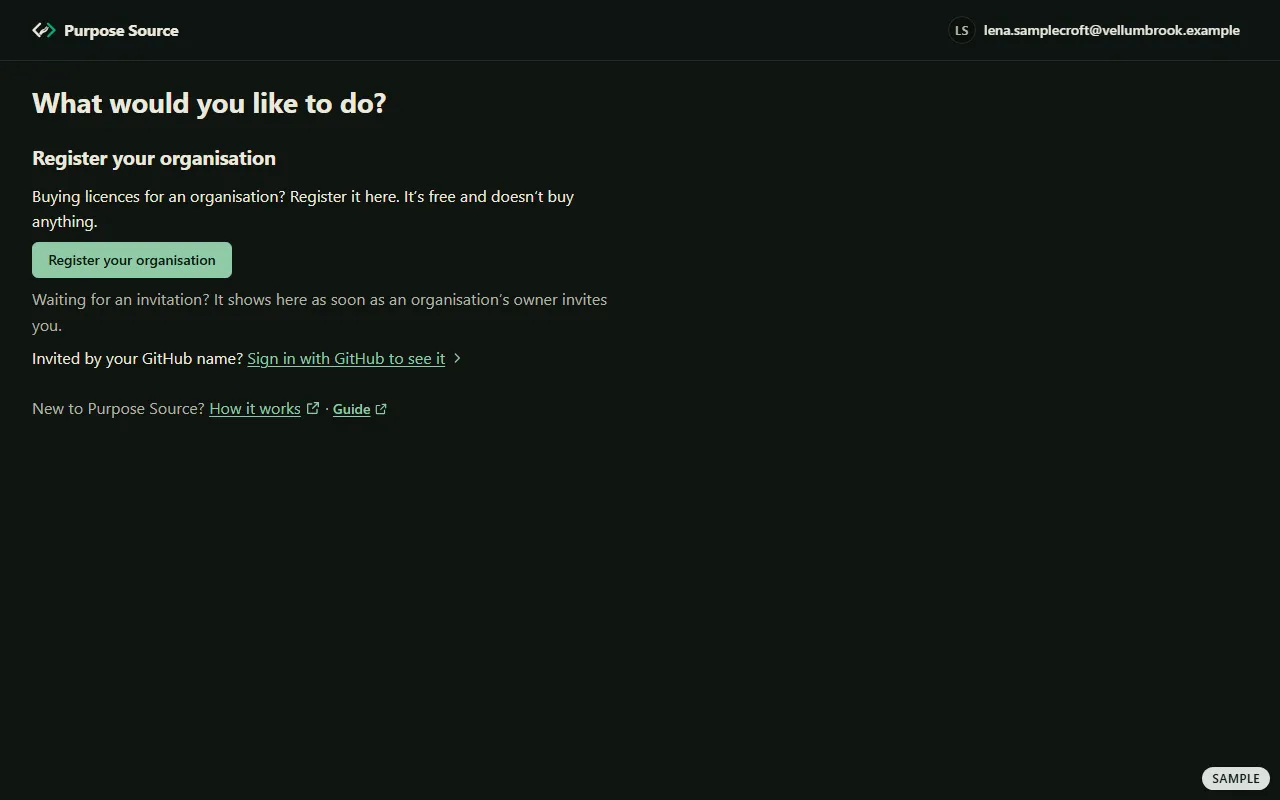
Your first screen. Sample screen: made-up names. -
Has a colleague registered it already? Ask one of its owners to invite you. As Waiting for an invitation? says, the invitation shows here as soon as they do.
-
Were you invited by your GitHub name? An account that signs in by email can’t see that invitation. Press Sign in with GitHub to see it, which opens Your account.
What happens next: once you belong to an organisation, the company side opens straight on its overview (the overview), unless an invitation is waiting for you.
Accept an invitation
Section titled “Accept an invitation”An owner can invite you by your email address or by your GitHub login. We don’t email you about it: the owner tells you, and the invitation waits for you when you sign in.
-
Sign in with the address or the GitHub login the owner used. Under Invitations waiting for you, each invitation names the organisation, its country and the role it offers you.
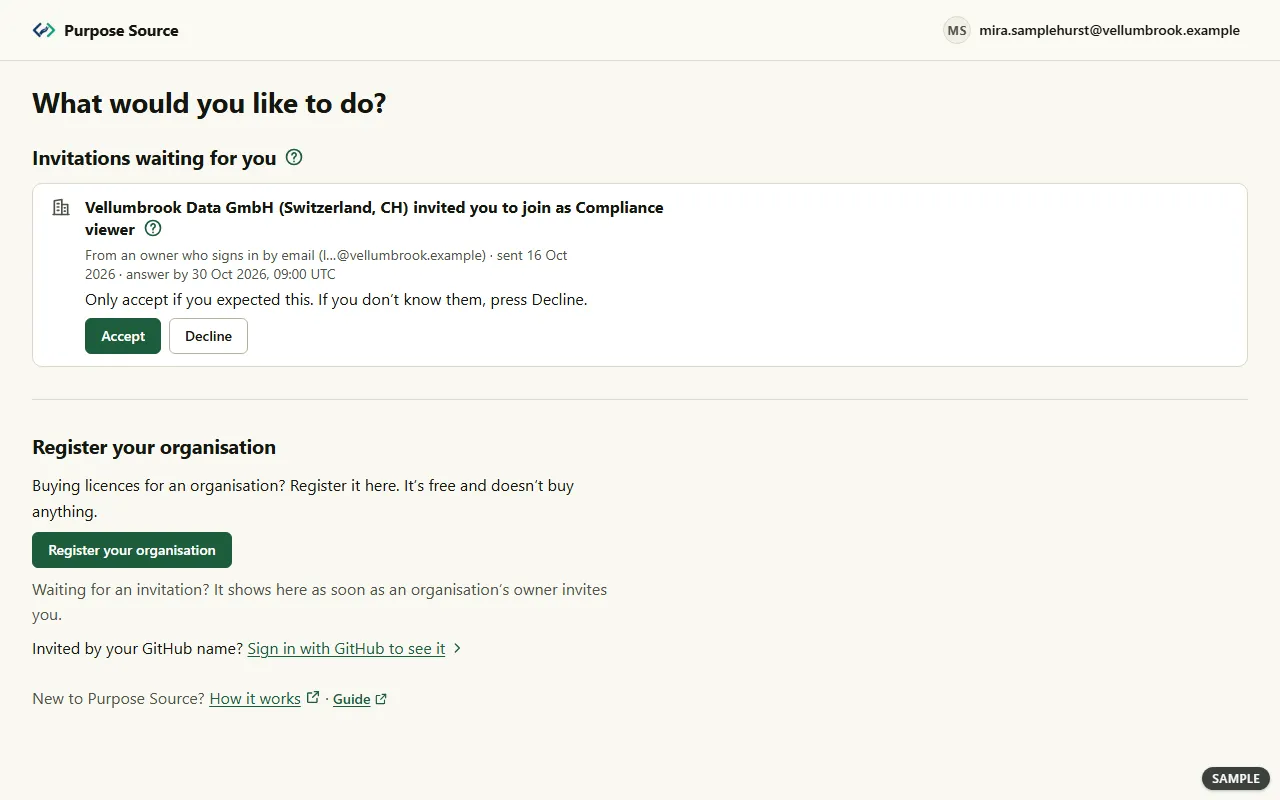
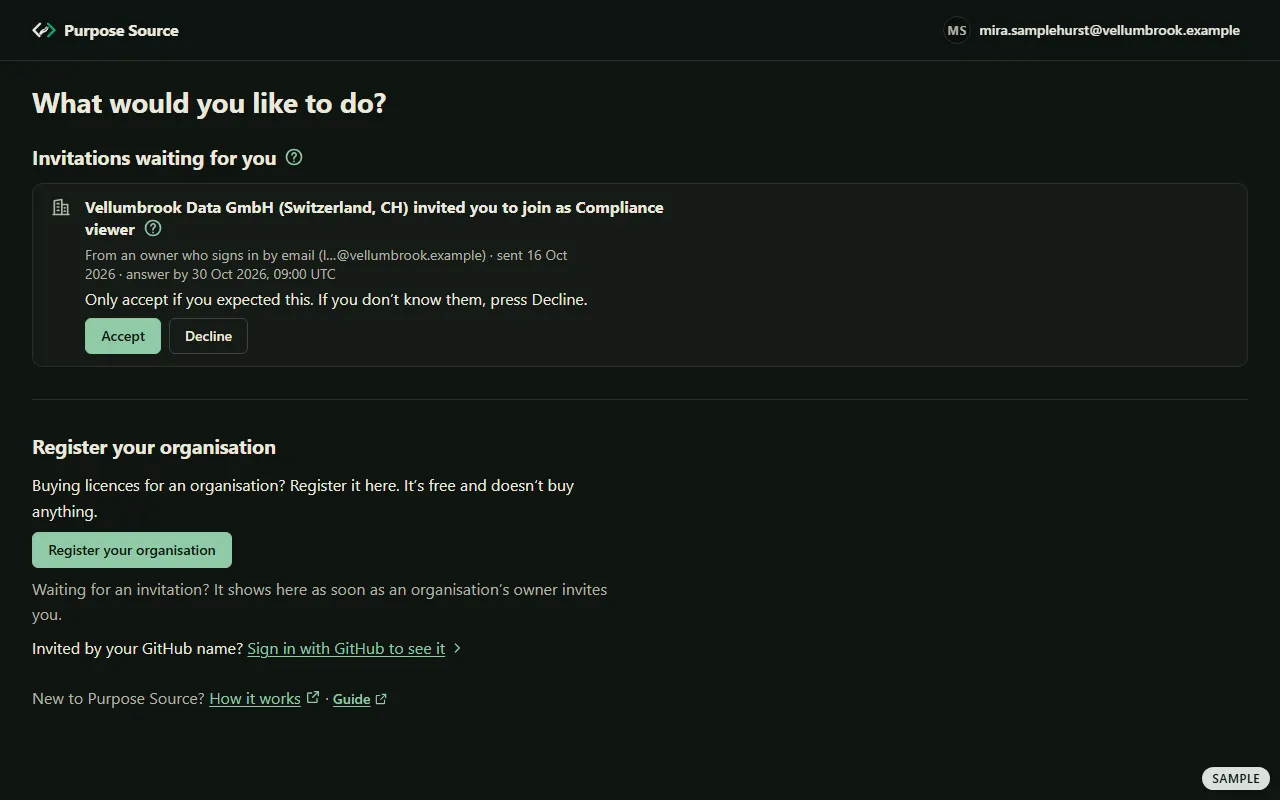
An invitation waiting for you. Sample screen: made-up names. -
Check who sent it: the owner’s GitHub login, or From an owner who signs in by email with the first letter and the domain of their address. The ? beside the role says what that role can do.
-
Only accept if you expected this. Press Accept. If you don’t know them, press Decline.
What happens next: until you press Accept, you’re not a member, and the organisation can’t act as you. Accept opens the organisation’s overview. Decline changes nothing on your account. Each invitation says when it must be answered by, and it waits on Your account too.
Register your organisation
Section titled “Register your organisation”Registering creates your organisation’s space here and makes you its owner. It doesn’t check your organisation, and it doesn’t buy anything.
-
Press Register your organisation on your first screen. You can also start from Register your company on Home on the projects side, or from + Register another organisation at the foot of an overview.
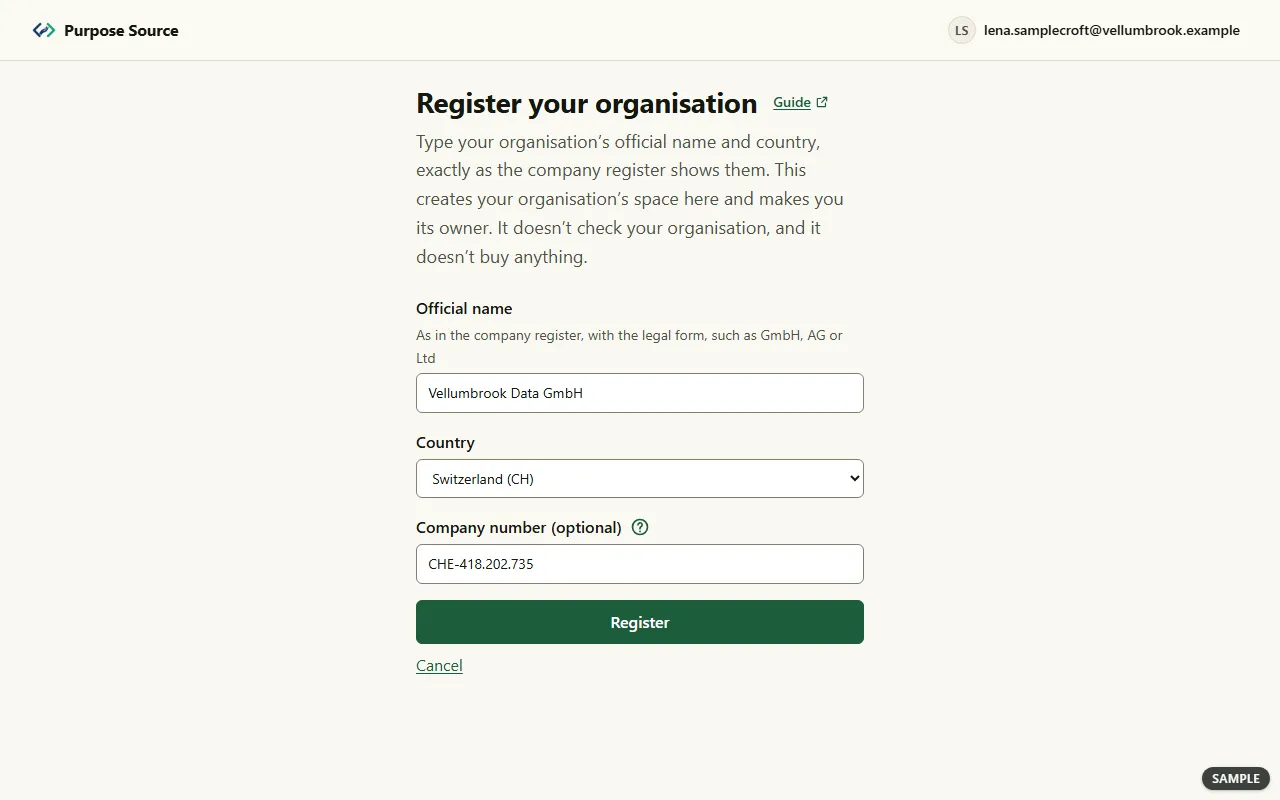
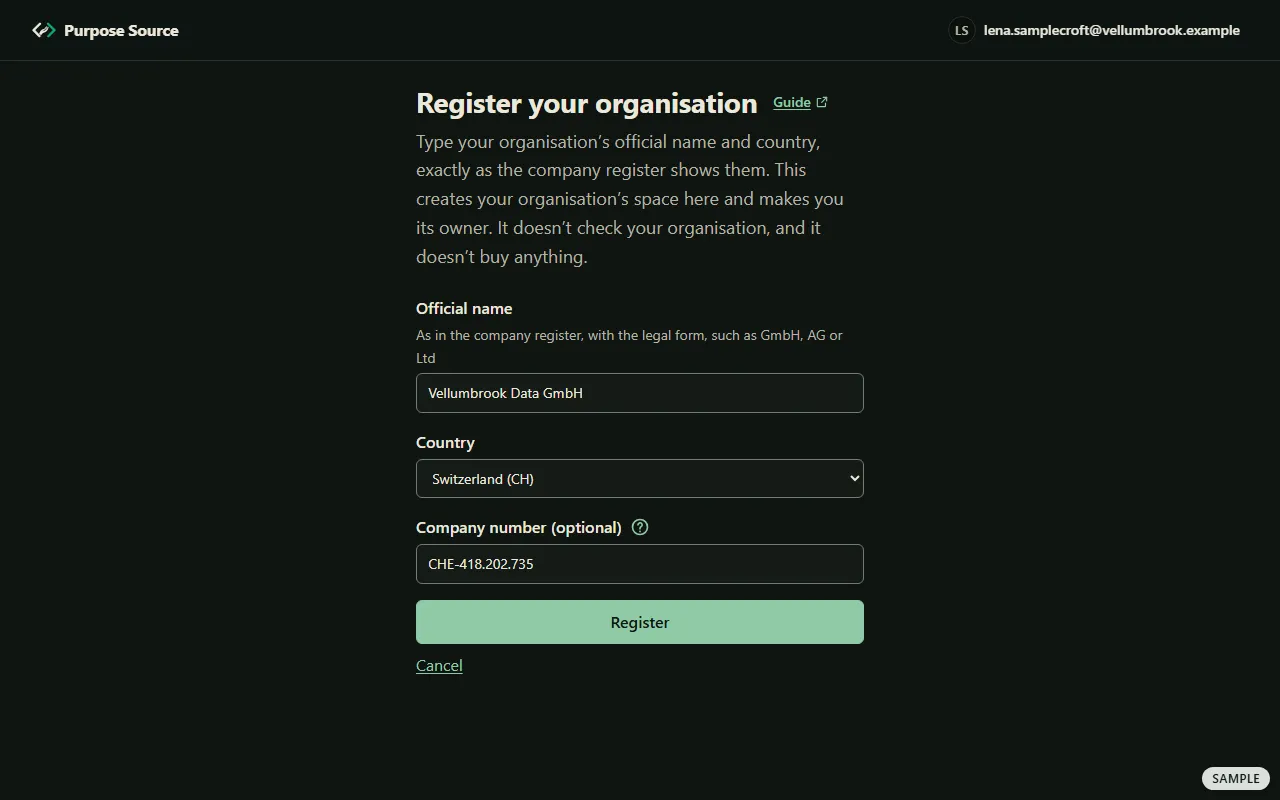
Register your organisation. Sample screen: made-up names. -
Type the Official name exactly as the company register shows it, with the legal form.
-
Choose the Country.
-
Add the Company number (optional) if you have it: the number the company register gives your organisation, such as a Handelsregister or Companies House number.
-
Press Register.
What happens next: you become the organisation’s owner, the dashboard switches to the company side, and the overview opens. If the organisation is registered here already, the page says so: ask its owner to invite you.
Switch to company licences
Section titled “Switch to company licences”If you look after projects on GitHub and also act for an organisation, your one account has both sides. The menu shows one side at a time.
-
Open the account menu: press your picture and login, at the foot of the menu on a computer, or at the top right on a phone (the account menu).
-
Press Switch to company licences. Or press your organisation’s name under it to go straight to its overview.
-
To go back, open the account menu on the company side and press Switch to your projects.
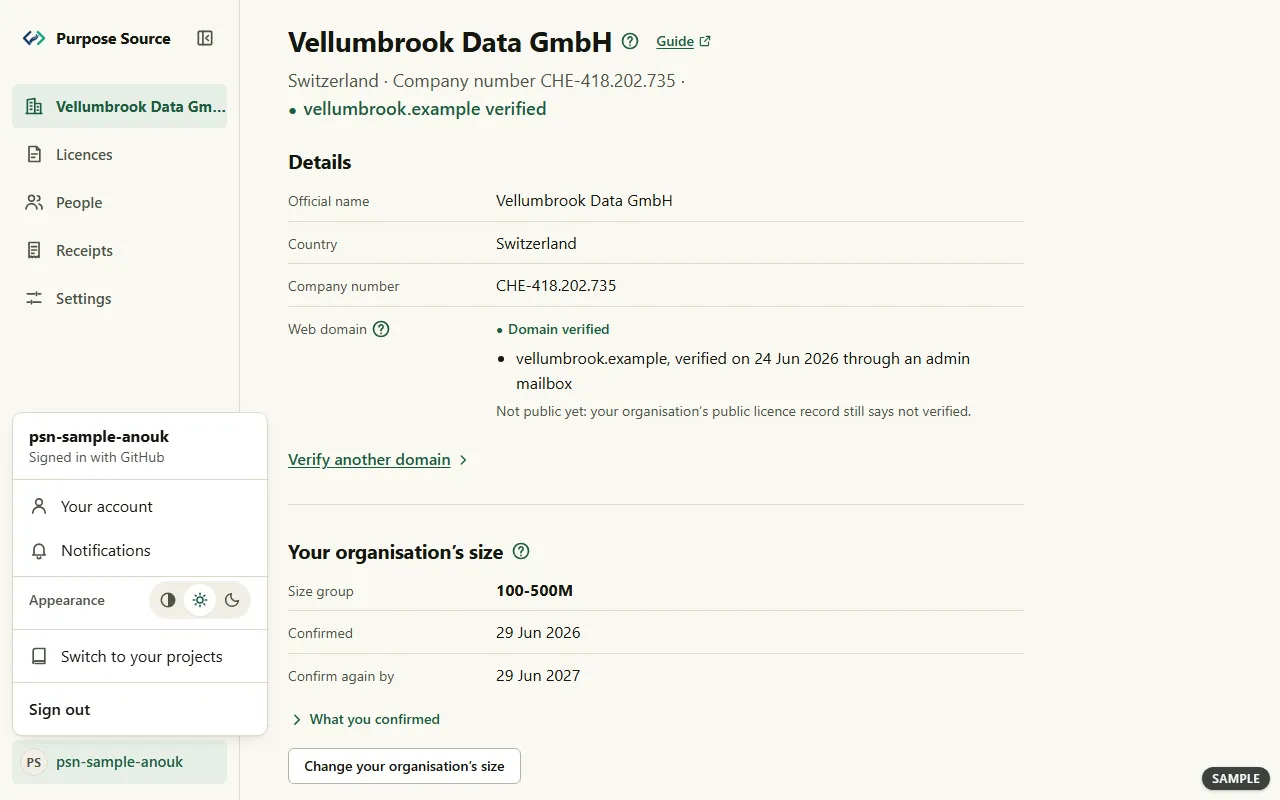
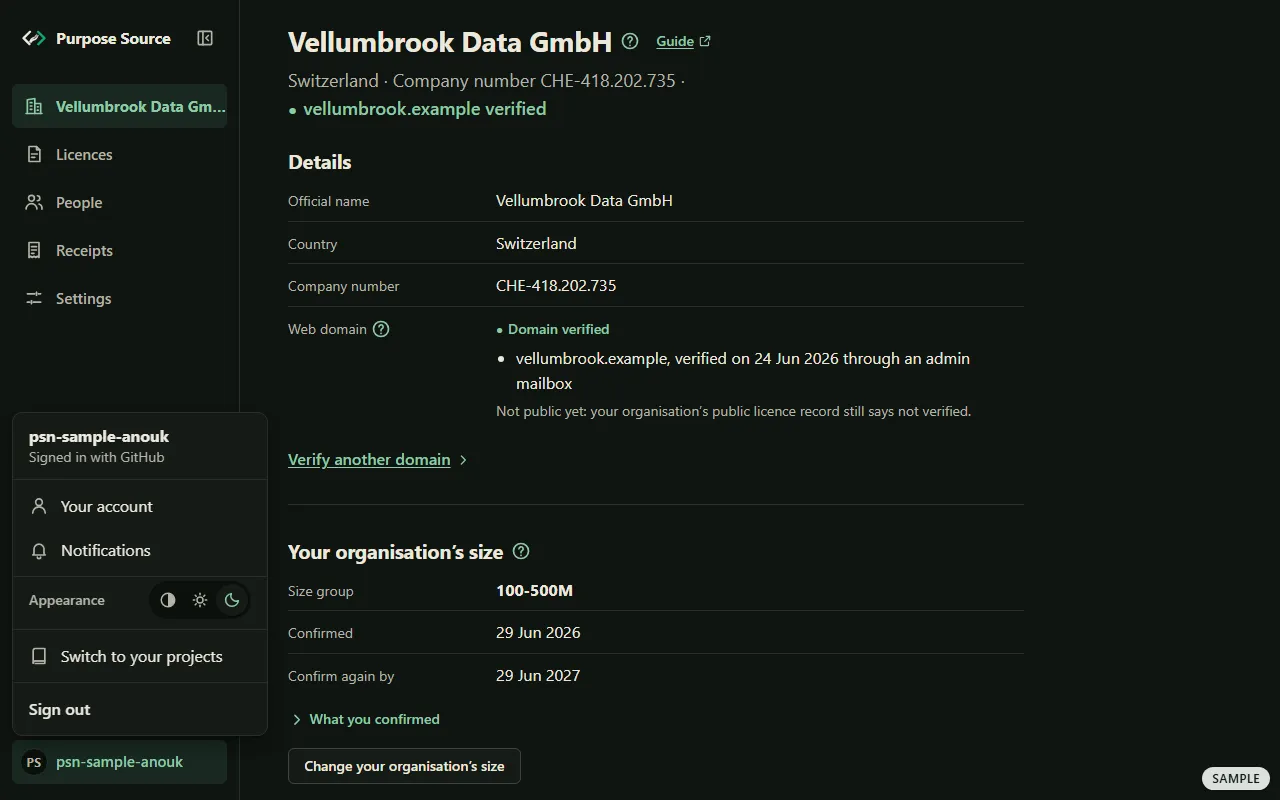
The account menu on the company side. Sample screen: made-up names.
What happens next: the menu shows the company side’s places, and the dashboard remembers your side in this browser. An account that signs in by email has no projects side, so it shows no switch. If you act for more than one organisation, each page of the company side has a list of them at the top: choose one and press Open to move to it.
Your organisation’s overview
Section titled “Your organisation’s overview”The overview is your organisation’s home here: its details, its size group, and whether the projects its licences name are covered.
-
Press your organisation’s name at the top of the menu (Overview on a phone). The title is its registered name. The line under it gives the country, the company number and a verified web domain.
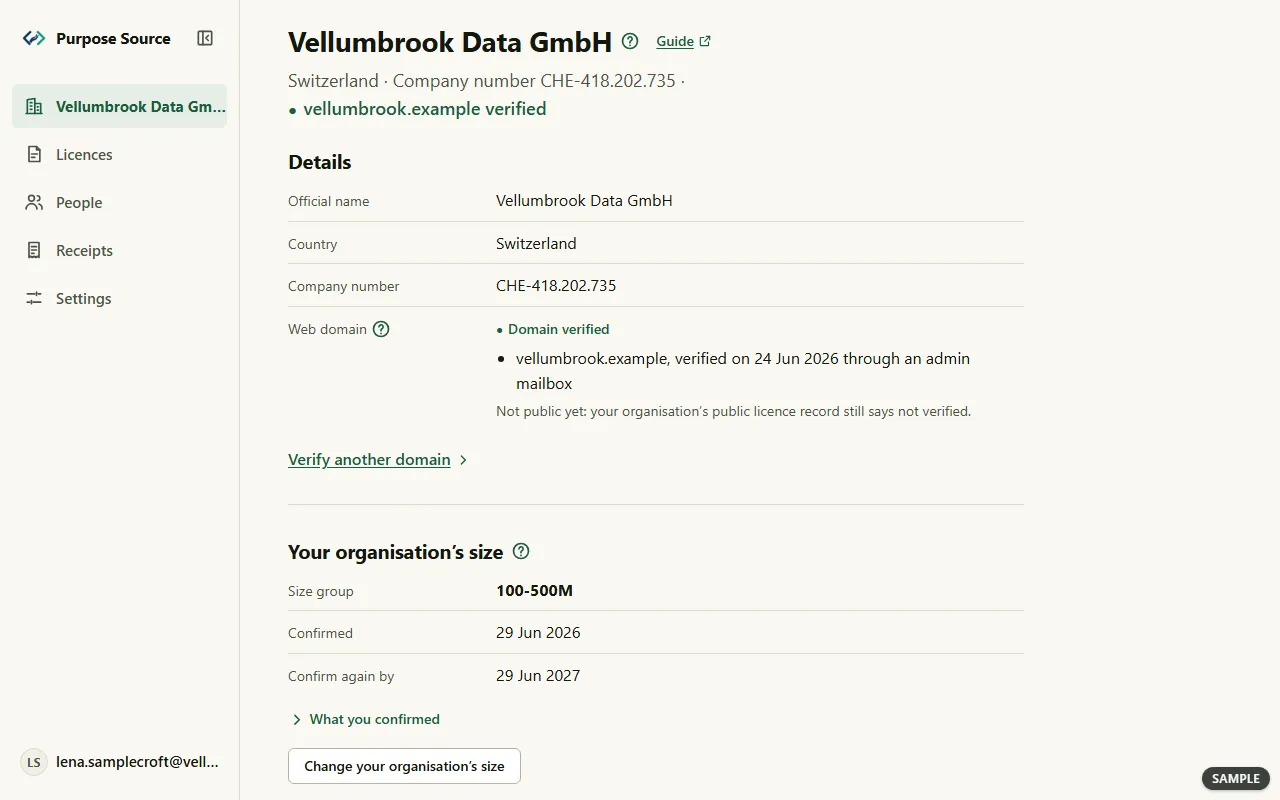
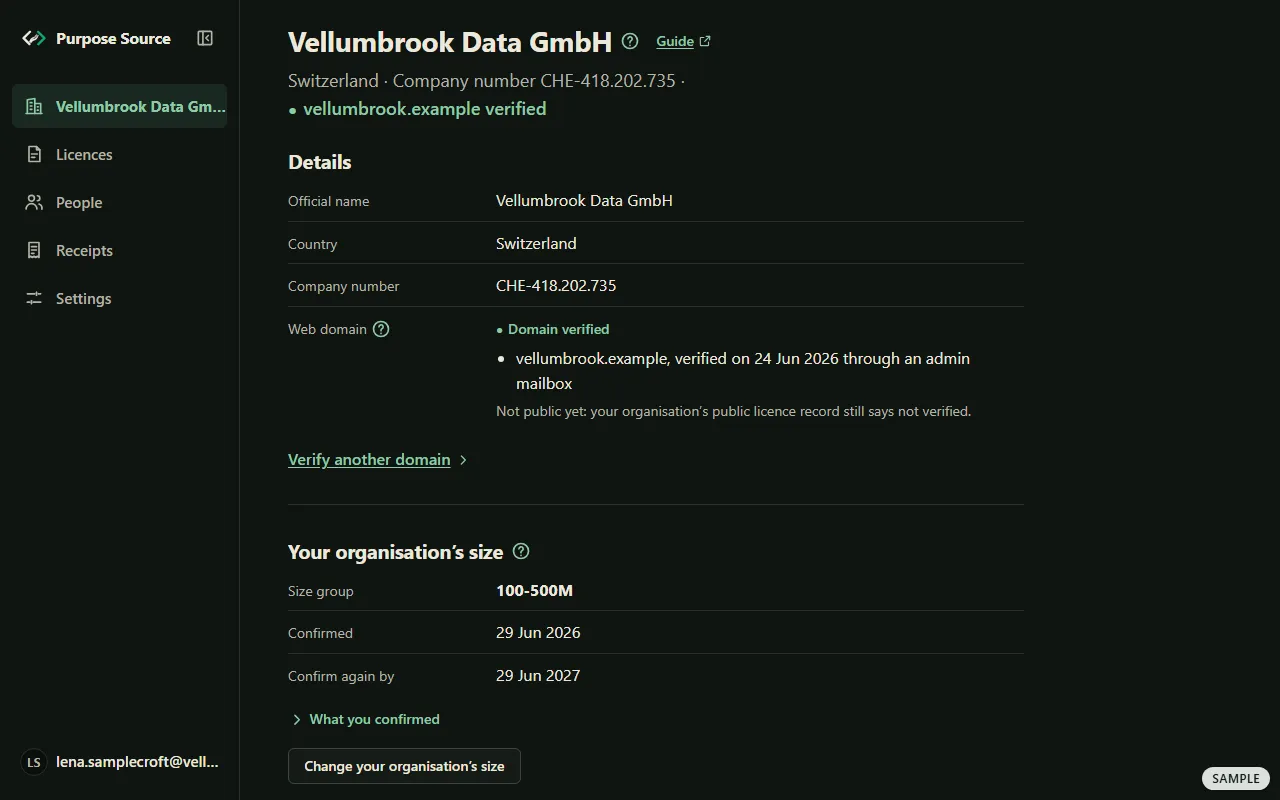
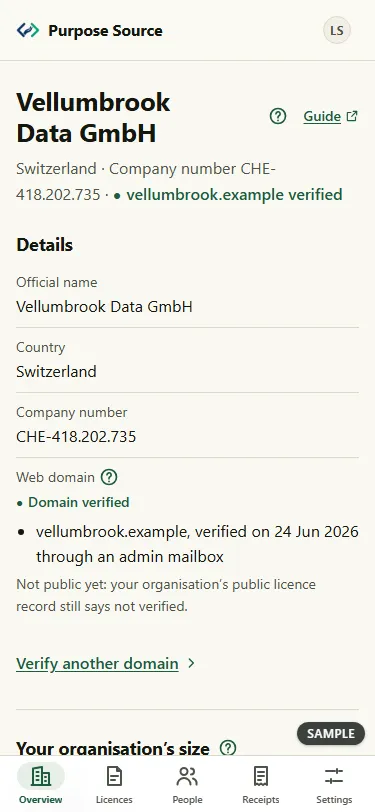
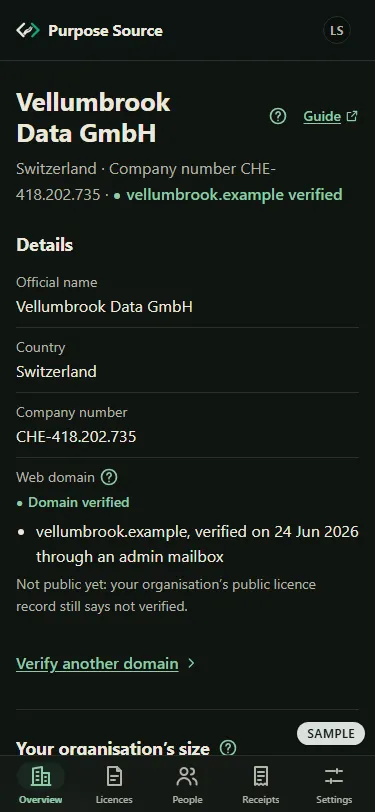
The overview. Sample screen: made-up names. -
Under Details, check the Official name, the Country and the Company number, as you registered them.
-
Web domain lists the domains an owner has verified, with when and how. To add one, an owner presses Verify a domain, or Verify another domain, and types the code we email to an address at that domain. Its ? explains the rules: an admin mailbox, such as admin@ or postmaster@, gives a verification no other organisation can take over, and public mailboxes can’t be used.
What happens next: once a domain is verified, the row says Not public yet: your organisation’s public licence record still says not verified. That’s how it works today: the public record doesn’t show verified domains yet.
Confirm your organisation’s size
Section titled “Confirm your organisation’s size”Prices depend on your organisation’s yearly revenue. You state your size group yourself, and confirm it again each year. Licences asks for it before you renew a licence.
-
On the overview, under Your organisation’s size, press Confirm your organisation’s size, or Change your organisation’s size when one is on record.
-
Choose your Size group. The groups come from the published price list.
-
Read the statements, including Your whole group of companies: count the revenue of your whole group, as the licence defines it.
-
Tick I confirm the statements above and press Confirm.
What happens next: the page says Confirmed. We keep the statements exactly as they were shown to you. What you confirmed keeps the statements, and Confirm again by says when to confirm next. If your organisation grows, change your size group within 60 days. Its ? says that growing never changes what you pay for a licence term that has already started. The rules: bands and self-certification.
See whether each project is covered
Section titled “See whether each project is covered”-
Scroll down the overview to Is each project covered? Each project your organisation’s licences name has its own row, with its answer, for example Covered — Project Entitlement, when it was Checked, and the Licence term.
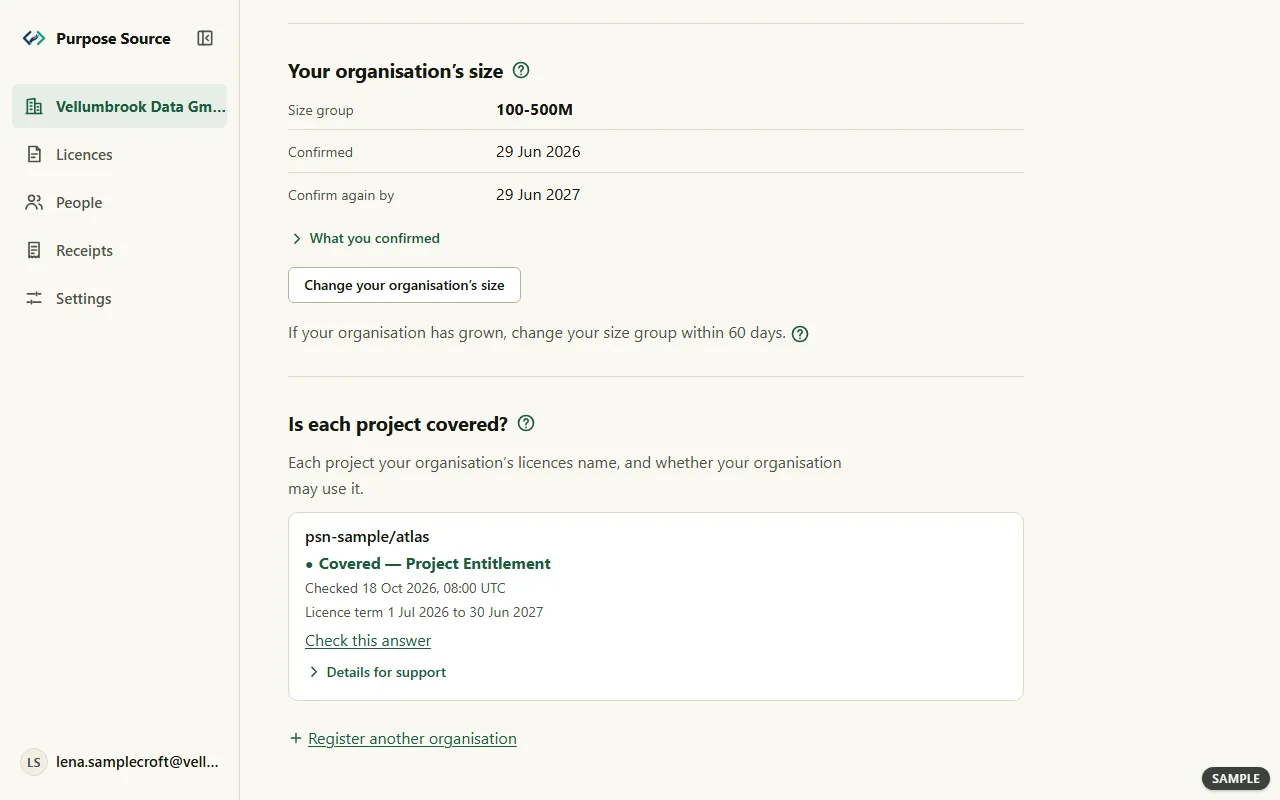
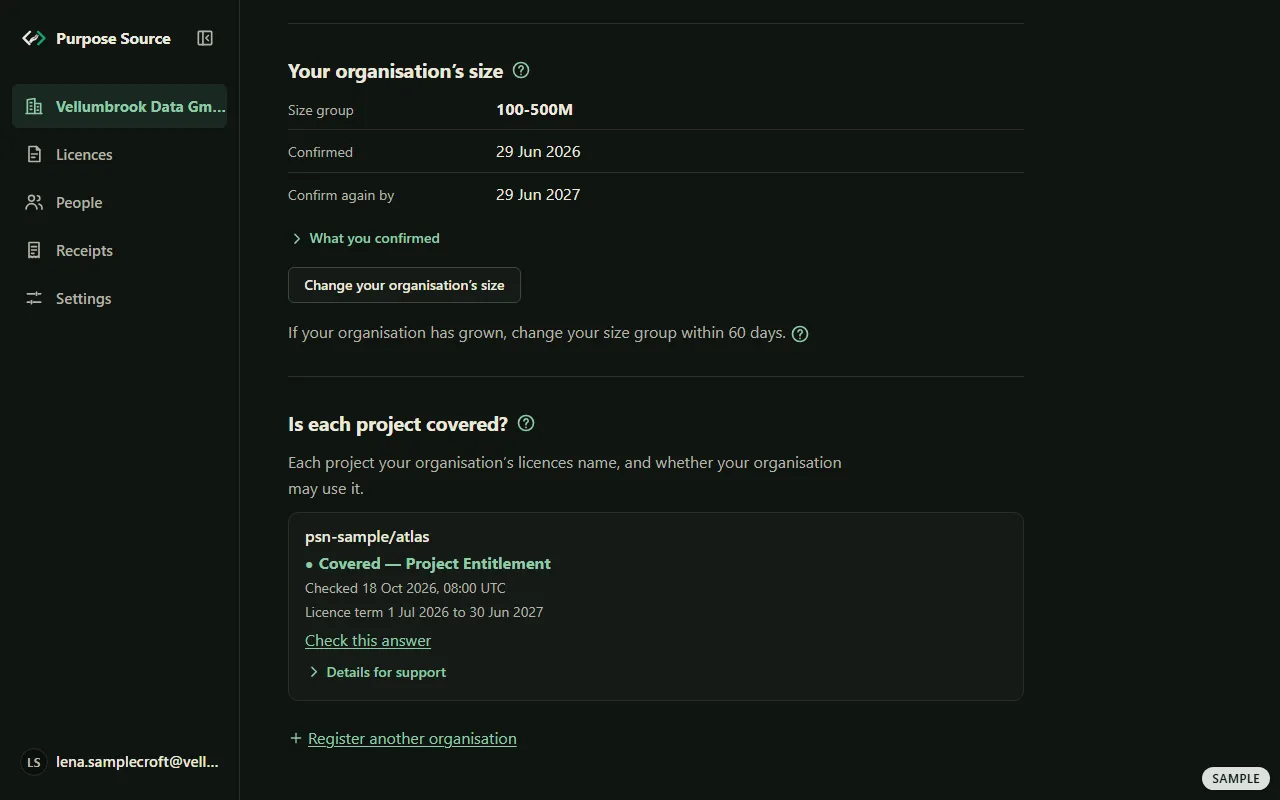
Is each project covered?. Sample screen: made-up names. -
Press Check this answer to see the published answer for yourself. The ?, What does covered mean?, says that anyone can check it with the same public method we use.
-
Details for support holds the project’s GitHub id and the method, for when you write to us.
What happens next: a Pass covers every registered project, so with a Pass there’s no list of single projects here. In the grace period after a term ends, its row shows when the grace period ends. The rules: renewal, vesting and lapse and how coverage is determined.
Buy a licence
Section titled “Buy a licence”A Project licence covers one registered repository. The Pass covers every registered repository, present and future. Your first licence is bought on the public site’s pricing page; in the dashboard, you renew it.
-
On the pricing page, choose Your group’s annual revenue, then Project or The Pass. For a Project licence, choose the repository under Which repository? Then press Continue.
-
Under Organisation details, type the Registered legal name and the Country code, as your company register shows them.
-
Read the sentence beside the one required box, and the pages it links, then tick it (what it confirms). List our organisation’s name publicly is optional and starts unticked (the public listing). With the Pass, Credit your favourite repositories is optional too (naming projects).
-
Press Continue to payment, and pay by card in Paddle’s checkout. Paddle, our online reseller, takes the payment. A purchase above the card limit in the fee schedule is invoiced by Paddle and paid by bank transfer: it can’t be started on the pricing page, where the button then says Paid by invoice and the page gives an address for questions.
The dashboard has a page of its own for buying, Buy a licence for your organisation. It’s the sign-in step before checkout, marked Step 1 of 2: sign in: you sign in with your work email, as above (signing in).
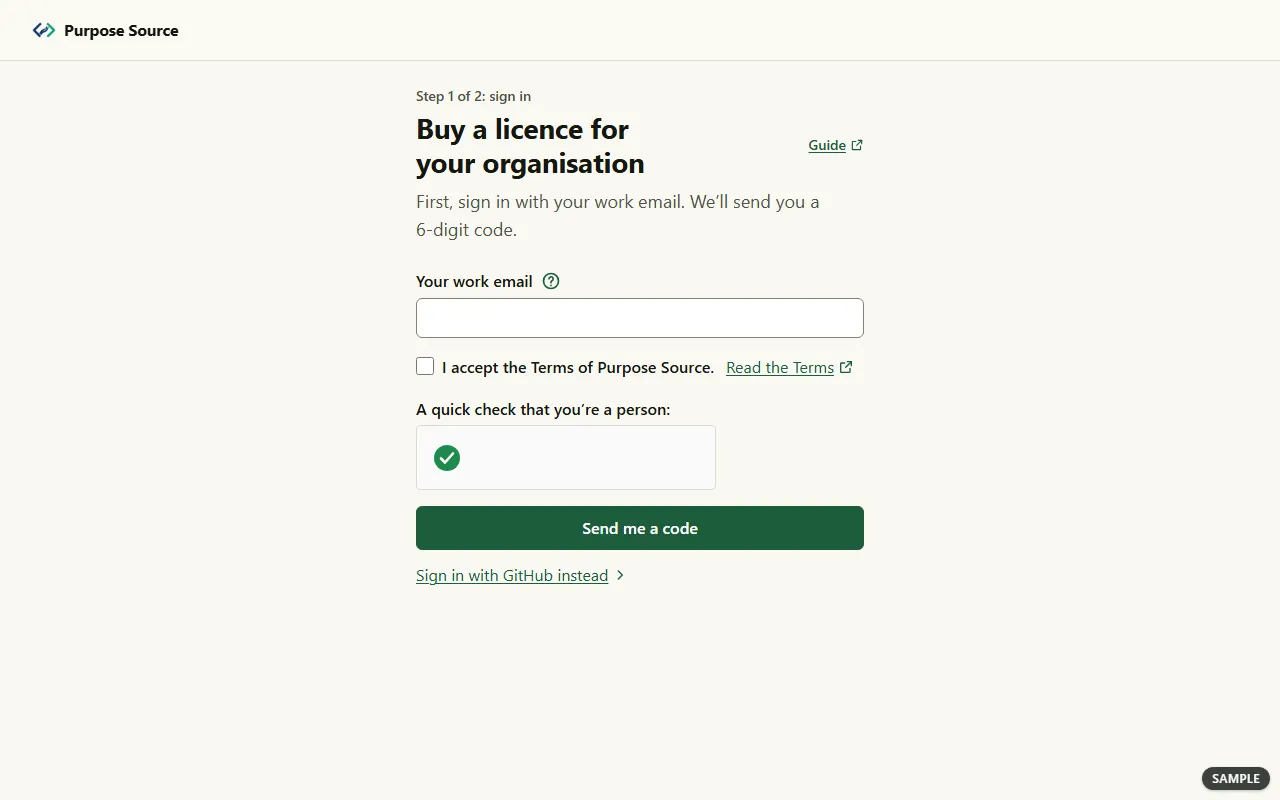
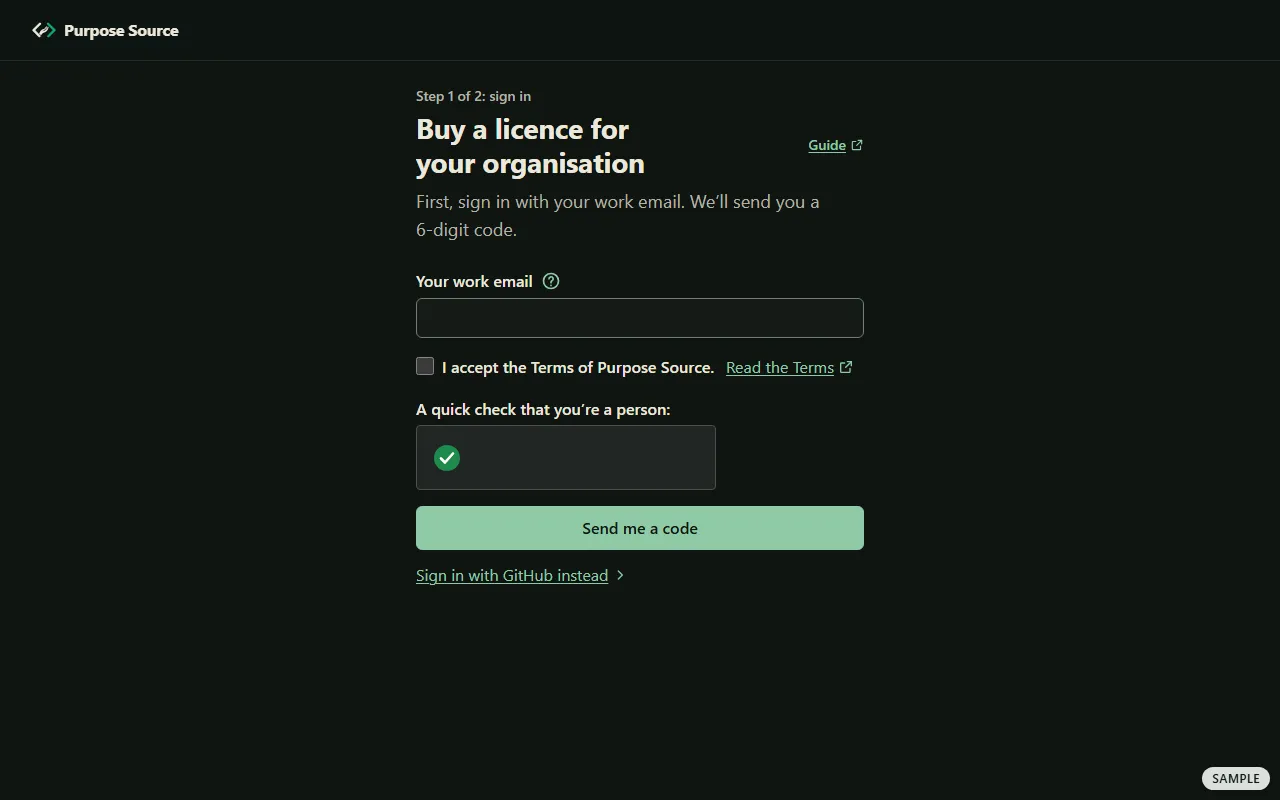
What happens next: once you’re signed in, the Buy page says You are signed in. Taking you to the next step… and opens your organisation’s Licences page, or Register your organisation if you have none yet. After a purchase, one email brings the certificate, its verification link and the address of your signed coverage record (what arrives). Type the address in yourself: verify only at purposesource.org/verify. The rules on lanes and prices: the lanes and the Terms & purchase details.
Your licences: renew or cancel
Section titled “Your licences: renew or cancel”Licences lists every licence your organisation holds, one card each. An owner, or someone with the Billing role, buys, renews and cancels them.
-
Press Licences in the menu. Under Your licences, each card names what was bought and the repository, for example Project licence, with its state, such as Active.
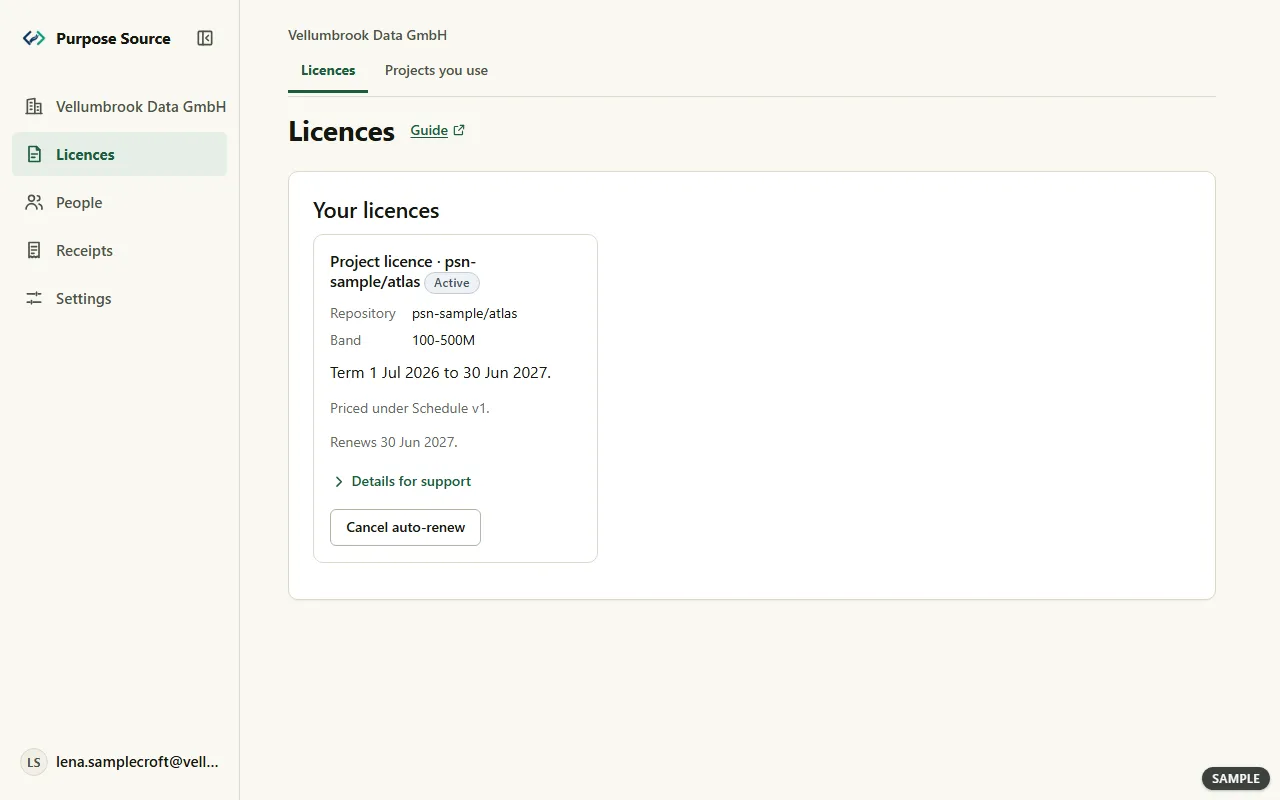
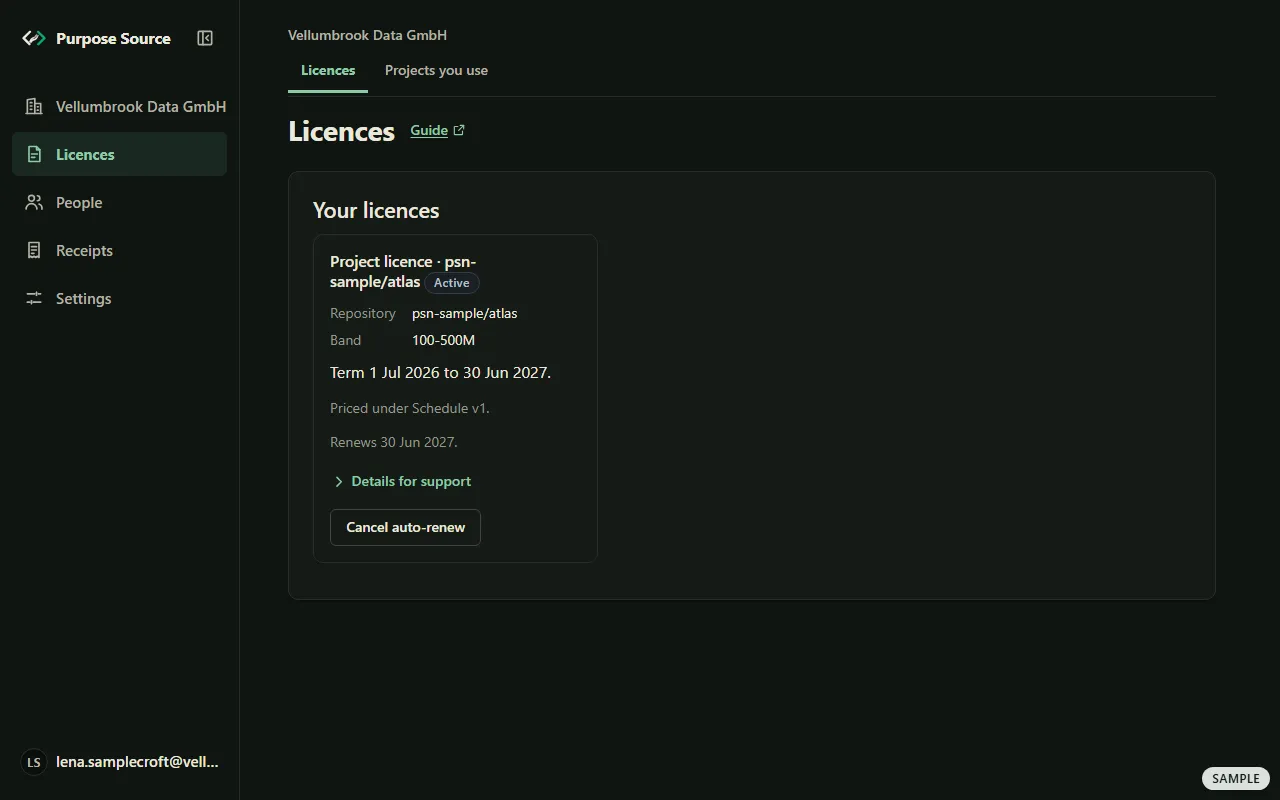
Your licences. Sample screen: made-up names. -
Read the card: the Repository, the Band, the term, the published schedule it was priced under (Priced under Schedule and its version), and Renews with its date, or Does not renew.
-
To stop it renewing, press Cancel auto-renew. The confirmation, Cancel this Entitlement, says your paid term runs to its end and nothing is charged after it, and shows what stays covered, with Download the signed record. Press Yes, cancel it, or Go back.
-
To renew a licence that doesn’t renew or has lapsed, press Renew this Entitlement; in its grace period, the button is Reinstate coverage. Check the Band in force, read the statements and the Entitlement terms, tick the box, and press Continue.
What happens next: after a cancel, the card says Done. Coverage runs to and the date. It takes one click and one confirmation. Every part of the software made public on or before the recorded end of your paid term stays covered permanently. After Continue, Paddle’s payment page opens in a new tab, and the page updates when the payment is recorded, which can take a few minutes. The renewal screen never sees a payment method: Paddle takes the payment.
A renewal above the card limit is paid by bank transfer against an invoice. The page asks for the Invoice address first, then shows Pay by bank transfer with the Invoice number, the Transaction reference and the Amount due. Until Paddle confirms the payment, the licence is provisional. If your size isn’t confirmed, the page asks you to confirm it on the overview first (your size). The rules: renewal, vesting and lapse and the refund policy.
Name the projects you use
Section titled “Name the projects you use”Naming projects is optional. With a Pass, each project you name is attributed 1% of the part of your fee we pass on, and the rest is split equally across all registered projects. With a Project licence, all of it is attributed to the one repository you chose. The list changes neither your coverage nor your price.
-
Press Licences, then Projects you use in the row at the top.
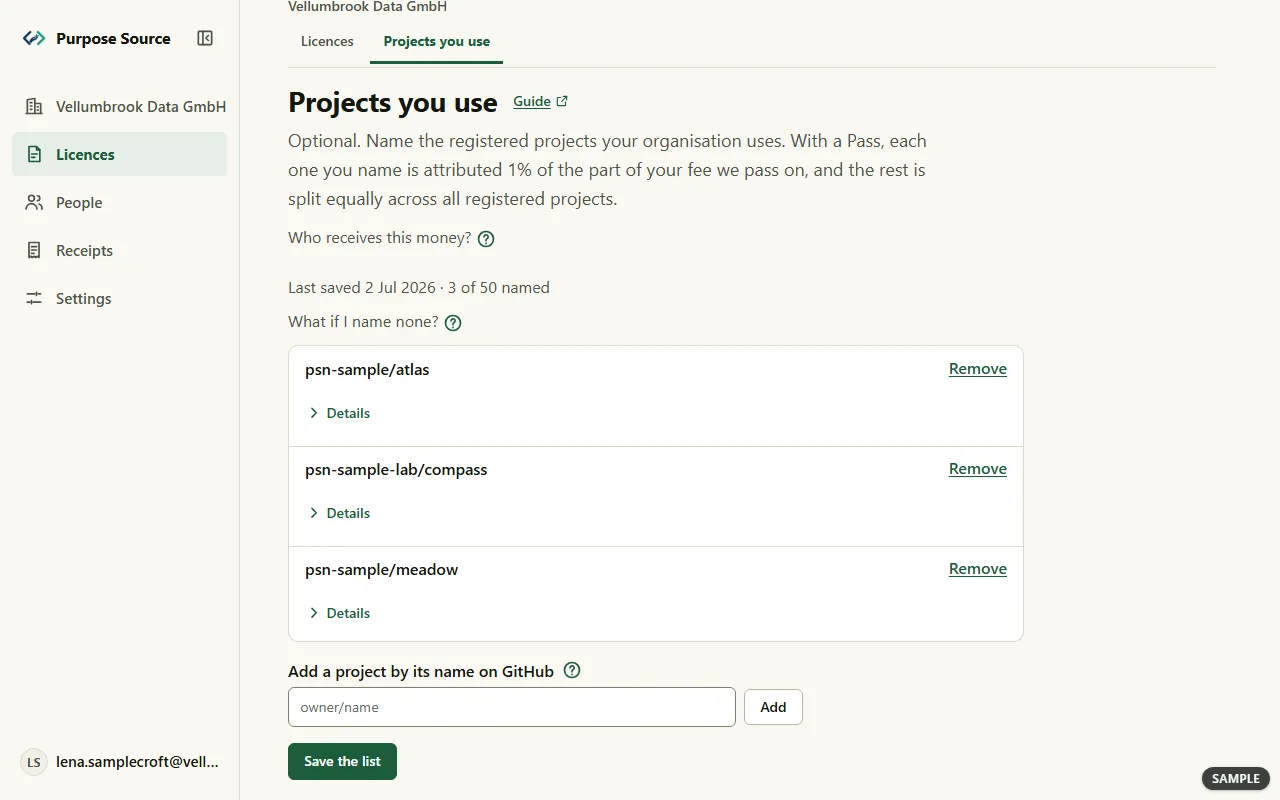
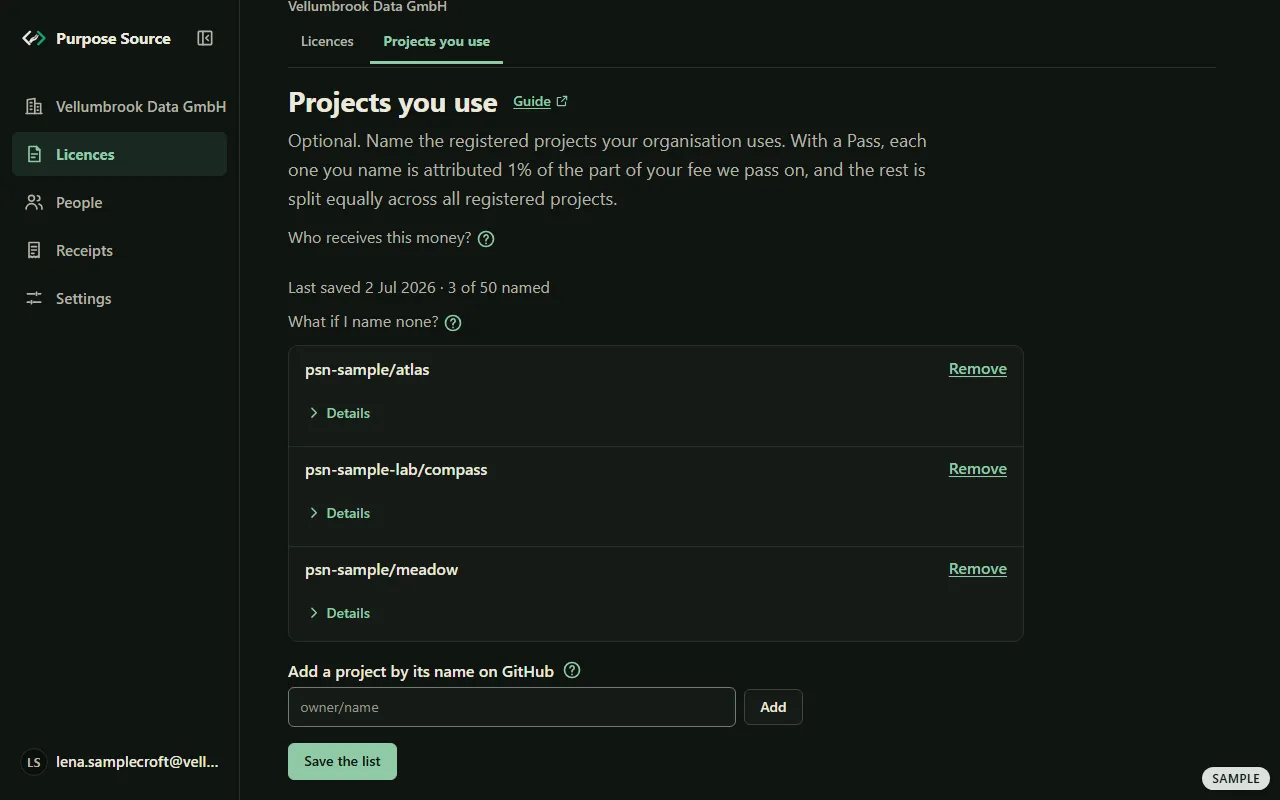
Projects you use. Sample screen: made-up names. -
In Add a project by its name on GitHub, type the part of the project’s GitHub address after github.com/, owner, a slash and name, and press Add. Only a registered project can be named. The ?, Where do I find this?, shows an example.
-
Press Remove on a row to take a project off. The counter says how many you’ve named, up to fifty.
-
Press Save the list.
What happens next: the page says Saved., and the line at the top shows when the list was last saved. You can change it at any time. What if I name none?: with a Pass, all of the part we pass on is split equally. Who receives this money?: only charities. No contributor, and nobody who owns or looks after a registered project, ever receives any of it. A list is never published as a list of one organisation’s dependencies. Only an owner, or someone with the Billing role, sees this page. The rules: where your passed-on share is attributed.
Invite people and give them roles
Section titled “Invite people and give them roles”People lists everyone who can act for your organisation here, and what each of them may do. Adding people is free, with no limit. Only an owner can invite people or remove a role.
-
Press People in the menu, then + Invite someone.
-
Under How do you want to name them?, choose By GitHub login or By email, and type the GitHub login or the Email address.
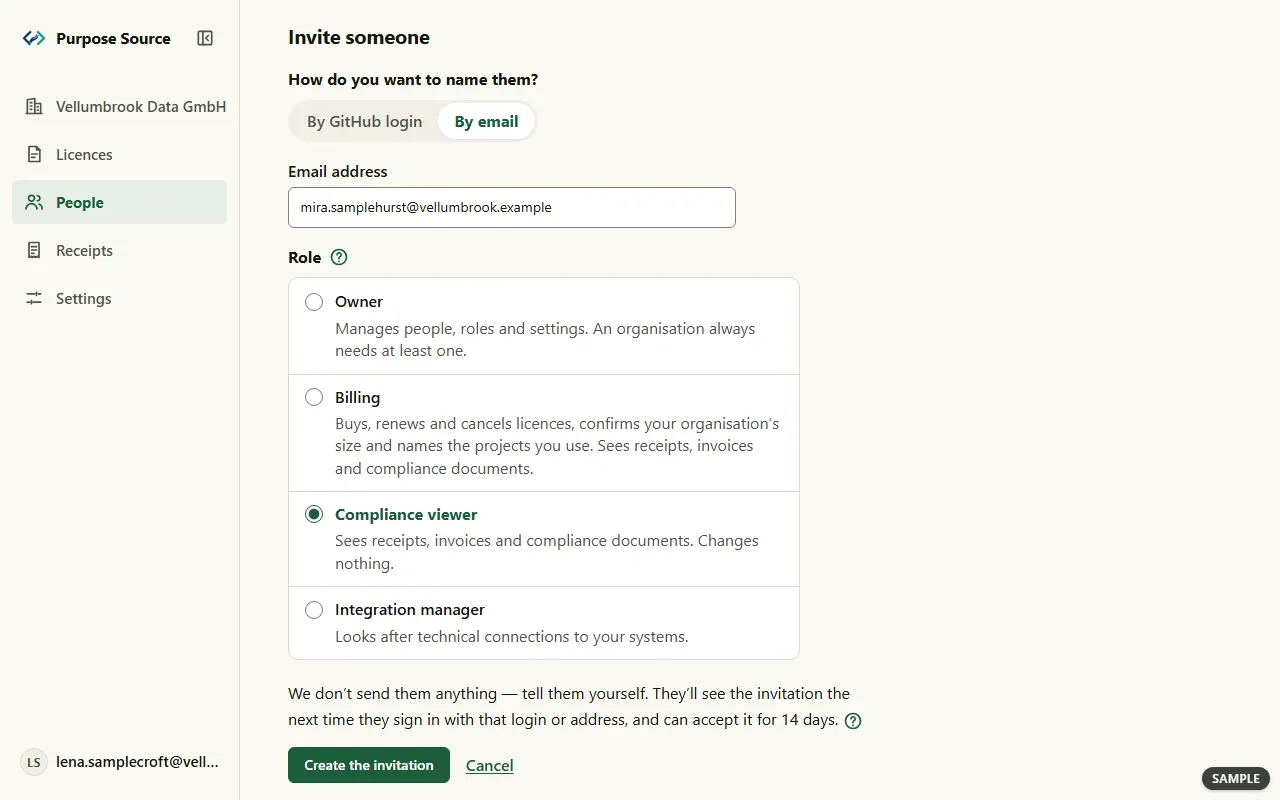
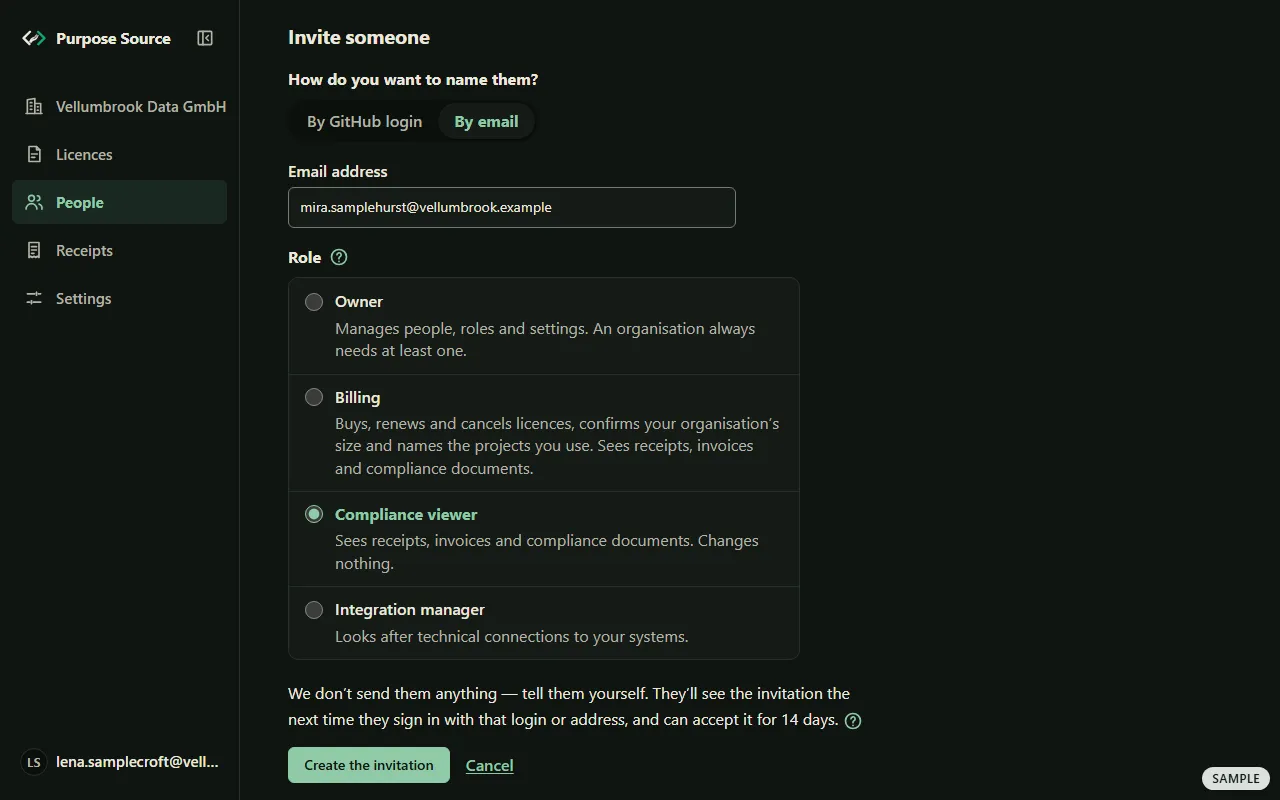
Invite someone. Sample screen: made-up names. -
Choose a Role. Each says what it can do:
- Owner: manages people, roles and settings. An organisation always needs at least one.
- Billing: buys, renews and cancels licences, confirms your organisation’s size and names the projects you use. Sees receipts, invoices and compliance documents.
- Compliance viewer: sees receipts, invoices and compliance documents. Changes nothing.
- Integration manager: looks after technical connections to your systems.
-
Press Create the invitation.
What happens next: we don’t send them anything, so tell them yourself. They see the invitation the next time they sign in with that login or address, and can accept it for 14 days (accepting). They become a member only when they accept. What will they see about you?: your GitHub login, or, if you sign in by email, the first letter and the domain of your address. One person can hold several roles, and each one is given and removed on its own.
Remove a role, withdraw an invitation, or leave
Section titled “Remove a role, withdraw an invitation, or leave”-
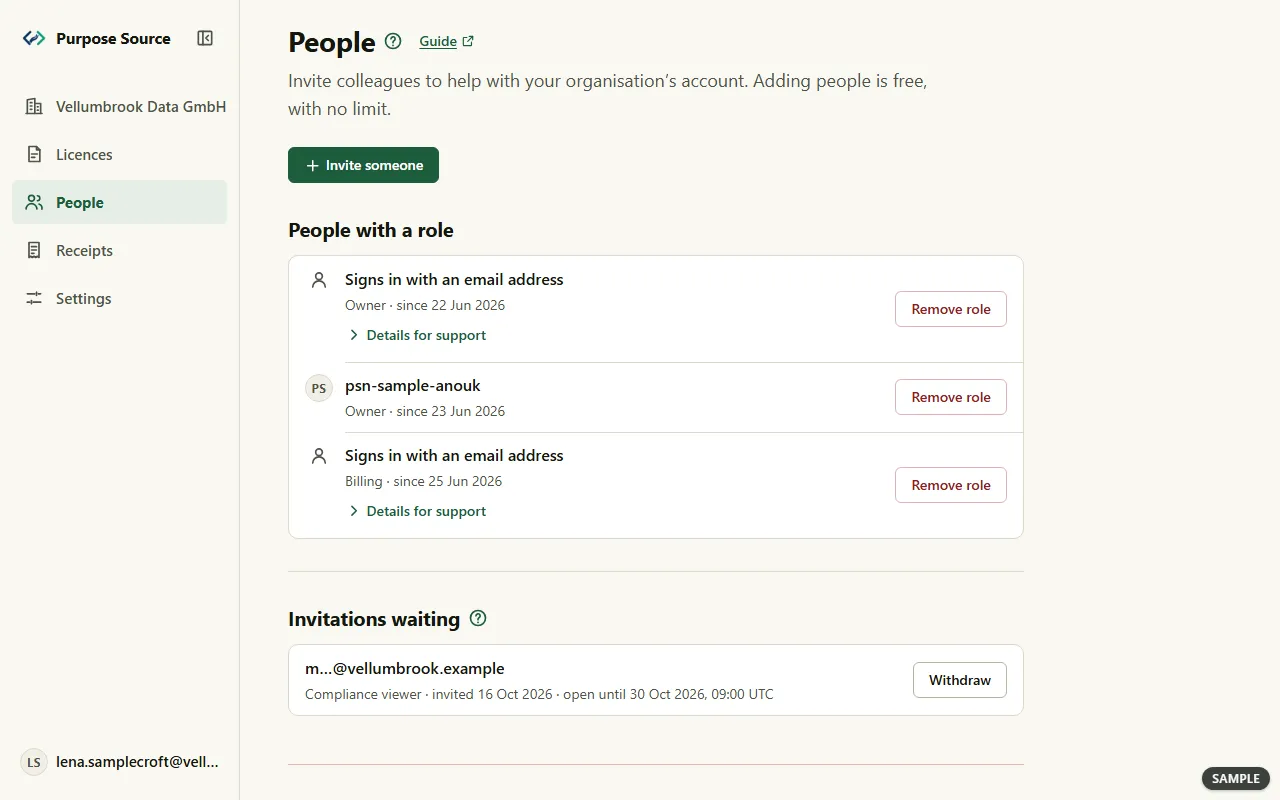
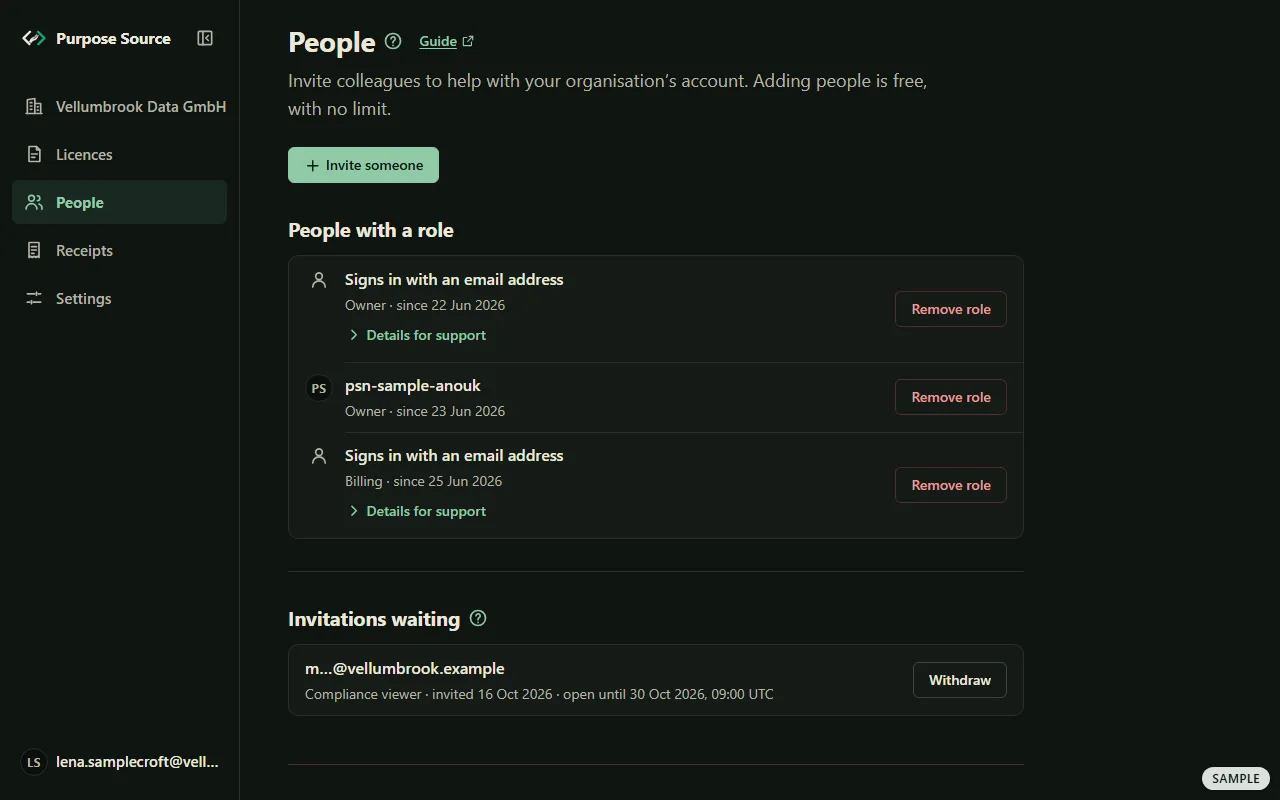
On People, People with a role lists each person with their role and since when. Someone without a GitHub login shows as Signs in with an email address.
People. Sample screen: made-up names. -
To take back an invitation nobody has accepted, press Withdraw under Invitations waiting. An email address shows only its first letter and domain: we don’t keep the address.
-
To remove someone’s role, press Remove role on their row. The sheet says they can no longer do what this role allows, right away, and that they keep their other roles. Press Remove the role.
-
To leave yourself, go to Leave this organisation at the foot, press Leave the organisation…, then Leave.
What happens next: a removed role stays on the list with its date, as a record of who could act for your organisation and when. To give it back, invite them again. You can’t remove the only owner, and the only owner can’t leave: make someone else an owner first.
Receipts
Section titled “Receipts”Receipts lists every purchase and renewal that has been paid. Paddle, our payment partner, sends the tax invoices.
-
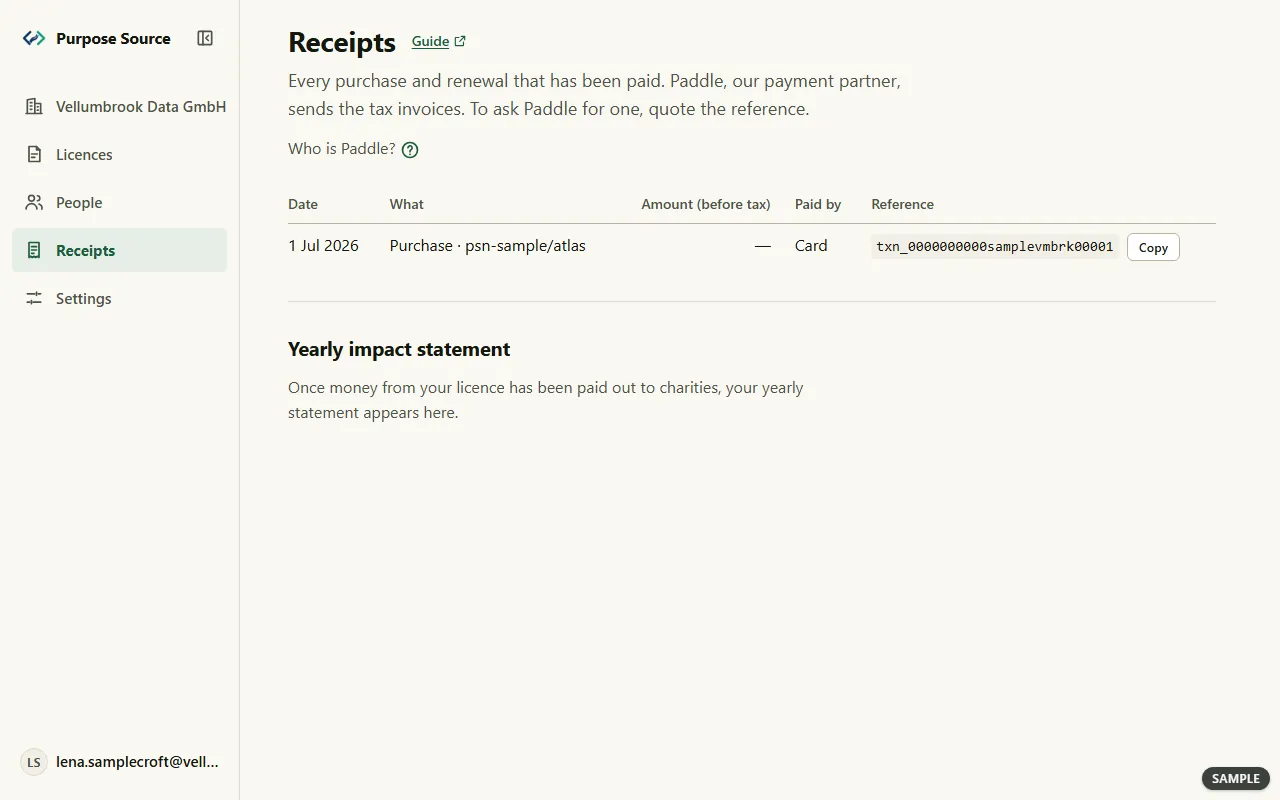
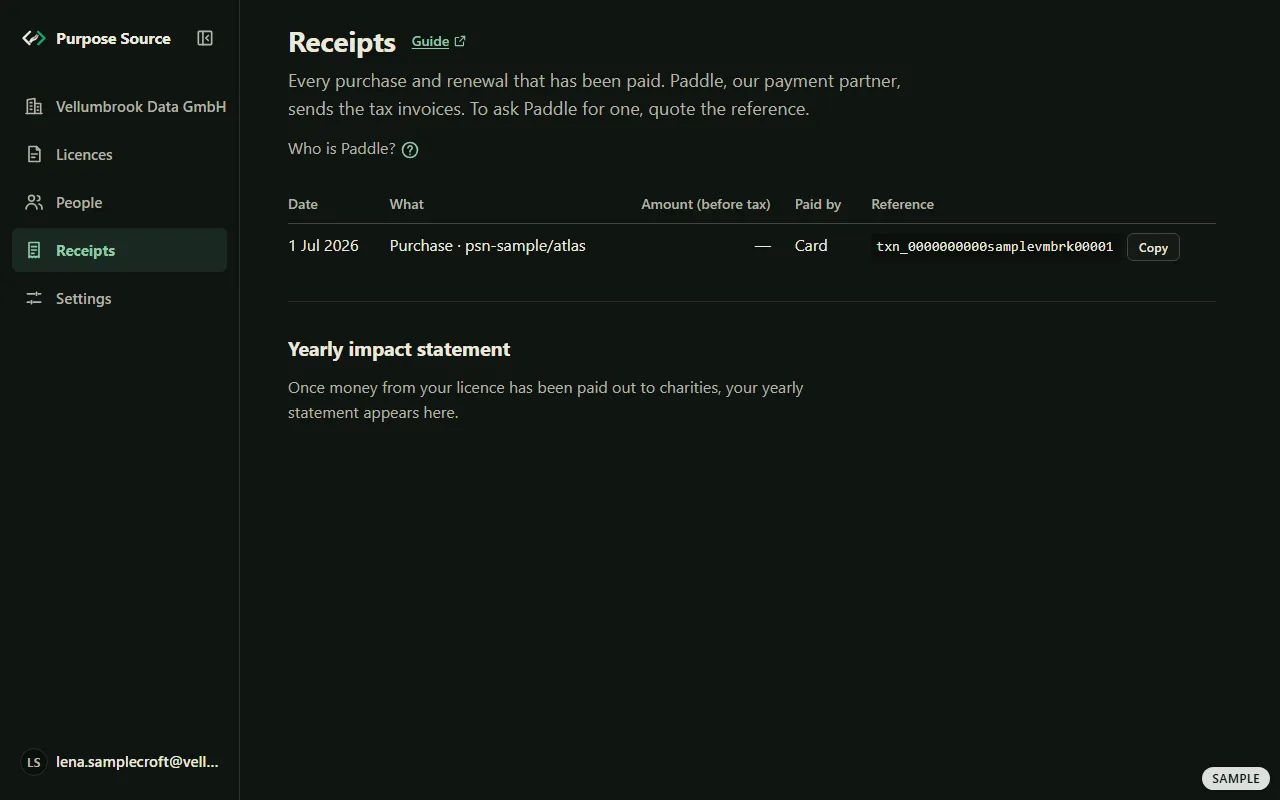
Press Receipts in the menu. Each row gives the Date, What it was (a Purchase or a Renewal, and the repository), the Amount (before tax), how it was Paid by (Card or Invoice) and its Reference.
Receipts. Sample screen: made-up names. -
Need a tax invoice? Press Copy beside the reference, and quote it when you ask Paddle.
-
Under Yearly impact statement, your yearly statement appears once money from your licence has been paid out to charities.
What happens next: a purchase or a renewal appears here once it has settled. When a row has no amount on record, the column shows a dash. Who is Paddle?: Paddle sells the licence on our behalf, takes the payment and sends the tax invoice. An owner, or someone with the Billing or Compliance viewer role, can see this page. How the money is passed on: where the money goes.
Settings: public listing and gift purchases
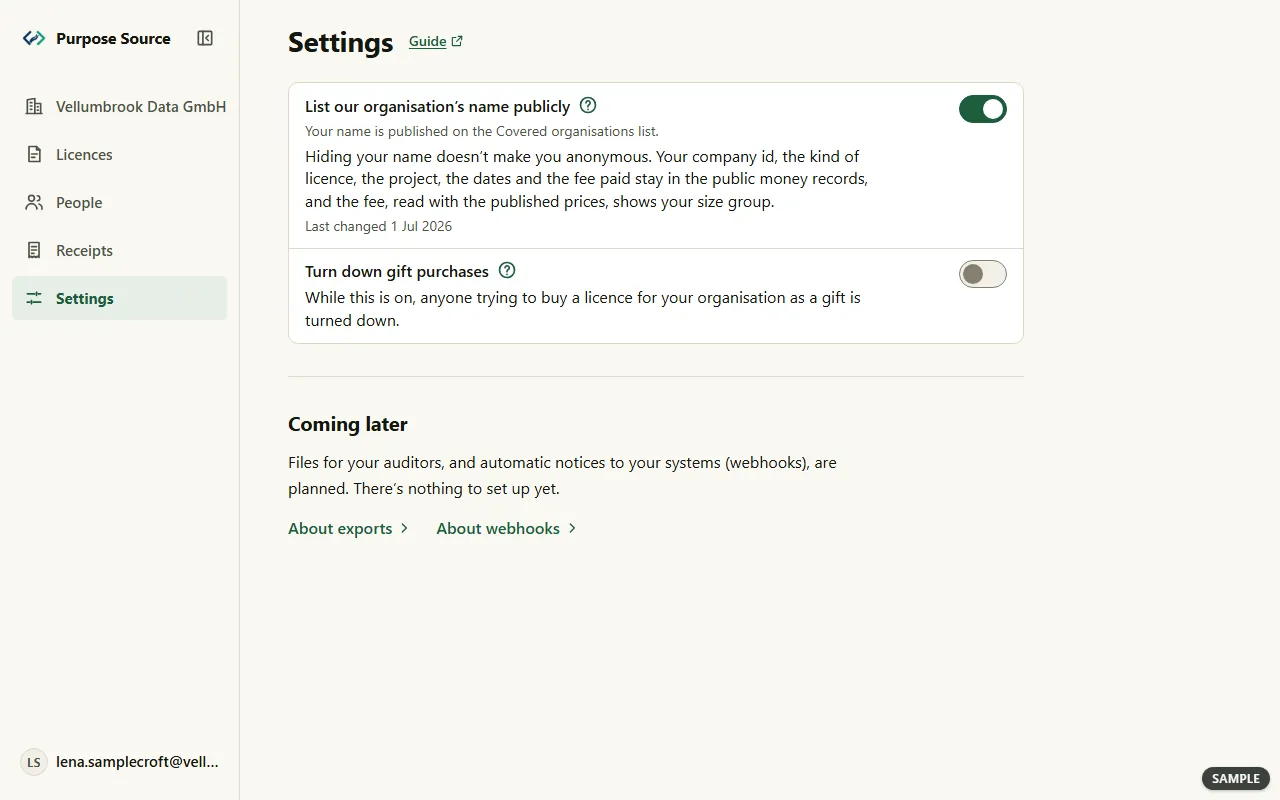
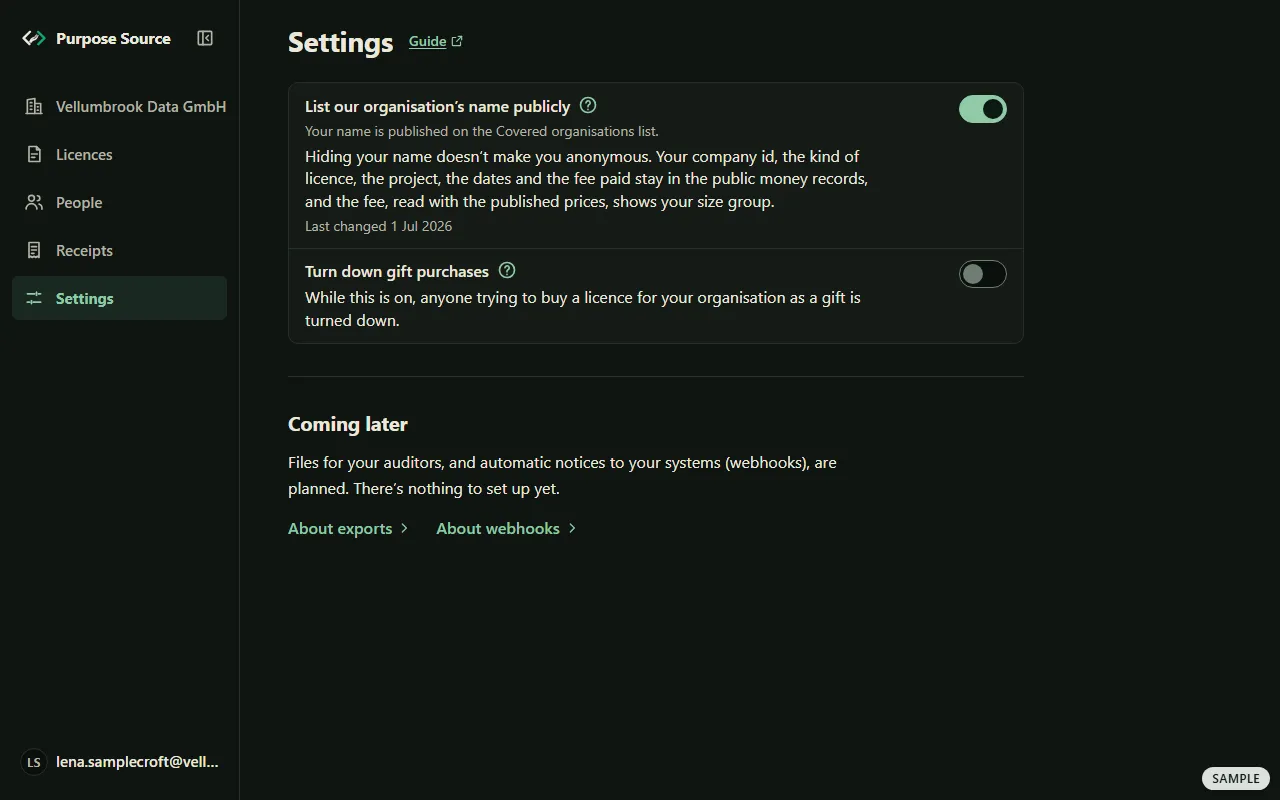
Section titled “Settings: public listing and gift purchases”Settings holds two switches. Only an owner sees and changes them. Each one saves as soon as you move it, but turning the listing on asks you first.
-
Press Settings in the menu.
Settings. Sample screen: made-up names. -
List our organisation’s name publicly is off by default. While it’s off, the Covered organisations list shows “Unlisted organisation” on your line. To turn it on, press the switch. The dashboard asks first, and says what follows: once your organisation holds a licence, its name appears on the Covered organisations list, and is also written into the licence’s signed public records. Press List our name.
-
Turn down gift purchases: while it’s on, anyone trying to buy a licence for your organisation as a gift is turned down. The ?, What’s a gift purchase?, says that anyone can buy a licence for another organisation and give it to them as a gift.
What happens next: the row says Saved. When your organisation holds a licence, a listing change reaches the Covered organisations list the next time this site is rebuilt (every six hours on purposesource.org). You can stop listing later, but copies others have already made stay. Hiding your name doesn’t make you anonymous: your company id, the kind of licence, the project, the dates and the fee paid stay in the public money records, and the fee, read with the published prices, shows your size group. Does listing change whether you’re covered?: no, the answer doesn’t depend on it. If your registered name is a person’s name, listing publishes it. The rules: bands and self-certification, the covered organisations and the privacy notice.
Not offered yet: compliance exports and webhooks
Section titled “Not offered yet: compliance exports and webhooks”Two pages say plainly what isn’t offered yet. On Settings, under Coming later, press About exports or About webhooks.
- Compliance exports are files for your auditors. They aren’t available yet, so there’s nothing to download. What the two files will contain describes them: purpose-licenses.csv and an SBOM-compatible listing. Neither is offered until the schema that fixes their columns is published. Meanwhile, everything they would contain is on your Licences page (the compliance export).
- Webhooks are automatic notices from us to your own systems. They aren’t available yet, so there’s nothing to set up.
Where next
Section titled “Where next”- A repository’s administrators can give your organisation a free, public waiver for it: asking for one.
- Procurement and legal review: the OSPO and legal pack.
- The rules behind these screens: buying and complying, the Entitlement terms and the Terms of use.
- Everyone: getting started, for the menu, the account menu and Home.