Getting started
The dashboard is where you look after your repositories, see your contributions and manage your company’s licences. This page shows you how to get in and find your way around. It takes about five minutes.
Who the dashboard is for
Section titled “Who the dashboard is for”One account, two sides:
- Projects on GitHub. You look after a repository on GitHub, or you’ve written code for one. You sign in with GitHub. You can add your repositories, adopt the licence, give waivers and see your contributions.
- Company licences. You buy licences for a company, association or public body, or an owner invited you. You sign in with your work email, or with GitHub if you already use it.
You never need two accounts. If you do both, one account holds both sides, and you switch between them in the account menu.
Sign in
Section titled “Sign in”The sign-in page has two doors. Pick the one that fits what you came to do.
-
Open the dashboard. When you’re signed out, it shows Sign in to Purpose Source with two doors: Projects on GitHub and Company licences.
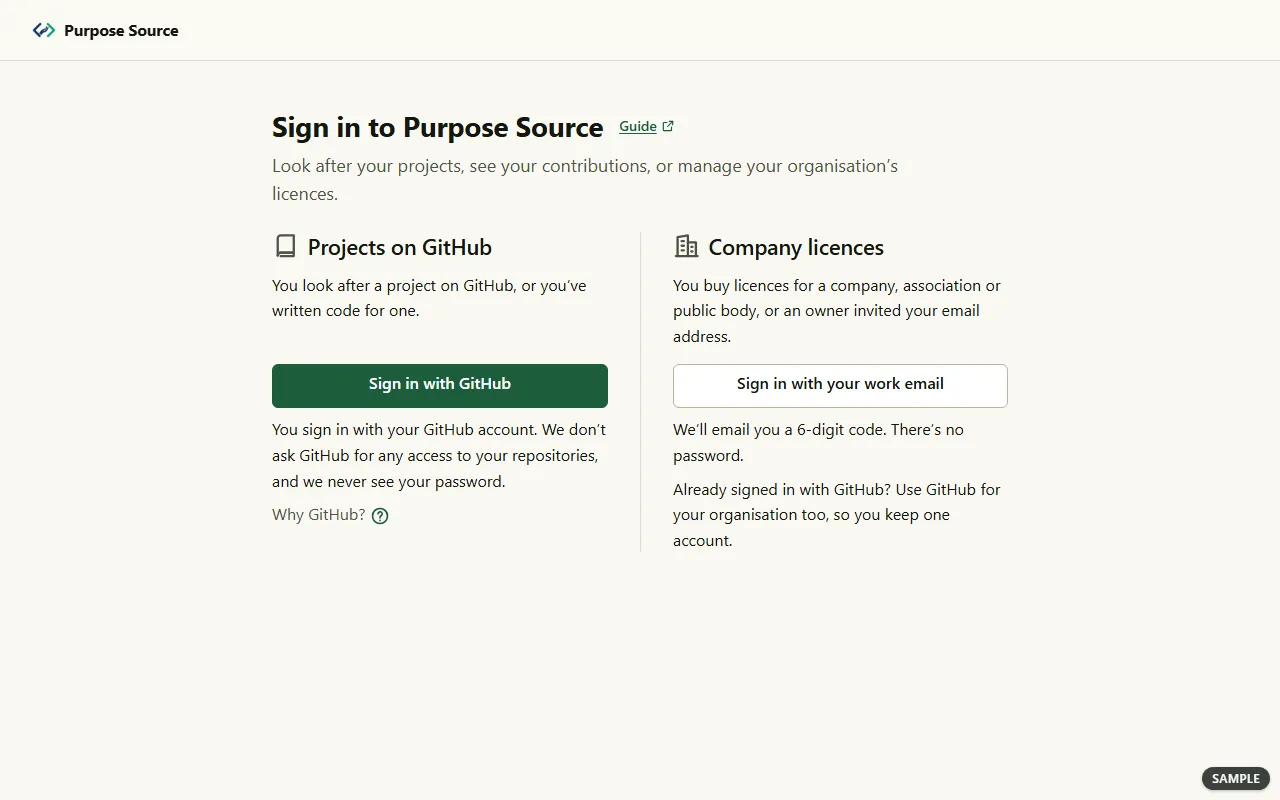
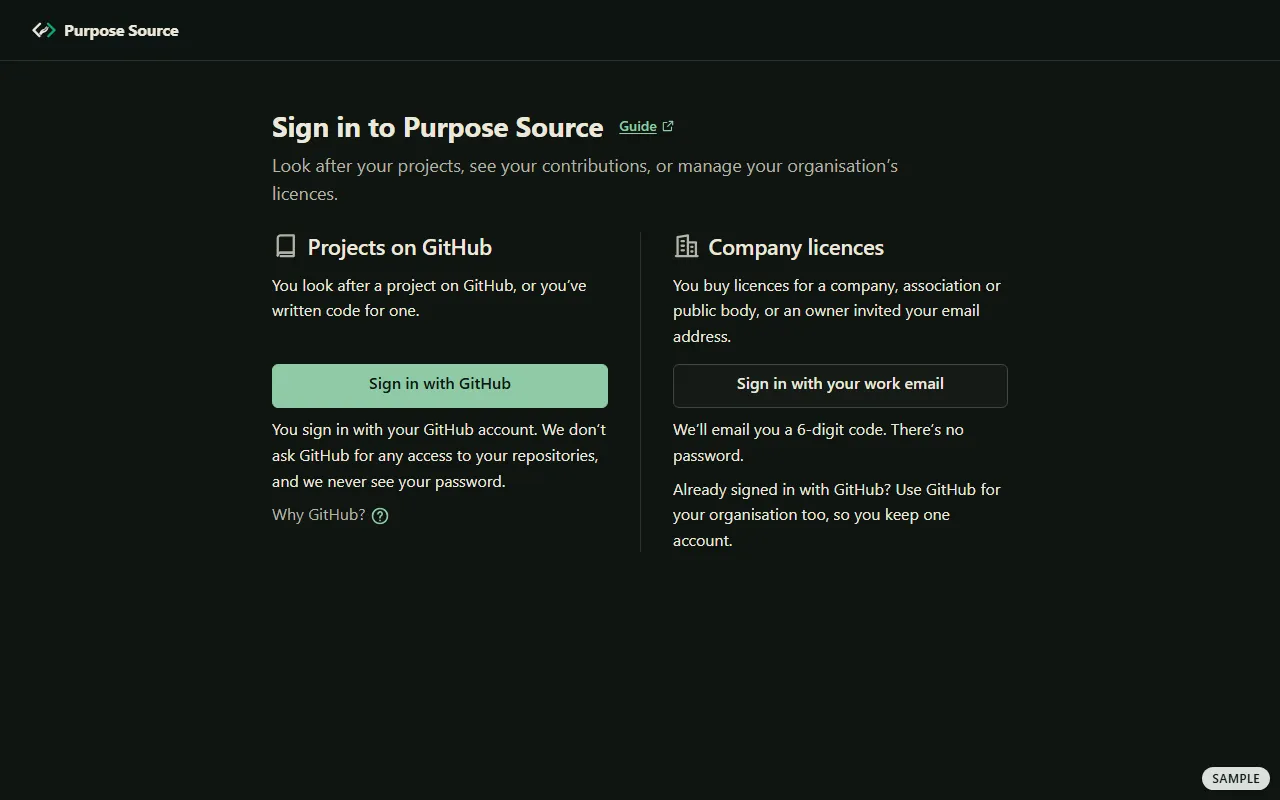
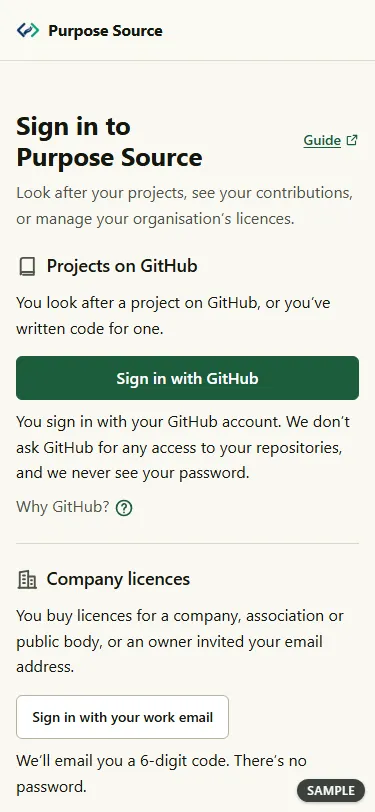
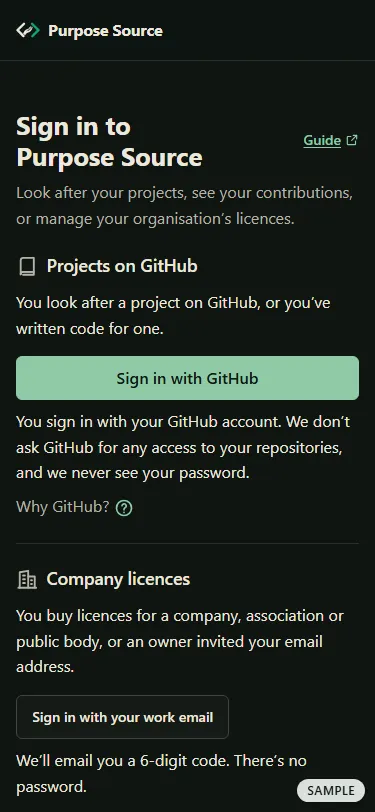
Sign in to Purpose Source. Sample screen: made-up names. -
You look after a repository, or you’ve contributed to one? Press Sign in with GitHub. GitHub asks you to confirm, then sends you back. We don’t ask GitHub for any access to your repositories, and we never see your password.
-
You buy for a company, or an owner invited your email address? Press Sign in with your work email. Type Your work email, let the quick check that you’re a person finish, tick I accept the Terms of Purpose Source. and press Send me a code. We email you a 6-digit code. Type it in this browser within 10 minutes and press Sign in. There’s no password.
What happens next: you land on Home, on the side of the door you chose. The very first time, the dashboard asks you to accept its Terms before anything else.
Accept the Terms
Section titled “Accept the Terms”The first time you sign in, the dashboard shows Please accept our Terms over every page. Until you accept them, you can’t use the dashboard or change anything.
-
Press Read the Terms. They open in a new tab, so you don’t lose your place.
-
Press I accept the Terms. If you’d rather not, press Sign out.
What happens next: the screen closes and you carry on where you were. When a newer version of the Terms needs your acceptance, the same screen comes back once. The Terms section of Your account shows the version you accepted. The Terms themselves are on the public site: Terms of use.
Find your way with the menu
Section titled “Find your way with the menu”The menu lists your places. On the projects side they are Home, My repositories, My contributions and Voting. On the company side they are your organisation’s name, Licences, People, Receipts and Settings. The place you’re on is highlighted.
The menu changes shape with the screen: a sidebar on a computer, a strip of icons in a narrow window, and a bar of tabs on a phone.
On a computer
Section titled “On a computer”The menu is a sidebar at the left edge of every page.
-
Find your places in the sidebar. At the top is Purpose Source, which takes you Home. At the foot is your picture and login, which opens the account menu.
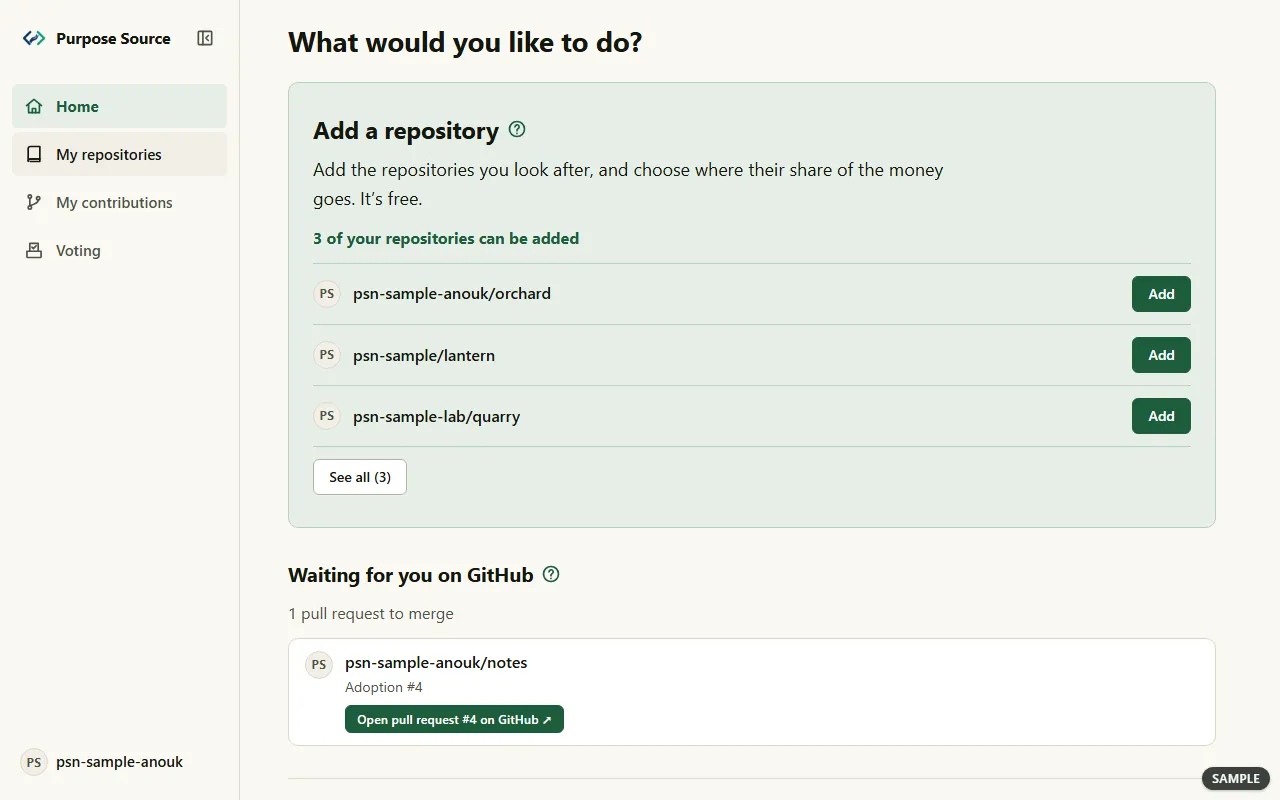
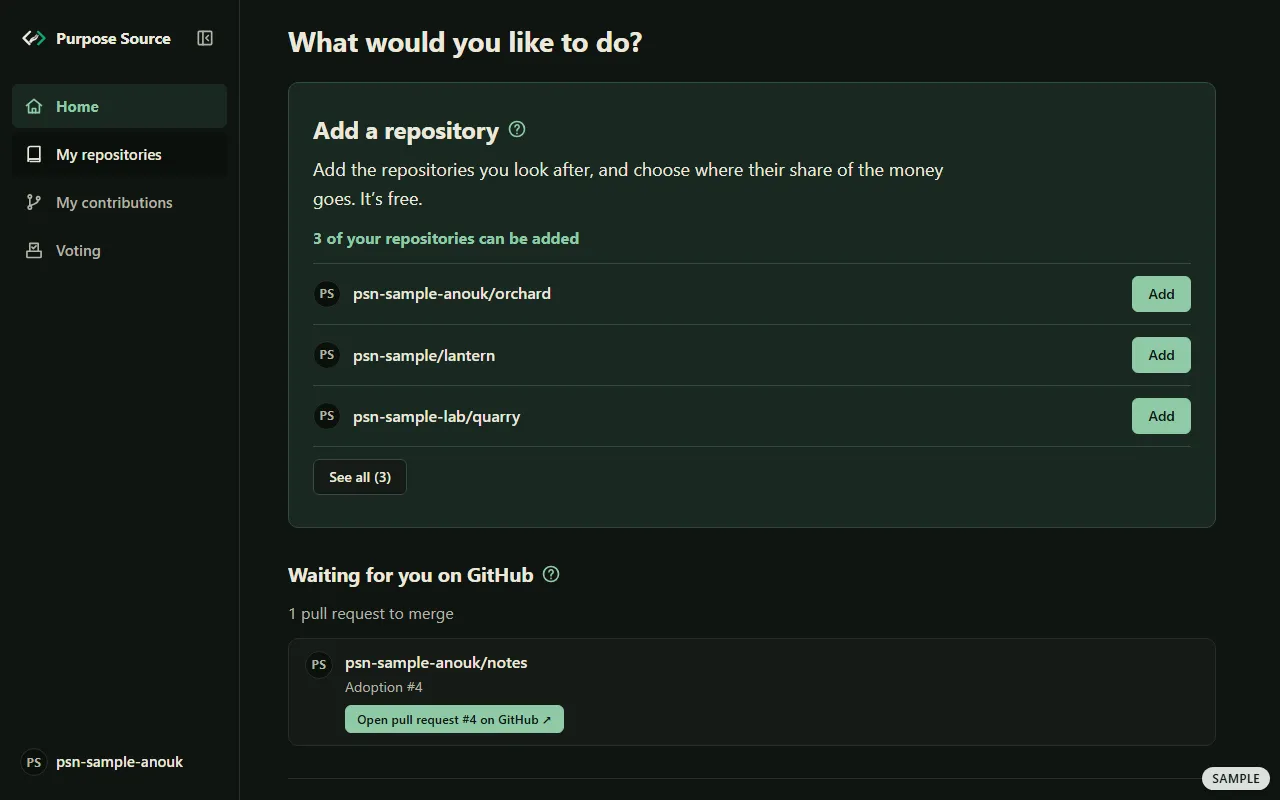
The menu on a computer. Sample screen: made-up names. -
Need more room? Press Collapse menu, the small button beside Purpose Source. The menu becomes a narrow strip of icons. Rest the pointer on an icon to see its name.
-
To glance at the whole menu while it’s collapsed, rest the pointer on the strip. The menu opens over the page without moving it, and closes again when the pointer leaves. Moving into the strip with the keyboard opens it too.
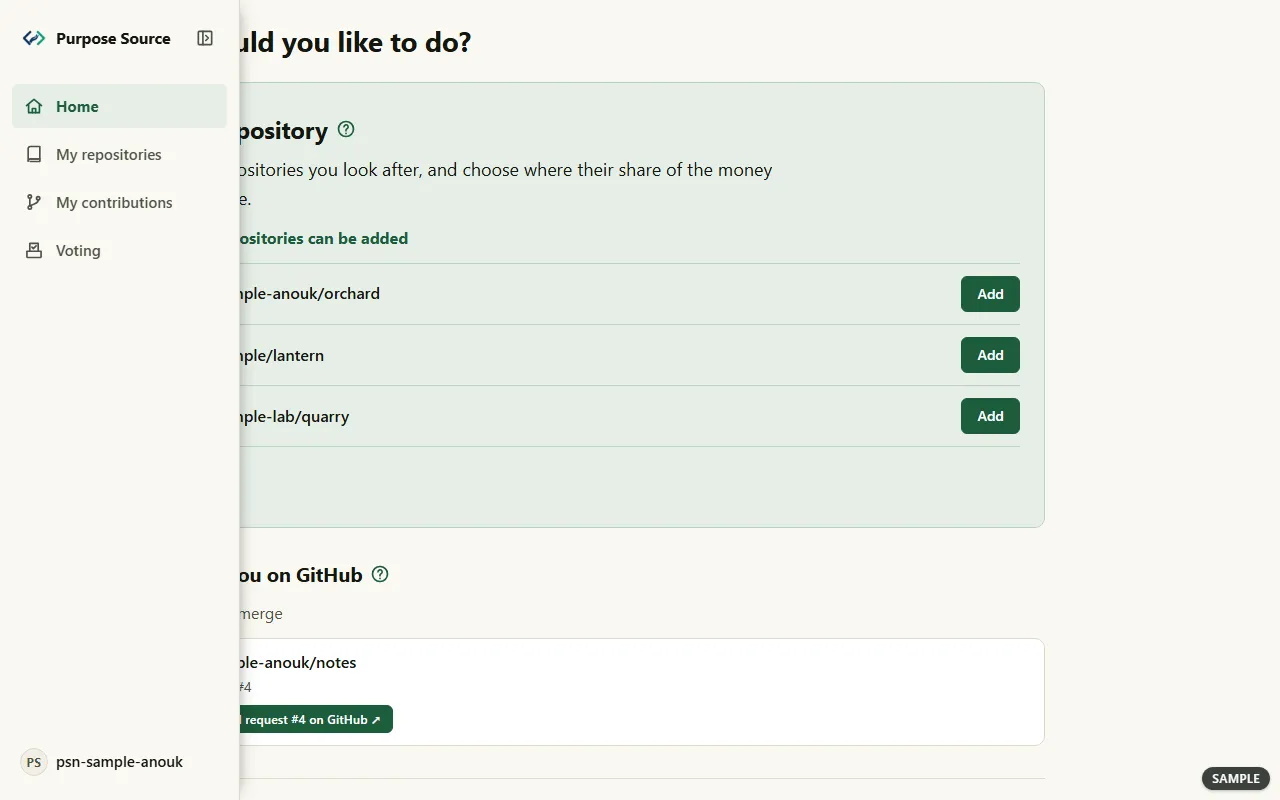
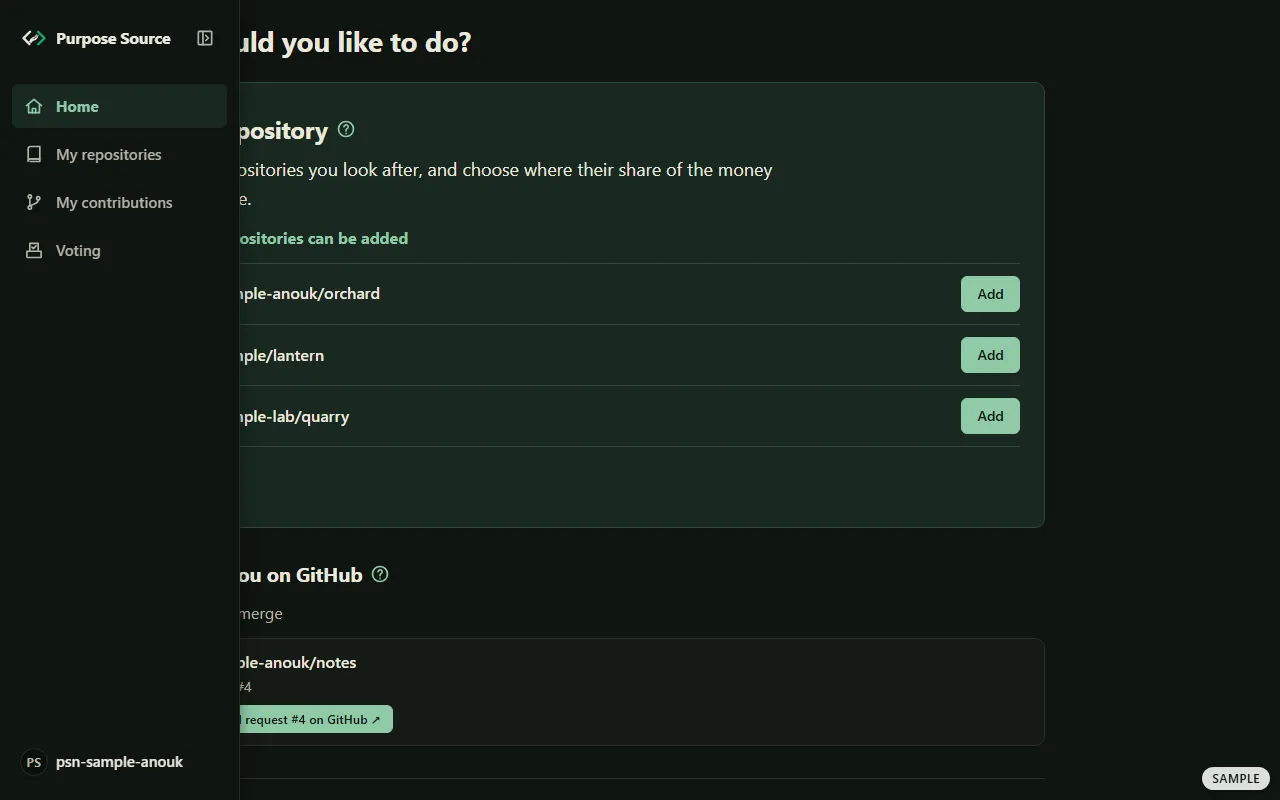
The collapsed menu, opened over the page. Sample screen: made-up names. -
To keep the menu open again, rest the pointer on the strip and press Expand menu at its top.
What happens next: the dashboard remembers whether you like the menu open or collapsed, in this browser only.
In a narrow window
Section titled “In a narrow window”In a window between a phone and a full computer screen, such as half of your screen, the menu is always the strip of icons. With a mouse or trackpad, resting on it opens the whole menu over the page, as on a computer. On a touch screen, each icon has its short name under it.
On a phone
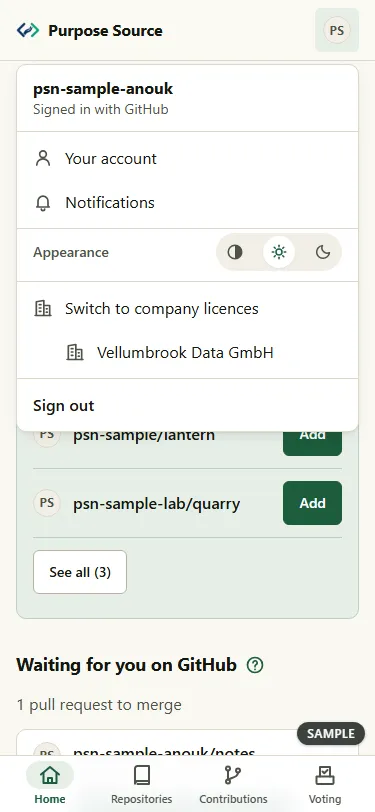
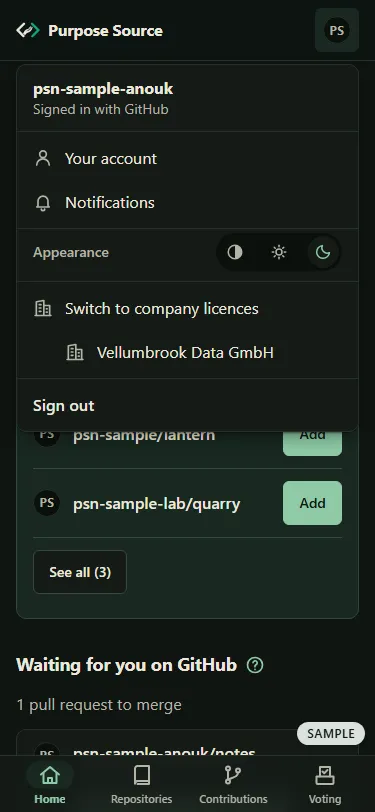
Section titled “On a phone”The menu is a bar of tabs at the bottom of the screen, with short names: Home, Repositories, Contributions and Voting. The bar steps aside while the keyboard is up. Your picture at the top right opens the account menu.
Use the account menu
Section titled “Use the account menu”Everything about you, rather than your projects, is in the account menu.
-
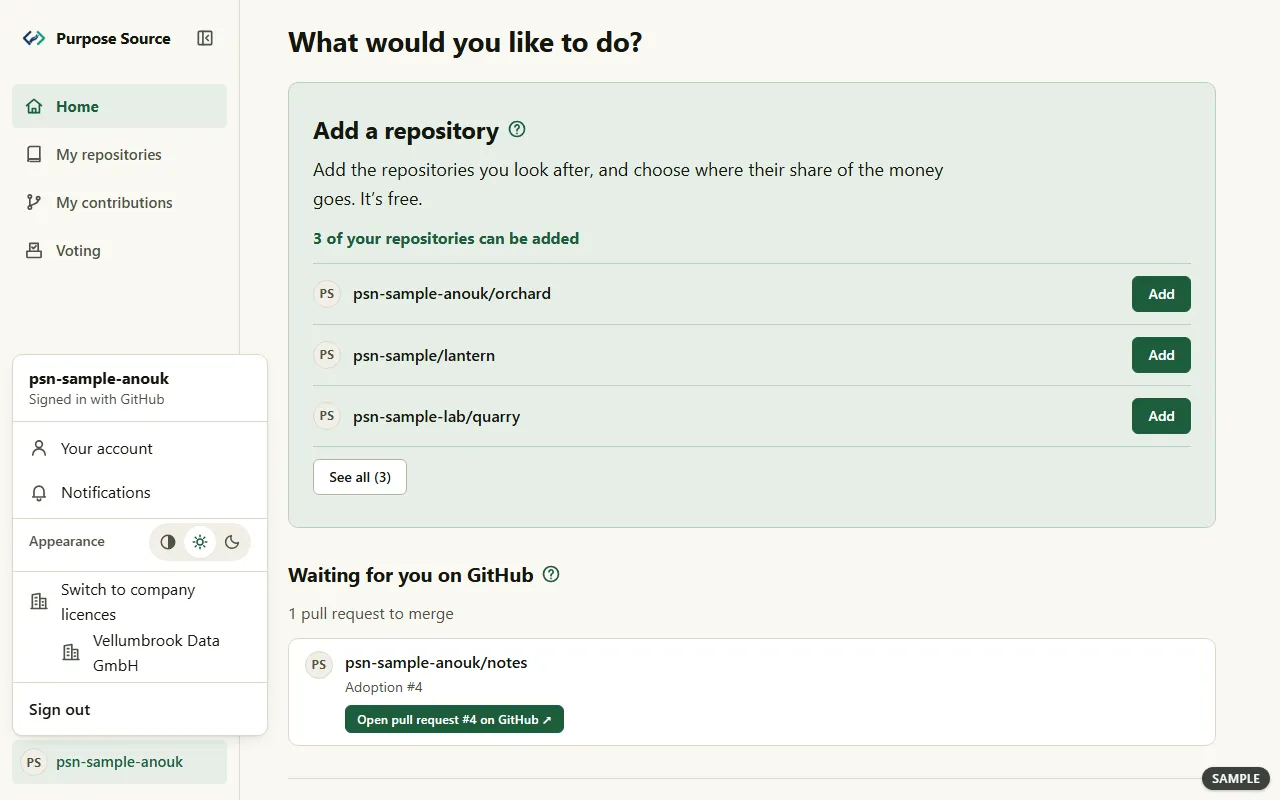
Press your picture and login: at the foot of the menu on a computer, or at the top right on a phone.
The account menu. Sample screen: made-up names. -
Choose what you need. From the top:
- your login, and how you signed in: Signed in with GitHub or Signed in with your email address;
- Your account: your profile, email addresses, where you’re signed in, your Terms and a copy of your data (your account);
- Register your company, when you’re on the projects side and belong to no organisation yet;
- Notifications: your inbox, and which emails you get;
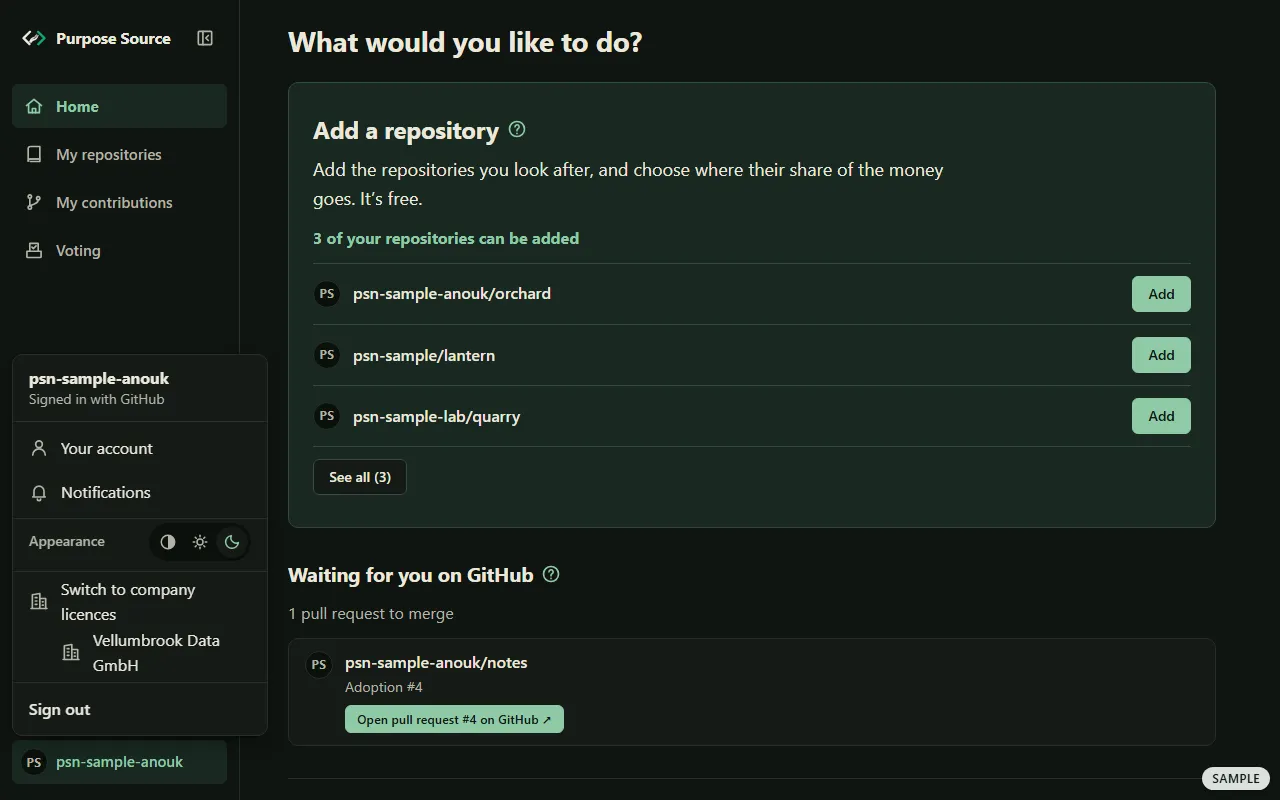
- Appearance: Automatic, follows your device, Light or Dark. The menu stays open while you try them, and your choice is kept in this browser only;
- Switch to company licences, when you can be on both sides, with a line for each organisation you belong to (switching);
- Sign out.
-
To close the menu, press Esc or click anywhere outside it.
What happens next: each line opens its page. Sign out ends this session at once; any page you open afterwards asks you to sign in again.
Switch between your projects and company licences
Section titled “Switch between your projects and company licences”If you look after repositories and also act for a company, your one account has both sides. The menu shows one side at a time.
-
Open the account menu.
-
Press Switch to company licences. Or press your organisation’s name under it to go straight to that organisation.
-
To go back, open the account menu and press Switch to your projects.
What happens next: the menu changes to the other side’s places, and you start on that side’s Home. On the company side, Home opens your organisation’s overview. The dashboard remembers your side in this browser. An account that has only an email address, and no GitHub login, is always on the company side.
Start from Home
Section titled “Start from Home”Home shows what’s waiting for you, so you rarely need to look for it.
-
Press Home in the menu, or Purpose Source at the top. On the projects side, it asks What would you like to do?
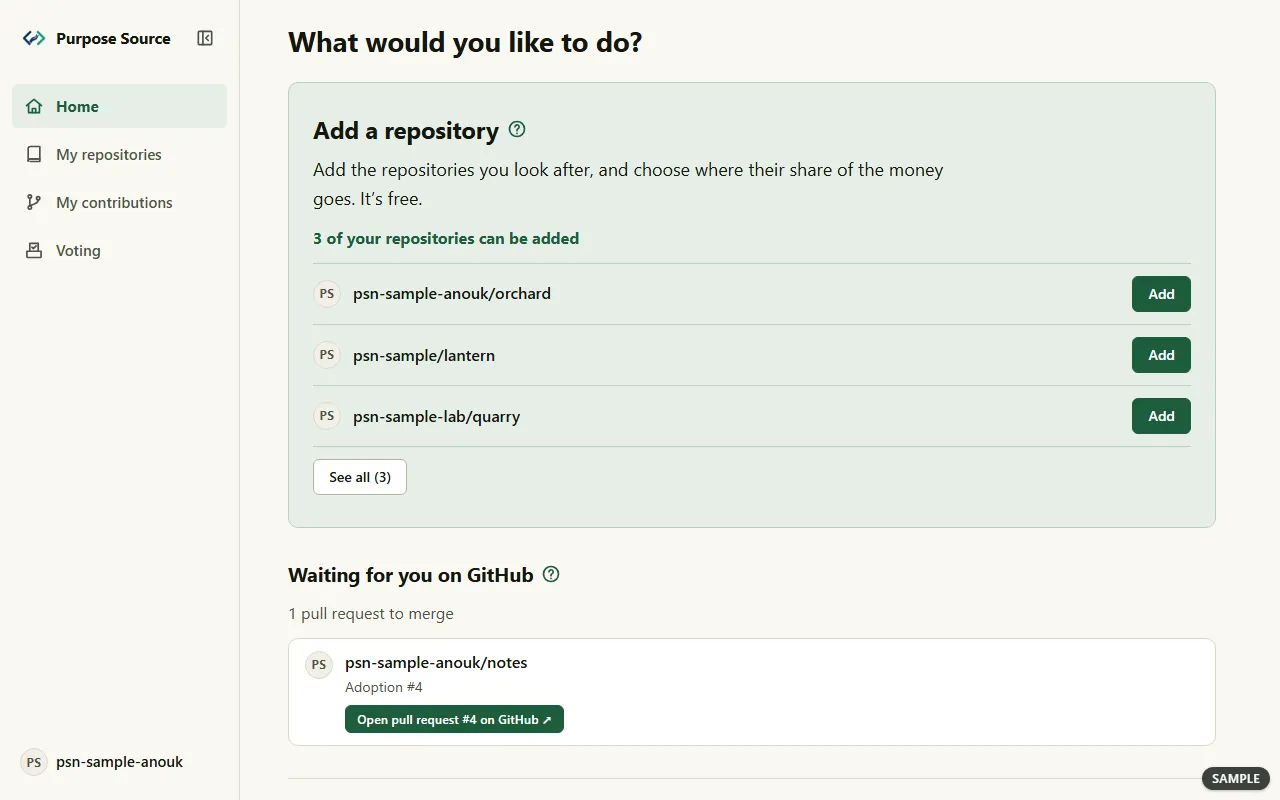
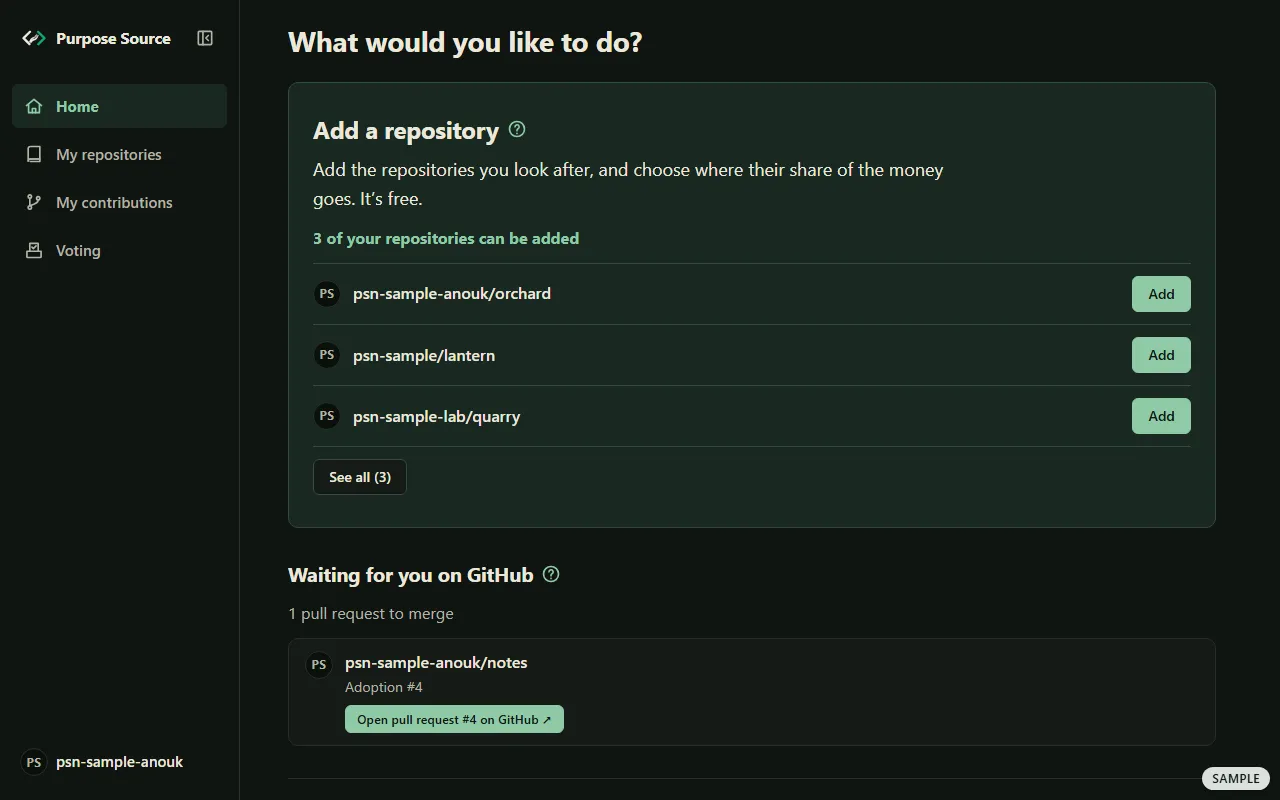
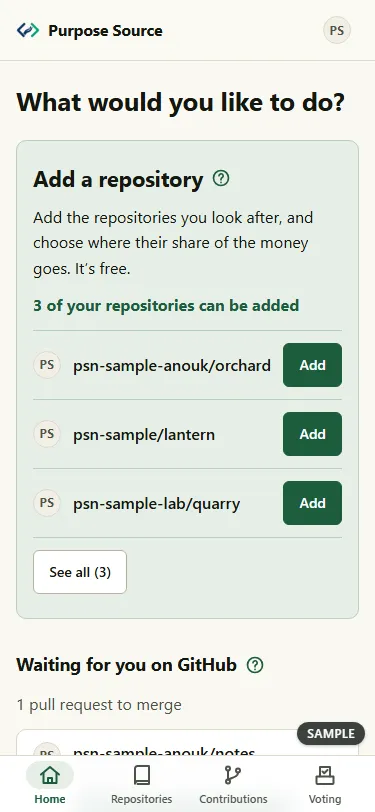
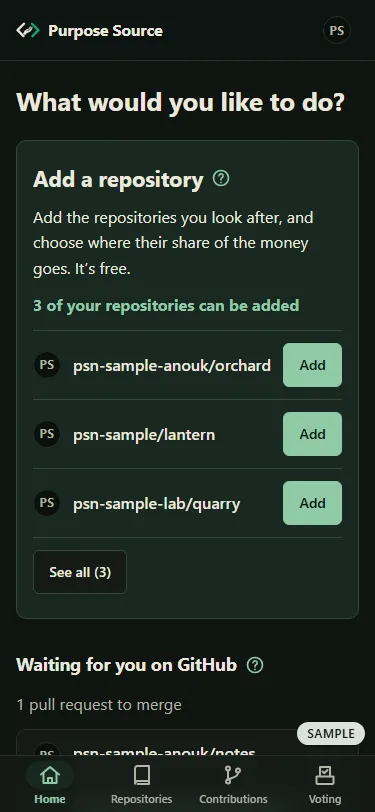
Home, projects side. Sample screen: made-up names. -
Work down from the top. Each block shows only when it has something for you:
- Add a repository: repositories you look after on GitHub that you can add, each with Add, and See all for the rest (adding a repository);
- Waiting for you on GitHub: our pull requests in your repositories, waiting for you to merge them, each with a button to open it on GitHub;
- A newer licence text is ready: repositories that still have an older licence text, each with Update the licence (licence updates);
- invitations from organisations, when one is waiting for you;
- an invitation to make your public contributor page;
- Your places: one row for each place you can open, with a line on what it’s for;
- when you belong to no organisation yet, a line for buying licences for a company, with Register your company: registering is free and doesn’t buy anything.
-
Press the button on a row to start that task. Or press New to Purpose Source? How it works at the foot, which opens the public site’s overview in a new tab.
What happens next: each button opens the screen where you finish the task. The guide for maintainers walks through them one by one.
When the dashboard asks you to confirm it’s you
Section titled “When the dashboard asks you to confirm it’s you”A few acts matter more than others, such as giving or revoking a waiver, getting the download link for your data or deleting your account. Before those, the dashboard may ask you to Confirm it’s you, even though you’re signed in.
-
Press Continue with GitHub. A GitHub window opens. Sign in there if GitHub asks, then come back. We never see your password.
-
The dashboard shows Ready to carry on, with what you were about to do. Press Carry on to do it, or Discard it.
What happens next: nothing is sent until you press Carry on. If your browser blocks the GitHub window, the dashboard offers Confirm in this tab instead; afterwards you start what you were doing again. If you signed in with your email address, the dashboard sends a confirmation link instead: open it in the same browser and press its button.
If the page you come back to says That was a different GitHub account, nothing was changed: try again with the GitHub account you’re signed in with. If it says There was nothing to confirm, the sign-in that asked for it has ended: sign in again, then start what you were doing again.
When a page isn’t open to your account
Section titled “When a page isn’t open to your account”If you open an address your account can’t use, the dashboard says This page isn’t open to your account. It happens when you follow a link to a repository you haven’t added, or to an organisation that hasn’t invited you.
-
Is it your repository? Add it under My repositories first (adding a repository).
-
Is it your organisation’s page? Ask one of its owners to invite you. The invitation shows on your Home as soon as they do.
-
Press Back to the start to go Home.
What happens next: once your access is in place, the same link opens the page. An address that doesn’t exist at all shows Page not found instead. And when you’re signed out, a page that needs your account shows Please sign in to see this page. with the two doors: after you sign in, you land on the page you asked for.
Where next
Section titled “Where next”- You look after a repository: the guide for maintainers.
- You buy licences for an organisation: the guide for companies.
- Your profile, email addresses, sessions, notifications, your data or deleting your account: your account.
- The rules behind the screens: adoption, waivers, leaving and, for companies, buying and complying.
- New to Purpose Source: how it works.