Guide for maintainers
This guide is for you if you’re an admin of a repository on GitHub. It walks through the dashboard one task at a time. Each step names the screen and the button just as the dashboard shows them. The rules behind each task live on their own pages, such as the adoption guide, and each task links to them.
Before you start
Section titled “Before you start”- You need GitHub. On the sign-in page, press Sign in with GitHub (how). GitHub must list your account as an admin of the repository, and the repository must be public.
- Check your rights first. Changing a licence is your project’s decision. Make sure you may apply it, and keep the notices of code you include (prerequisites).
- Nothing changes until you merge. The dashboard prepares a pull request on GitHub. You read it and merge it yourself, and you can leave again for future releases at any time (leaving).
- It’s free. Adding a repository and adopting the licence cost nothing.
The dashboard uses two words for two steps:
- Adopt the licence puts the Purpose Source licence in your repository, as a pull request.
- Add a repository shows us that GitHub lists you as one of its admins, so you can manage it here. Any number of admins can add the same repository, and all of them get the same access. Your access lasts as long as GitHub lists you as an admin.
Adopting comes first. Once your pull request is merged, we notice it, and then you add the repository.
Find your repositories
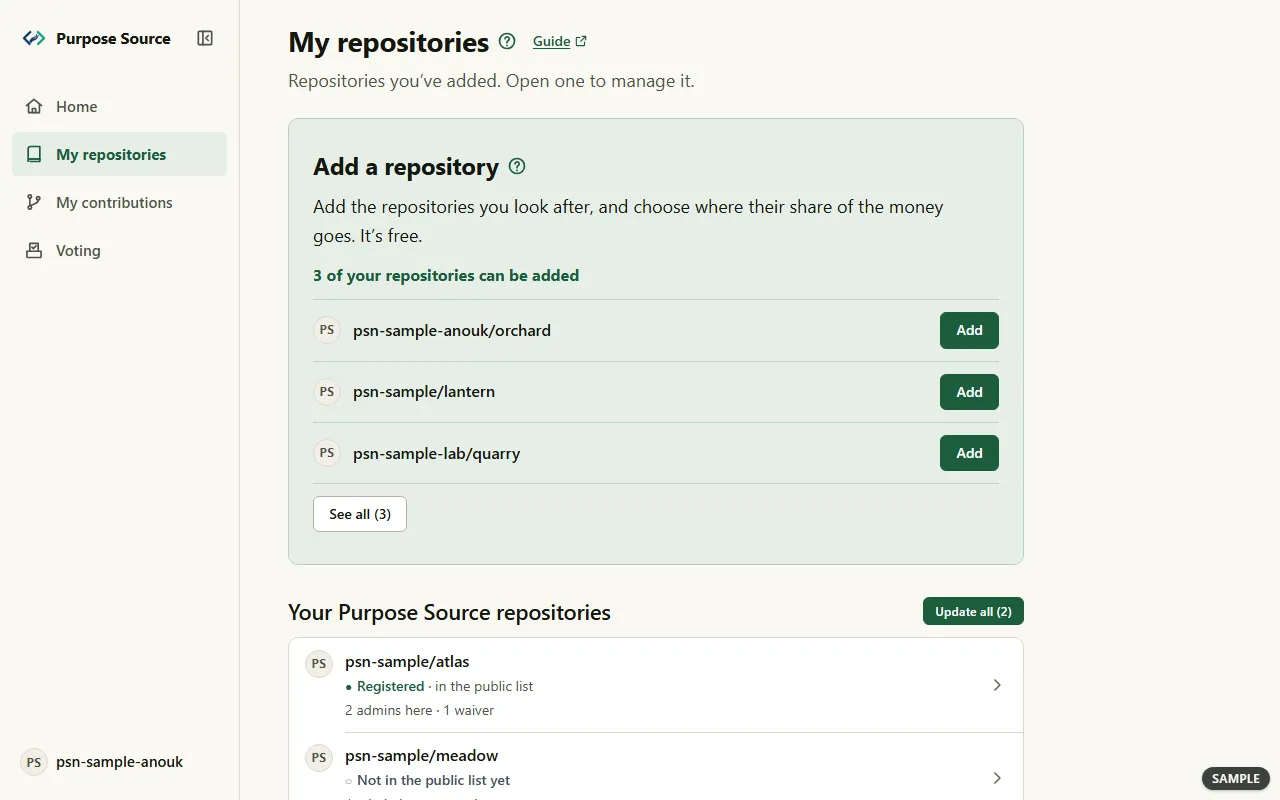
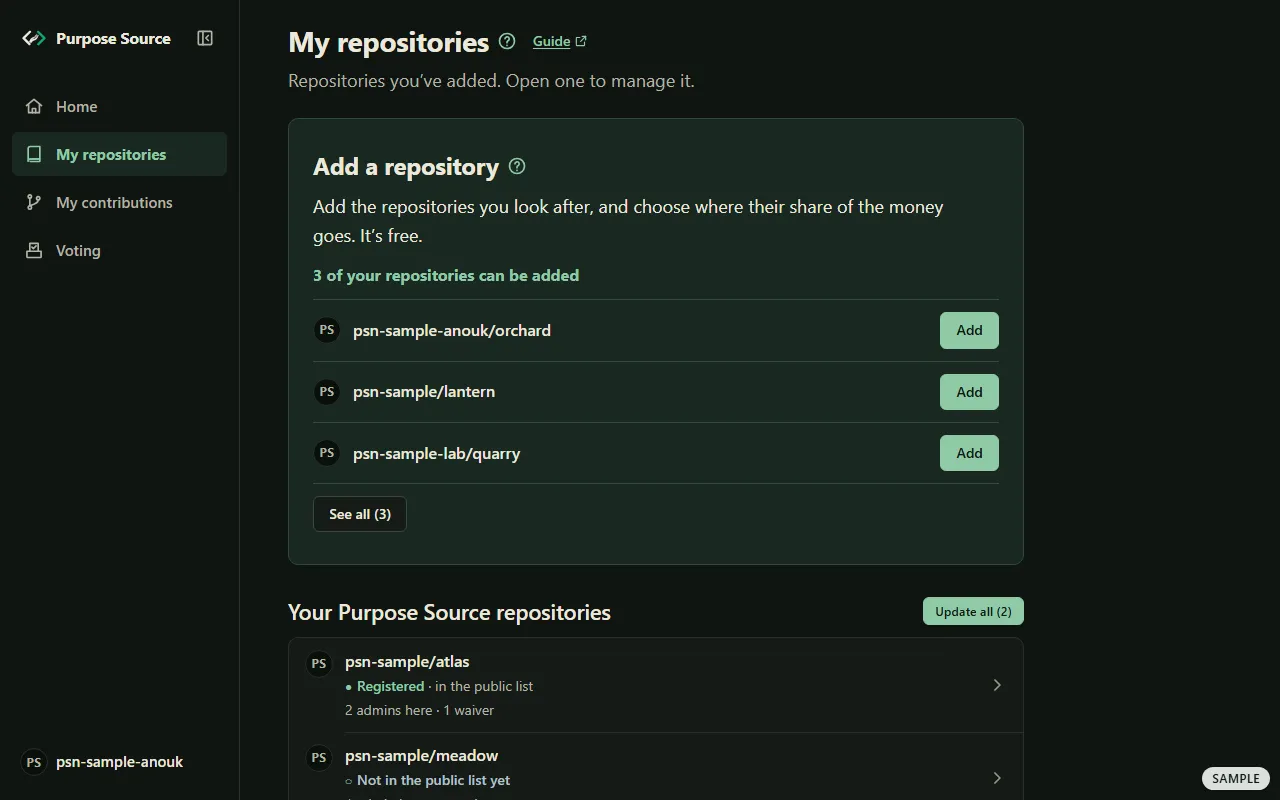
Section titled “Find your repositories”My repositories lists the repositories you’ve added, and says what each one needs from you.
-
Press My repositories in the menu.
My repositories. Sample screen: made-up names. -
At the top, the Add a repository block lists repositories you look after that you can still add, each with Add. When none is waiting, a small + Add a repository link takes its place.
-
Under Your Purpose Source repositories, each row is one repository with its status: Registered · in the public list when all is well, or Not in the public list yet when the licence text we have on record for it isn’t a published one. When something needs you, a line says so in its place, such as A licence update is waiting for you on GitHub.
-
Press a row to open that repository’s page.
What happens next: the repository’s page opens on its Status tab (the repository page). When two or more repositories have an older licence text, Update all beside the title updates them together (licence updates).
Add your first repository
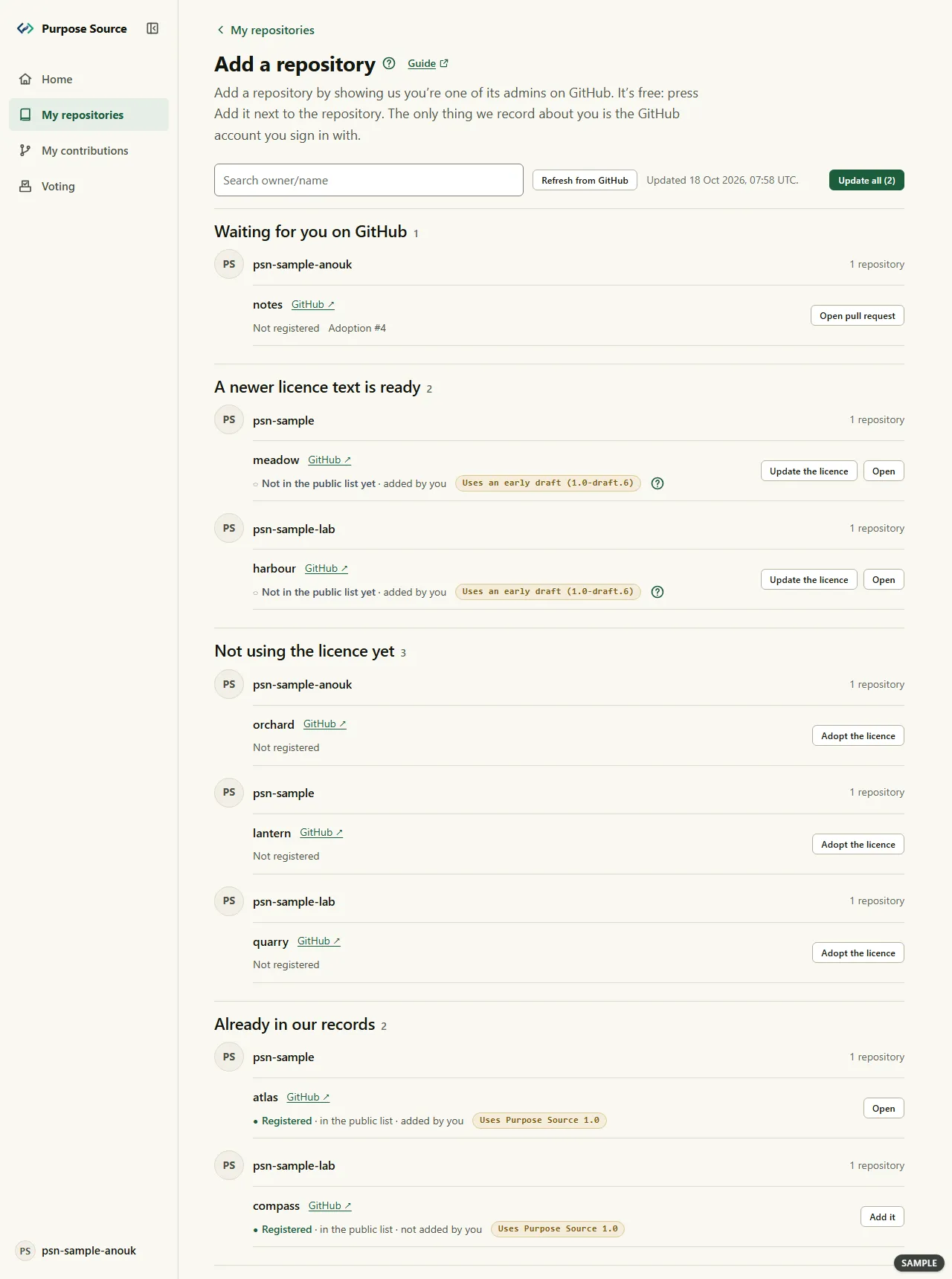
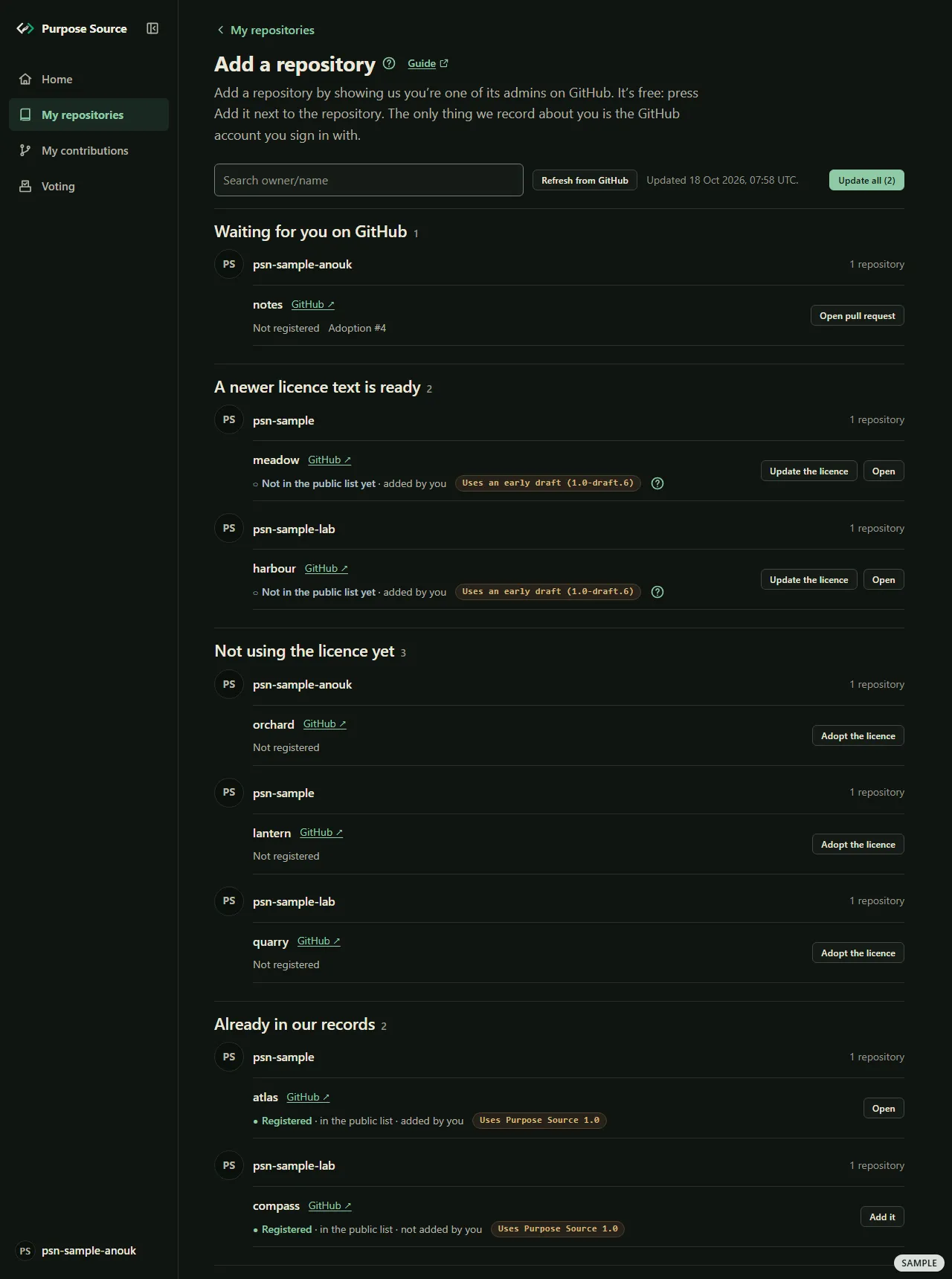
Section titled “Add your first repository”The Add a repository page lists the public repositories GitHub lists you as an admin of, grouped by what each one needs.
-
On Home or My repositories, press See all in the Add a repository block, or the + Add a repository link. The Add a repository page opens. (Add beside one repository goes straight to the adoption popup: see adopting.)
-
The page reads your repositories from GitHub by itself. To read them again now, press Refresh from GitHub. To find one, type in Search owner/name.
Add a repository. Sample screen: made-up names. -
Find your repository in its section, and press its button:
- Not using the licence yet: press Adopt the licence (adopting).
- Waiting for you on GitHub: our pull request is open. Press Open pull request and merge it (merging).
- A newer licence text is ready: press Update the licence (licence updates).
- Already in our records: the repository carries the licence. Press Add it, or Open if you’ve added it already.
-
After Add it, the row says Added. with Open this repository.
What happens next: the repository moves to My repositories, and Repositories you’ve added, at the foot of the page, lists it with your access. If GitHub wants you to authorise the dashboard once more before it checks that you’re an admin, the row says so, with a button Authorise with GitHub, then add and the repository’s name.
If your repository isn’t found
Section titled “If your repository isn’t found”At the foot of the Add a repository page, three numbered steps help when a repository is missing from your list.
-
Not in your list? Type the repository the way GitHub writes it, owner, a slash, then its name, and press Find it. If we have no record of it, Check GitHub now says what our nightly check would make of its licence files. This check registers nothing.
-
Authorise with GitHub lets the dashboard ask GitHub whether you’re an admin. No access to your repositories is requested. Press Continue to GitHub.
-
Add the repository: press Add this repository.
What happens next: What happened at the foot of the page says how it went.
Adopt the licence
Section titled “Adopt the licence”One popup does the work: Adopt the licence. It opens from Add on Home or My repositories, from Adopt the licence on the Add a repository page, and from the Embed tools page.
-
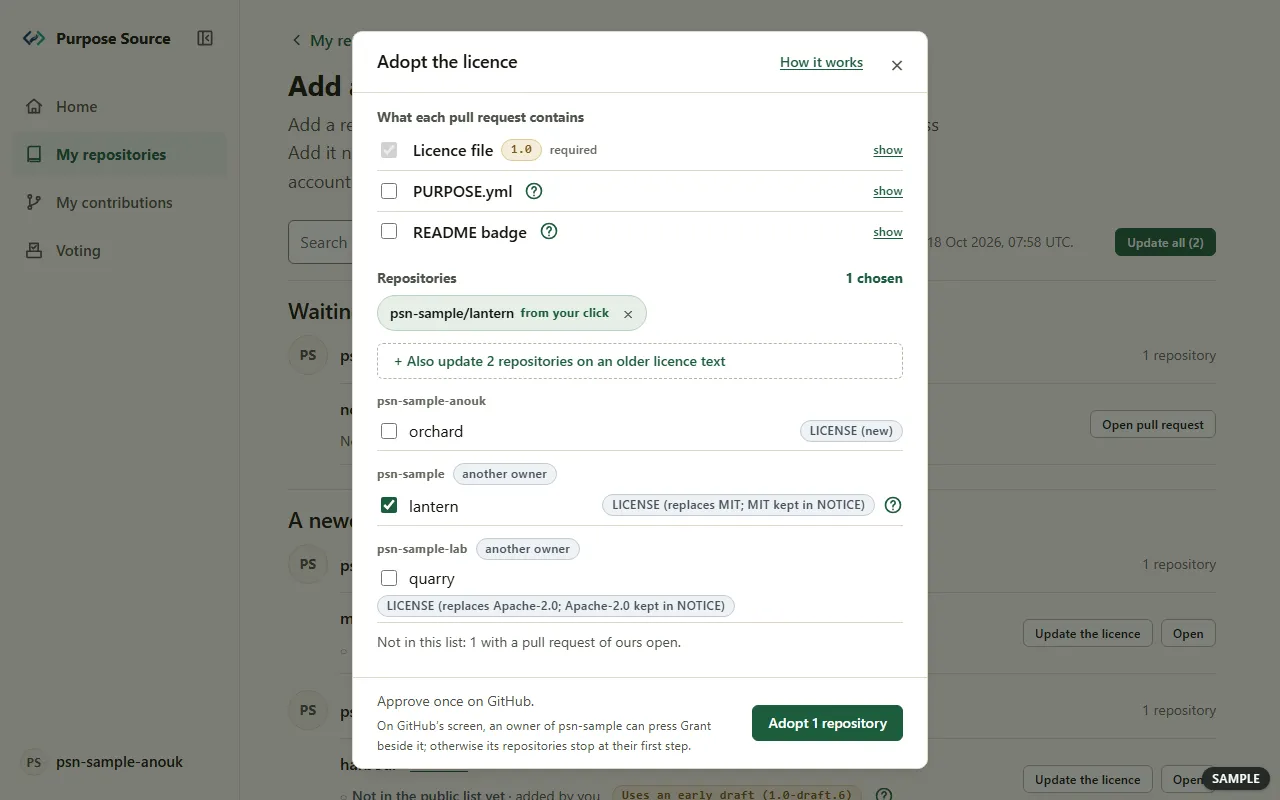
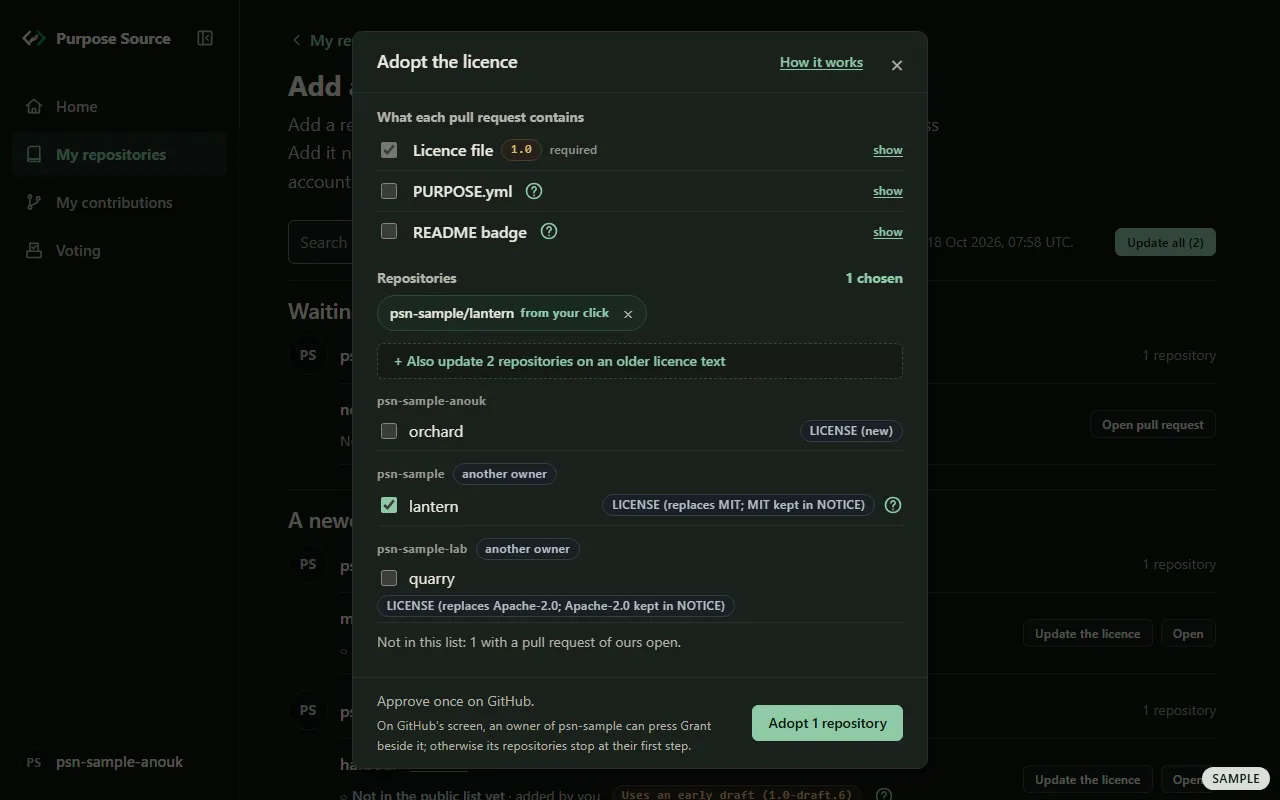
Press Adopt the licence (or Add) next to the repository. The Adopt the licence popup opens. How it works, at its top, sums up what follows.
The adoption popup. Sample screen: made-up names. -
Read What each pull request contains. Press show on a row to see the file, and its ? where it has one:
- Licence file is ticked and required: every pull request puts the licence text in. An MIT, Apache, BSD, ISC or zlib licence is replaced, and its text is kept word for word in NOTICE. Any other licence is skipped, and nothing is written.
- PURPOSE.yml is optional and unticked. Tick it to add the optional settings file (the settings file).
- README badge is optional and unticked. Tick it to add a small Purpose Source label to your README (the README).
-
Check Repositories. The one you pressed is ticked and marked from your click. Each row names the file its pull request writes, and what happens to the licence that’s there: for example LICENSE (new), or LICENSE (replaces MIT; MIT kept in NOTICE). A repository that can’t be adopted says why, for example that its licence is copyleft and will be skipped. Tick more repositories to do them together (several at once).
-
Press Adopt 1 repository at the foot.
-
GitHub opens its own screen and asks you once (approving on GitHub).
What happens next: for one repository, the dashboard opens the pull request and takes you straight to it on GitHub. Nothing changes in your repository until you merge it (merging). Code your project includes under a share-alike (copyleft) licence is never switched automatically: changing it needs every contributor’s agreement.
Choose how the README shows Purpose Source
Section titled “Choose how the README shows Purpose Source”The adoption pull request can also add Purpose Source to your README, so visitors see that your project uses it.
-
In the popup, tick README badge. Its ? says what it adds: a small Purpose Source label at the end of your README.
-
Press Adopt 1 repository (or the button for all you ticked) as usual.
-
After merging, move the badge in your README, or delete it, as you like.
What happens next: the badge reads the public record, so it says what the registry says about your repository. Once the registry lists the repository, its page offers more badges and a project card (sharing).
Approve on GitHub
Section titled “Approve on GitHub”GitHub’s screen isn’t pictured here, because it’s GitHub’s own page. This is what it shows, and what to press.
-
GitHub asks you to authorise Purpose Source Adopt. It says the app asks for access to your public repositories: that’s what it needs to open the pull request.
-
If a repository belongs to a GitHub organisation, GitHub lists the organisation. If you’re one of its owners, press Grant beside it. Otherwise, that organisation’s repositories stop at their first step, and nothing is written to them.
-
Press the green Authorize button.
What happens next: GitHub sends you back, and the dashboard writes the pull request. It removes the permission as soon as the work is done. If it ever can’t, it tells you, with Open your authorised applications on GitHub, so you can revoke “Purpose Source Adopt” yourself. If you press Cancel on GitHub instead, you’re back in the popup, nothing was written, and your choices are kept.
Adopt or update several repositories at once
Section titled “Adopt or update several repositories at once”-
In the popup, under Repositories, tick each repository you want. Tick all, Tick all shown and the search box help with a long list. In Adopt mode, Also update adds the repositories that are on an older licence text.
-
Read the foot of the popup: GitHub asks you once for all of them, with an estimate of how long it takes.
-
Press the button, which counts what you ticked: Adopt or Update and the number of repositories, or Adopt and update with both numbers.
-
Approve once on GitHub (how).
-
Watch the progress: Repositories finished, Now: with the repository in hand, and a word on each row, such as working, waiting or not started. A finished row shows its pull request and a link to open it on GitHub.
What happens next: you can press Close, it keeps going: the work goes on, one repository at a time, at the pace GitHub allows. To stop, press Stop. The popup asks whether to stop after the repository in hand; press Keep going if you change your mind. Your account runs one adoption at a time, so Adopt the licence and Update the licence are switched off elsewhere until it ends.
Read the results and continue
Section titled “Read the results and continue”-
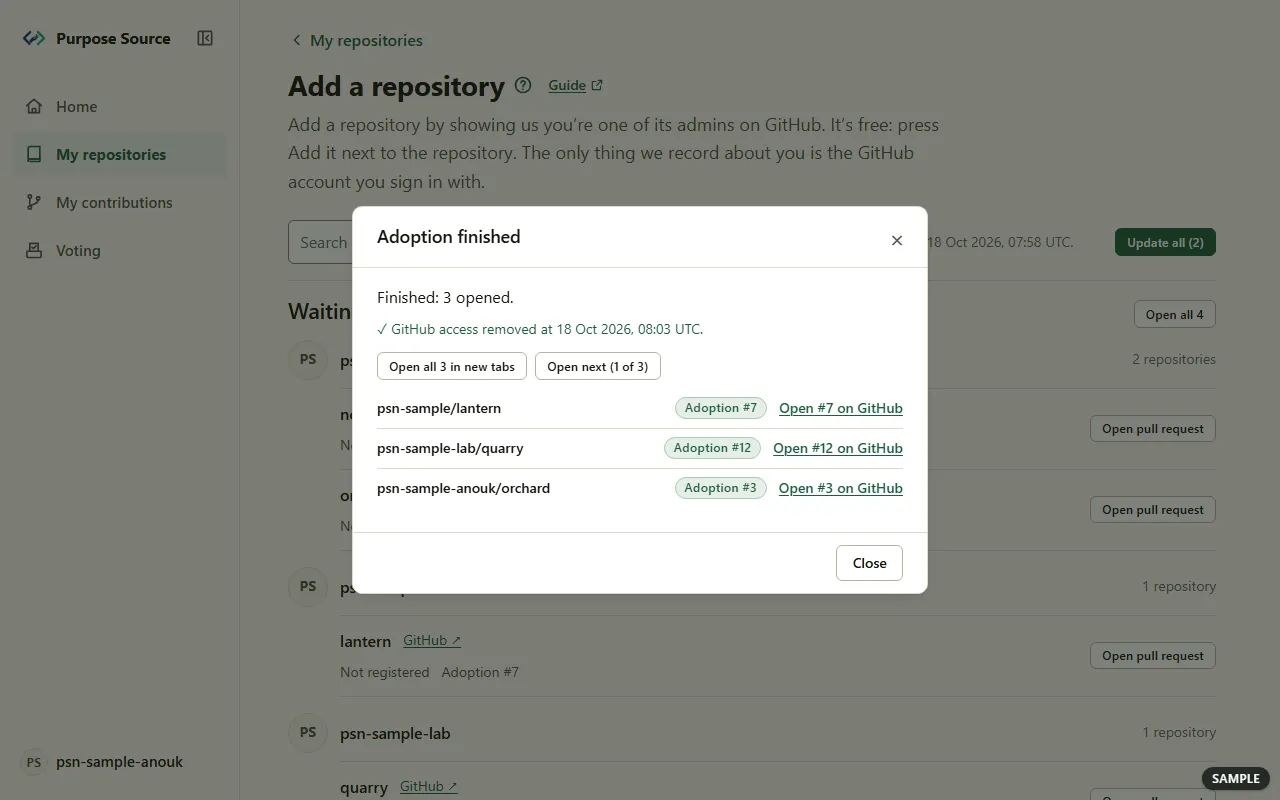
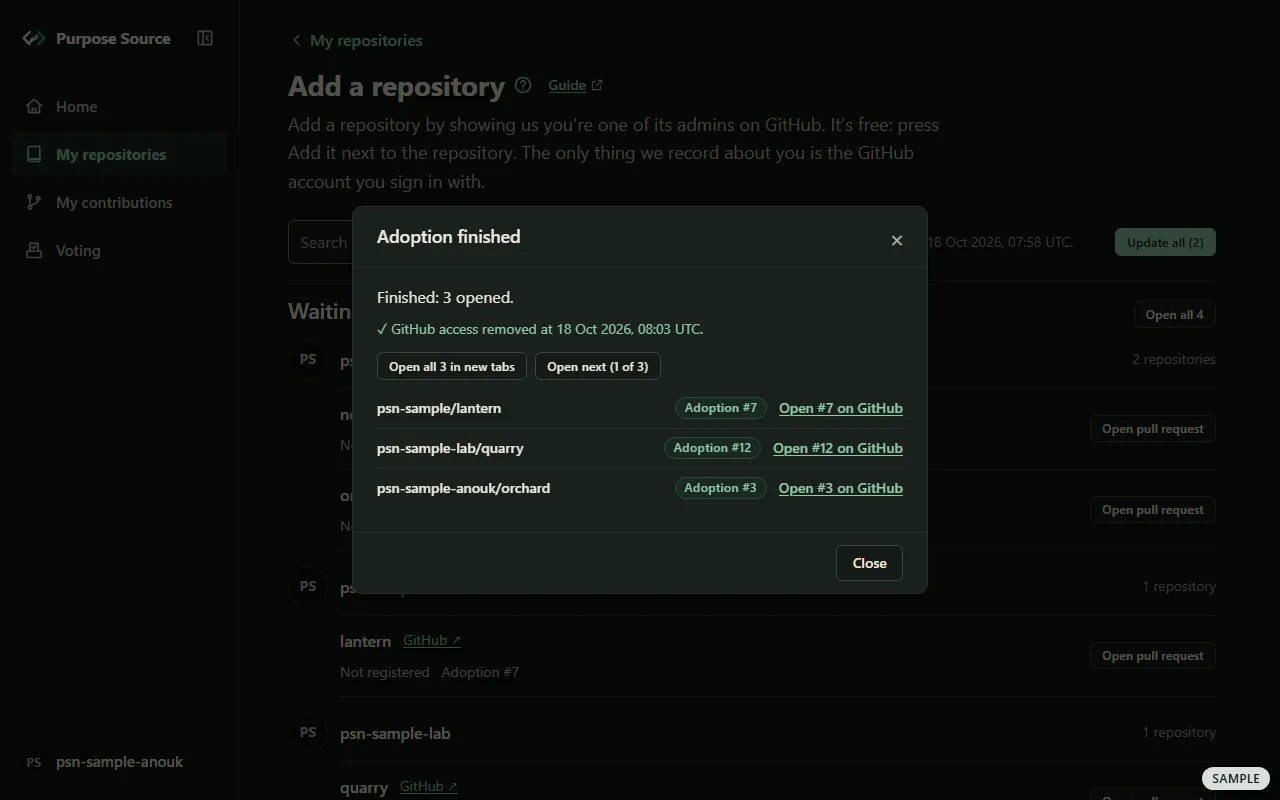
When the run ends, the popup’s title says how: Adoption finished, Update finished or Finished, or Stopped or Not started. A summary counts the pull requests opened, and any that failed, stopped part-way or didn’t start.
The popup's results. Sample screen: made-up names. -
Check the line GitHub access removed at and the time: the permission is gone.
-
Open the pull requests: Open all opens them in new tabs, and Open next goes through them one by one.
-
If some didn’t run, the popup says why, for example that you pressed Stop. Press Continue with the rest to run them.
What happens next: merge each pull request on GitHub (merging). A repository that stopped part-way is finished from its own page (finishing a run).
Merge the pull request on GitHub
Section titled “Merge the pull request on GitHub”-
Open the pull request: from the popup, from Waiting for you on GitHub on Home or on the Add a repository page, or on GitHub itself.
-
Read it on GitHub like any other pull request. It changes the licence file, adds NOTICE when it keeps an earlier licence, and adds the optional files you ticked.
-
Merge it when you’re ready. If you change your mind, close it: closing it has no effect at all.
What happens next: we notice the merge, and the registry records your repository. Then add it: it shows on the Add a repository page under Already in our records, with Add it (adding a repository). This is a good moment to tell your contributors and users (what to say).
Update to a newer licence text
Section titled “Update to a newer licence text”When a newer text of the licence is published, the dashboard offers to put it in your repositories. The update is a pull request too, and nothing changes until you merge it.
-
Look for A newer licence text is ready on Home or on the Add a repository page, or for a row on My repositories tagged Uses an early draft or with an older version.
-
Press Update the licence on one row, or Update all to update every repository with an older text.
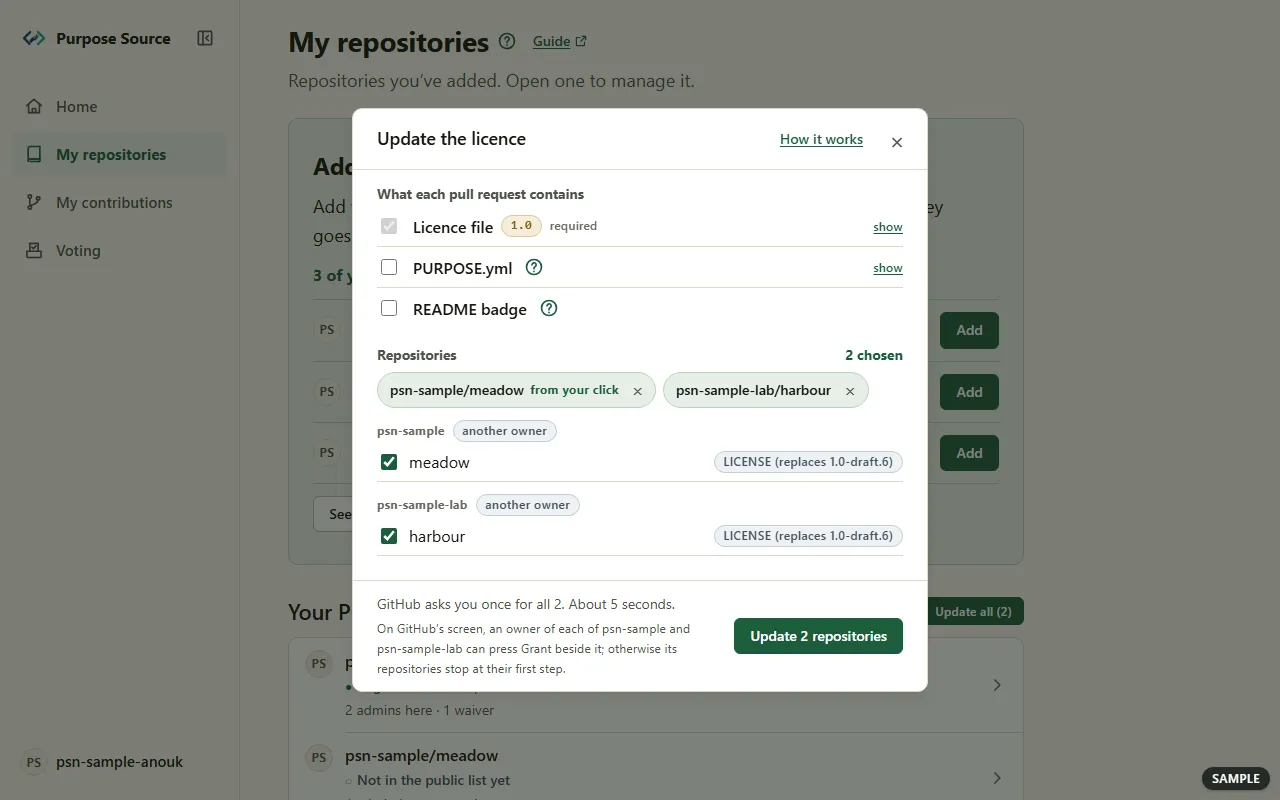
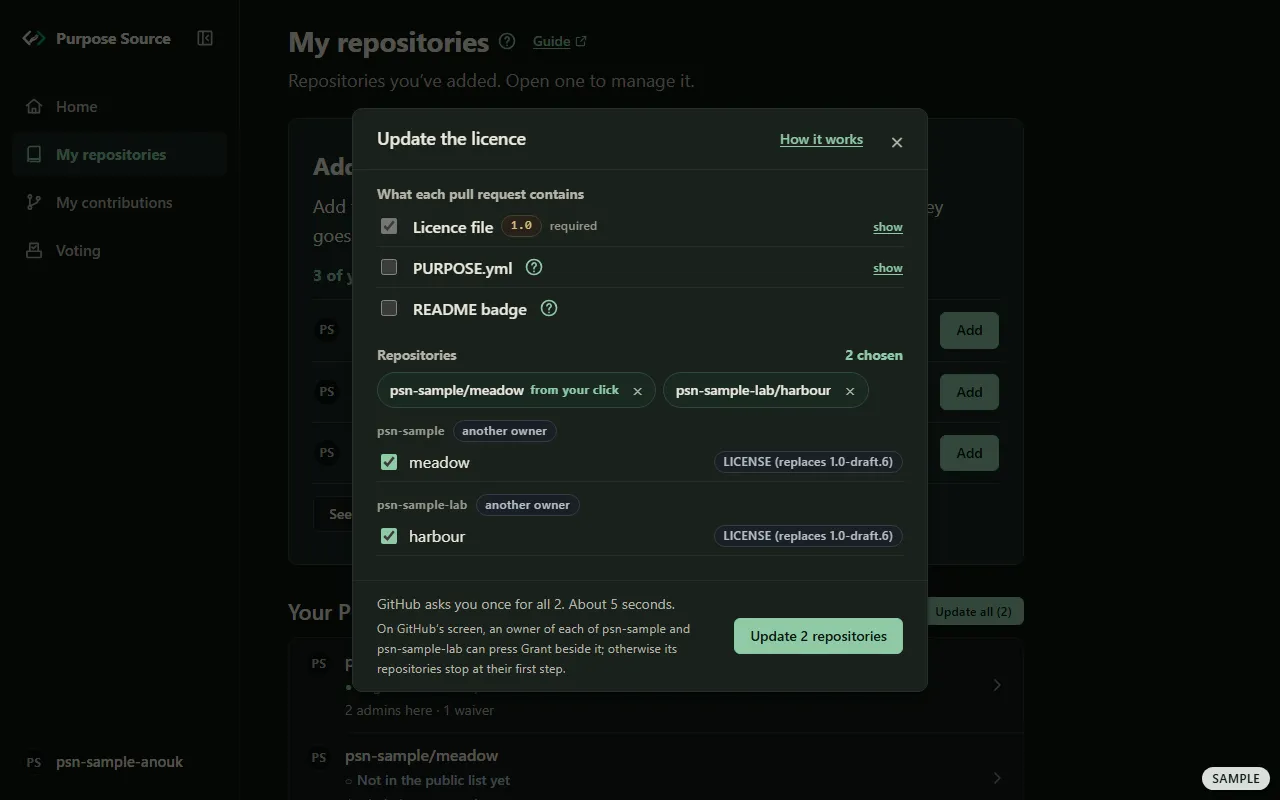
The popup in Update mode. Sample screen: made-up names. -
The Update the licence popup opens with every repository on an older text ticked, the one you pressed first. Untick any you want to leave for later. Each row names the file it writes, for example LICENSE (replaces 1.0-draft.6). The new text goes in the file where the old one is, and no notices file is added.
-
Press Update and the number of repositories, approve once on GitHub, and merge the pull requests.
What happens next: once you merge, the update line leaves the repository’s row, and its Licence tab says it’s up to date. An early draft isn’t a valid licence, so a repository that uses one can’t be registered until it uses the published text.
Adopt a repository you can’t add yet
Section titled “Adopt a repository you can’t add yet”Some links open a page of their own for one repository, titled Adopt the licence in this repository. Once a run has started there, the title names the repository instead. You don’t need to add the repository first: adopting comes first, and a repository can only be added once it carries the licence.
-
Open the link. For a repository you look after that isn’t registered yet, How it will look shows its project card as the public site would show it.
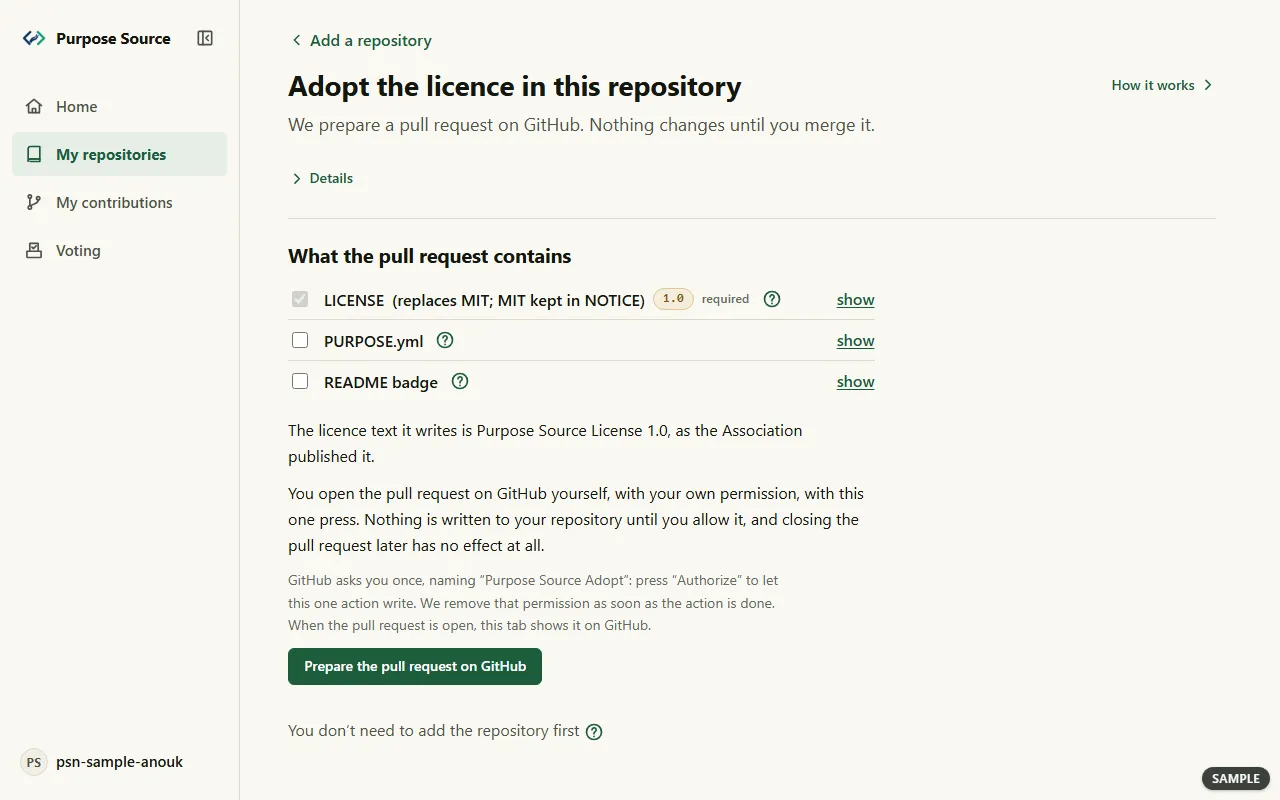
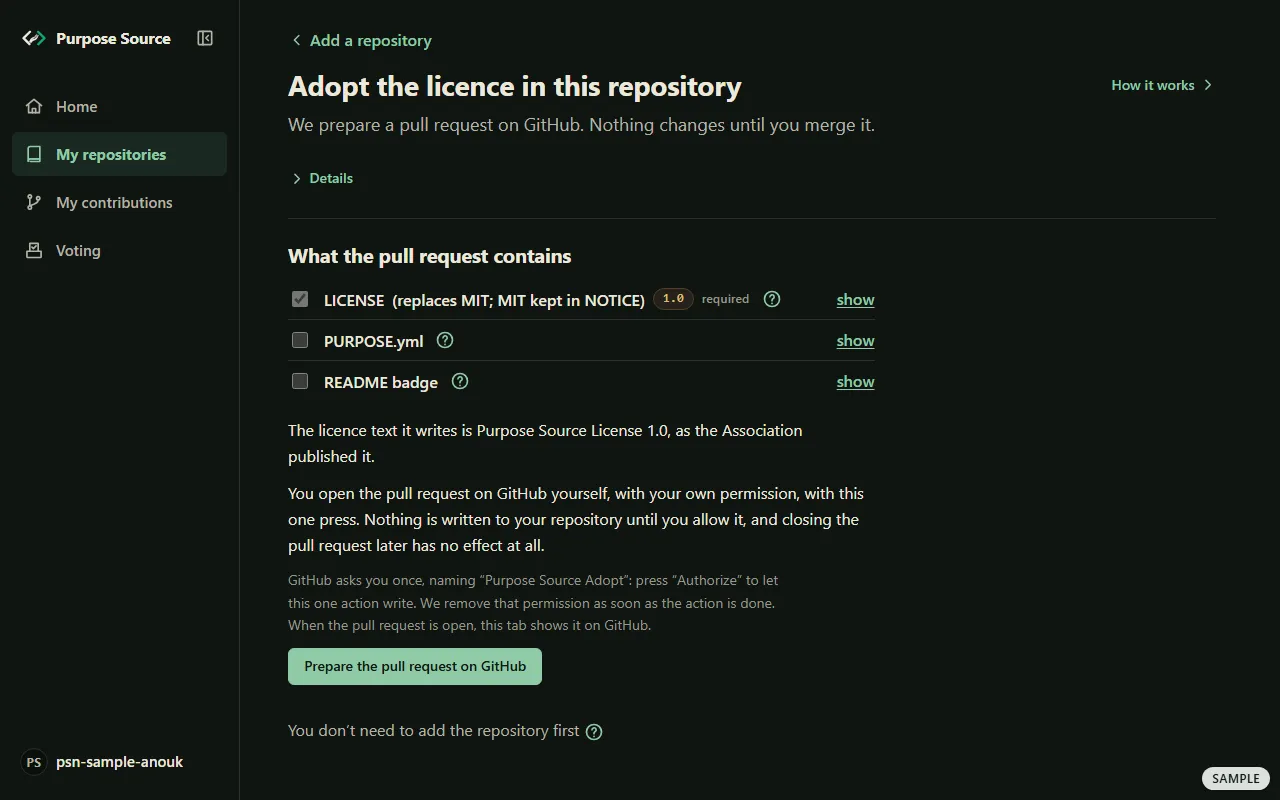
Adopt the licence in a repository. Sample screen: made-up names. -
Under What the pull request contains, tick the optional rows you want, as in the popup.
-
Press Prepare the pull request on GitHub. GitHub asks you once, naming “Purpose Source Adopt”: press Authorize.
What happens next: the pull request opens on GitHub, and this page shows it. Merge it, then add the repository (adding a repository).
Finish a run that stopped part-way
Section titled “Finish a run that stopped part-way”A run can stop part-way, for example when GitHub was unavailable. Its row says stopped part-way, with Finish: resume or clean up.
-
Press Finish: resume or clean up. Under This run, the page shows the furthest step reached, the branch and when it started.
-
Press Authorise with GitHub and continue this run to finish it.
-
Or press Clean up. It deletes the branch this run created, and only if every commit on it was written by this run. Otherwise it just closes the run on this page.
What happens next: either way, GitHub asks you once, naming “Purpose Source Adopt”. Once the run is finished or cleaned up, you can start a new one.
Open a repository’s page
Section titled “Open a repository’s page”Each repository you’ve added has its own page, with tabs.
-
On My repositories, press the repository’s row. Its page shows the repository’s name, a status line such as Registered · in the public list · Licence 1.0, and Open on GitHub.
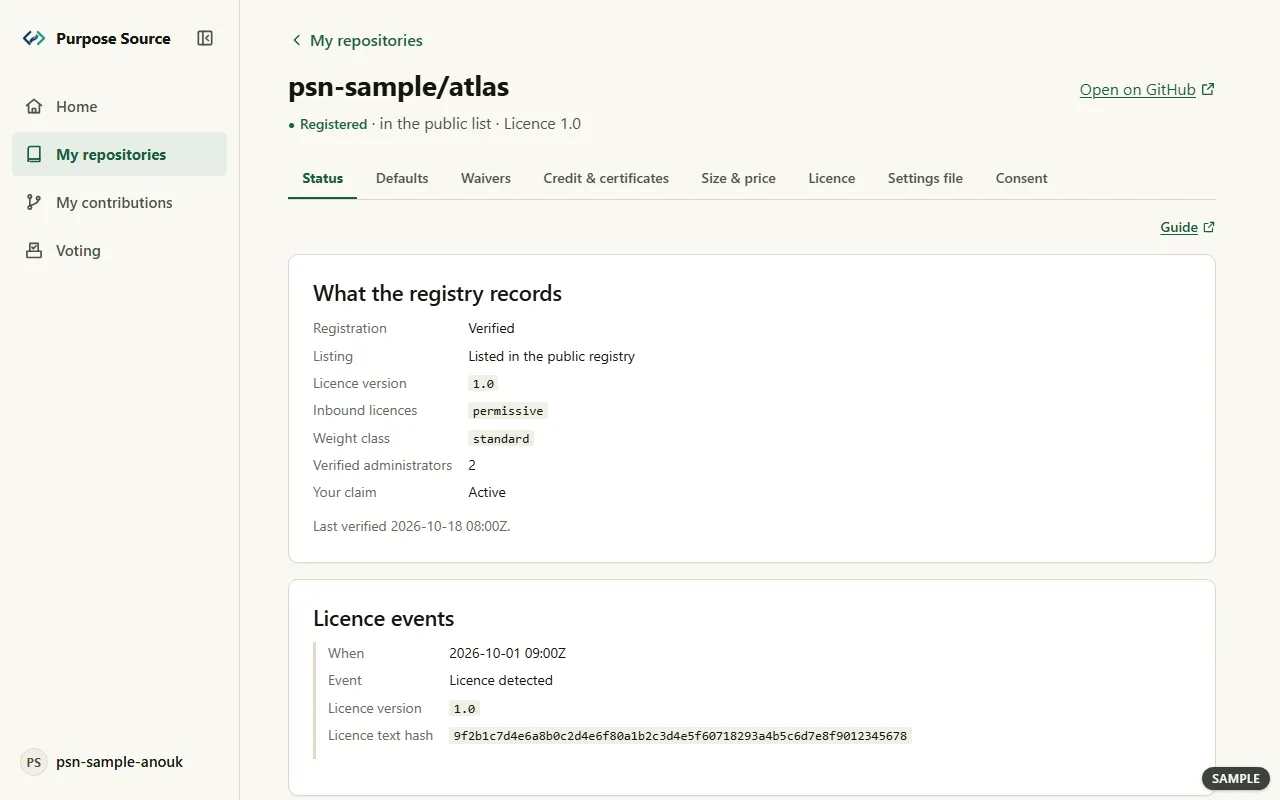
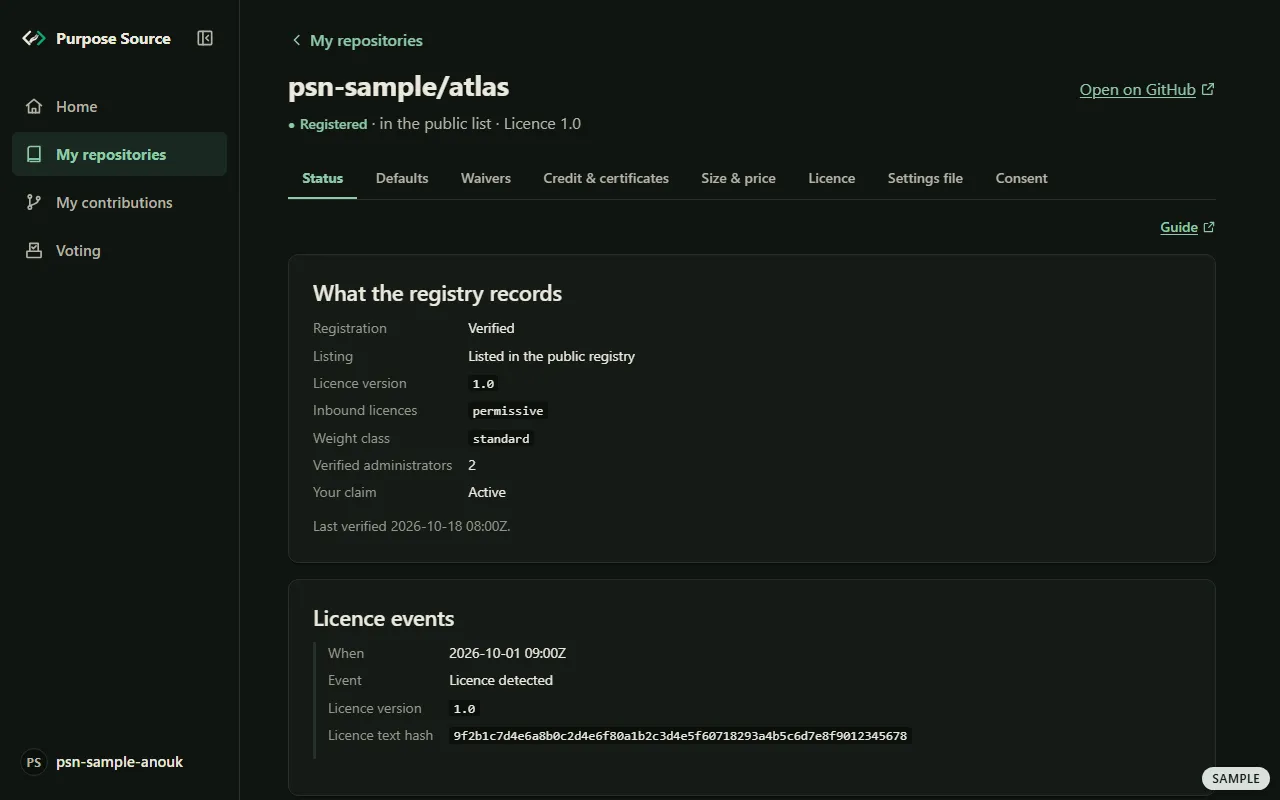
A repository's page, Status tab. Sample screen: made-up names. -
Choose a tab: Status, Defaults, Waivers, Credit & certificates, Size & price, Licence, Settings file or Consent.
-
On Status, What the registry records shows the registration, the listing, the licence version, how many verified administrators the repository has, and your own access. Licence events lists each change the registry has seen in your licence file.
What happens next: the page’s address keeps the tab, so a bookmark opens it again. ‹ My repositories takes you back.
Share your badge and project card
Section titled “Share your badge and project card”Once the registry lists your repository, the Status tab has what you need to show it.
-
Open the repository’s page on Status, and scroll down.
-
Under Badge embed kit, pick a badge: Flat badge, or the Card badge in light or dark. Press Copy beside the snippet you want, Markdown or HTML, and paste it into your README.
-
Under Project card, press Download for the link preview card or for GitHub’s social preview. On GitHub, upload it in the repository’s Settings, under Social preview.
-
Under Words to share, copy the Post text for an announcement, and the README line for contributors.
What happens next: the badge reads the published record, so it says what the registry says and nothing more. The post text and the README line are offered while the registry lists the repository. See them before you start: the sample badge and project card.
Choose where the project’s share goes
Section titled “Choose where the project’s share goes”The Defaults tab sets where your project’s share goes, unless a contributor chooses for their own part.
-
Open the repository’s page and press Defaults.
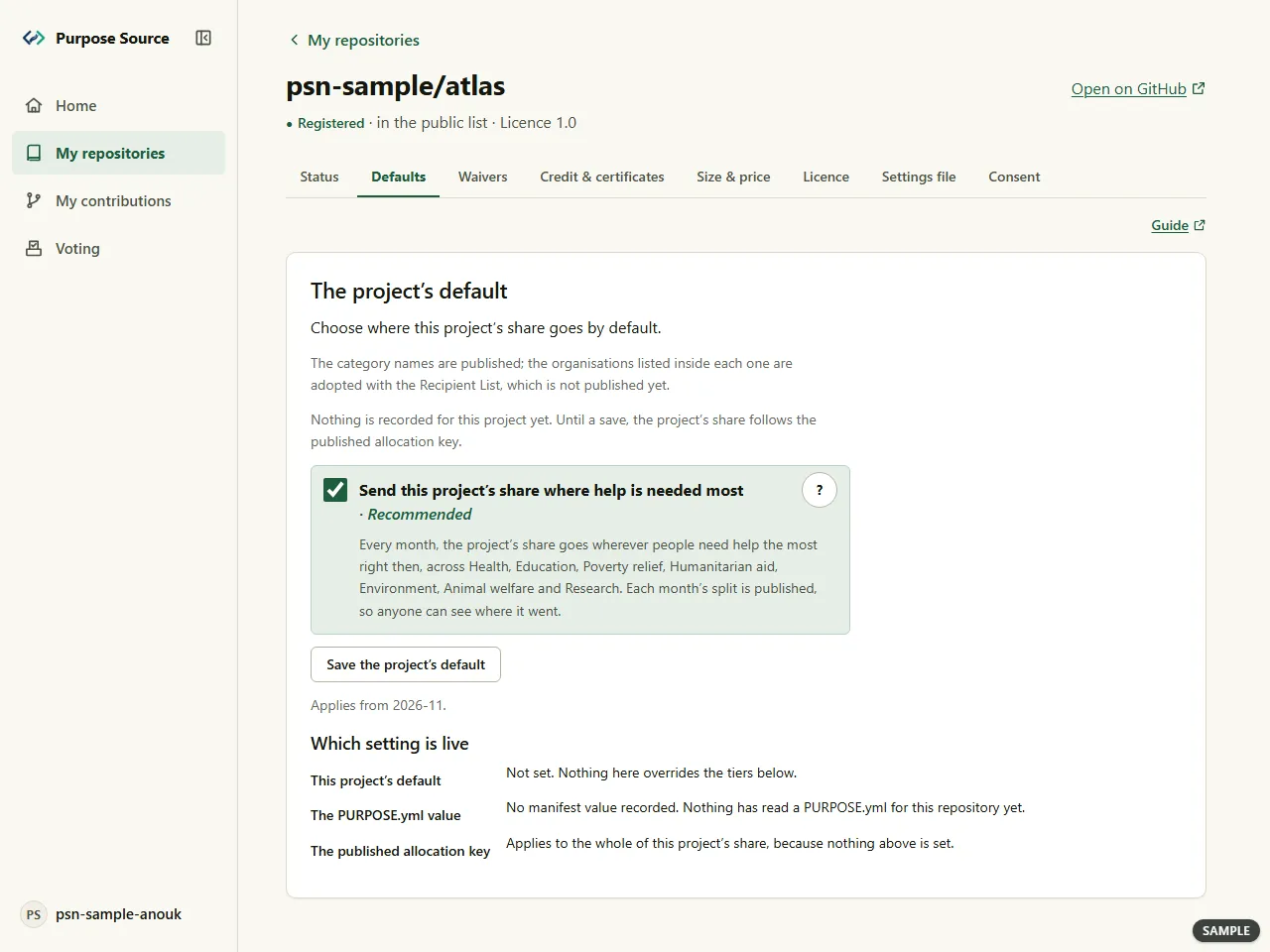
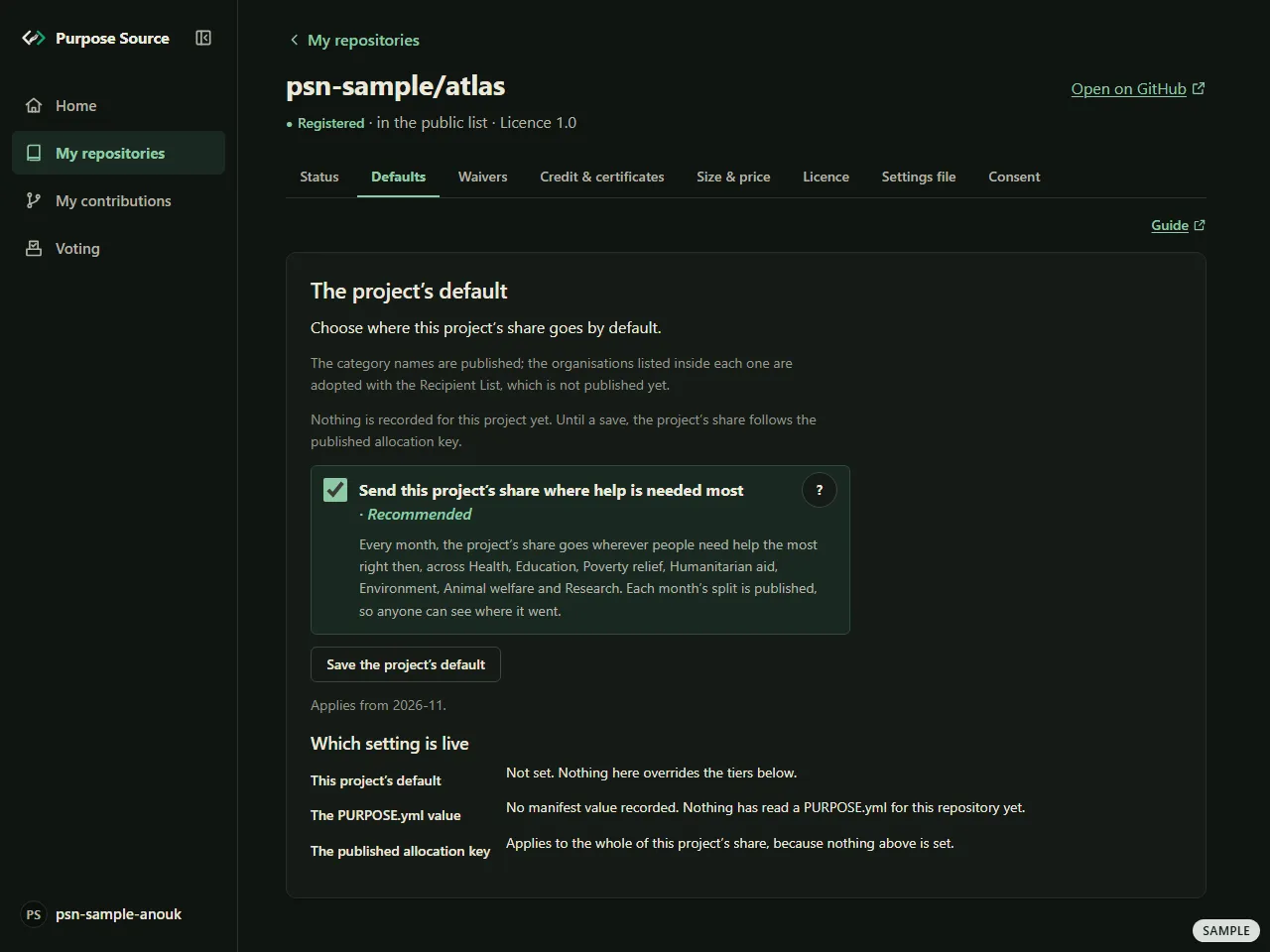
The Defaults tab. Sample screen: made-up names. -
Under The project’s default, the box Send this project’s share where help is needed most is ticked and marked Recommended. Its ?, Why is this the best choice?, says why.
-
To set shares by hand instead, untick the box. The categories then sit in two places, Automatic and Set by hand. A category’s ⋮ button offers Choose this one by hand (not recommended), and Back to automatic (recommended) returns it.
-
Press Save the project’s default.
What happens next: the tab says Saved. and from which month your choice applies. Which setting is live shows what applies now: this default, the value in your settings file, or the published allocation key. Until a contributor chooses for their own part, your default applies to it. The seven categories are on causes.
Give a company a waiver
Section titled “Give a company a waiver”A waiver lets one named organisation use your repository without paying for it. Every waiver is public, and every waiver is free. The rules are on waivers.
-
Open the repository’s page and press Waivers.
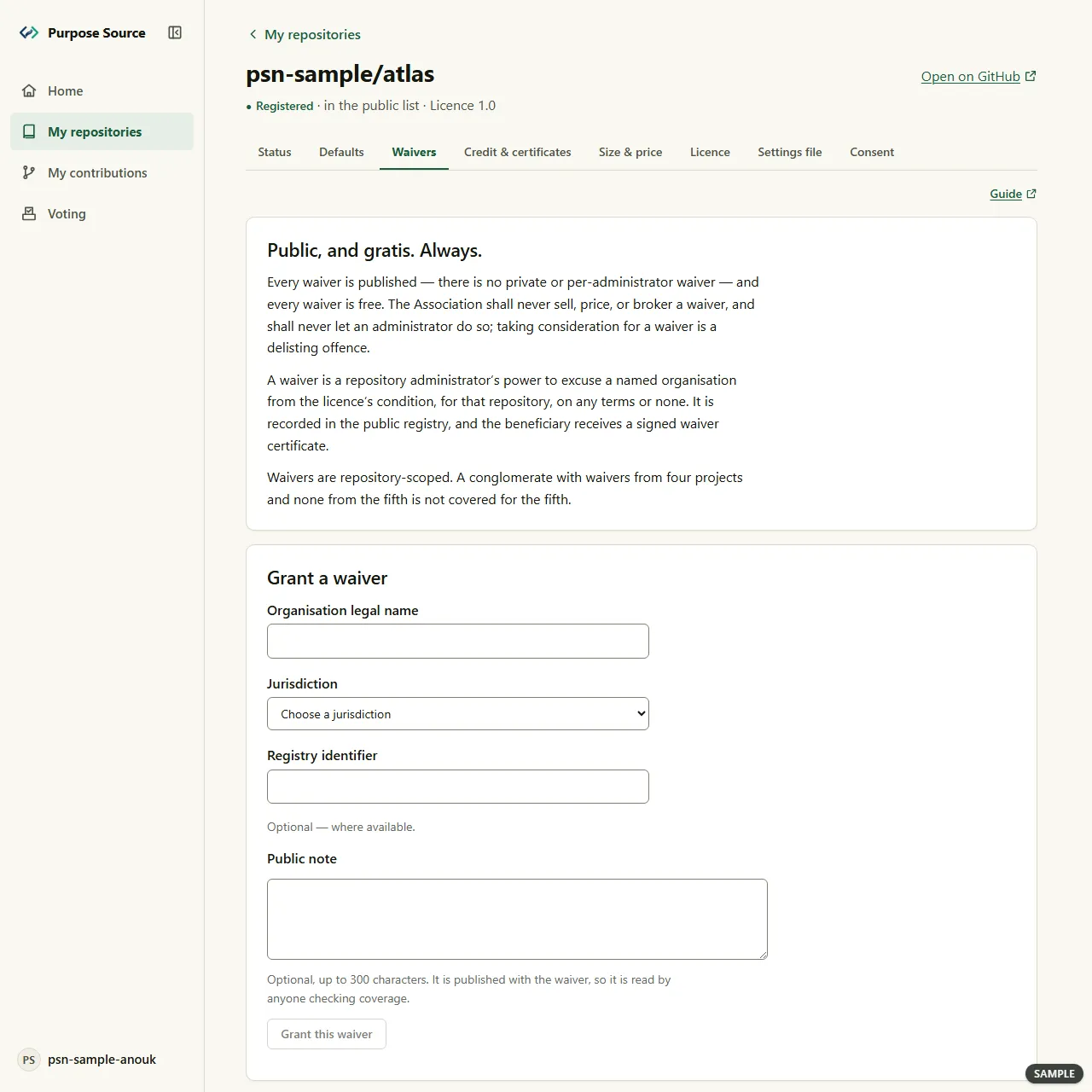
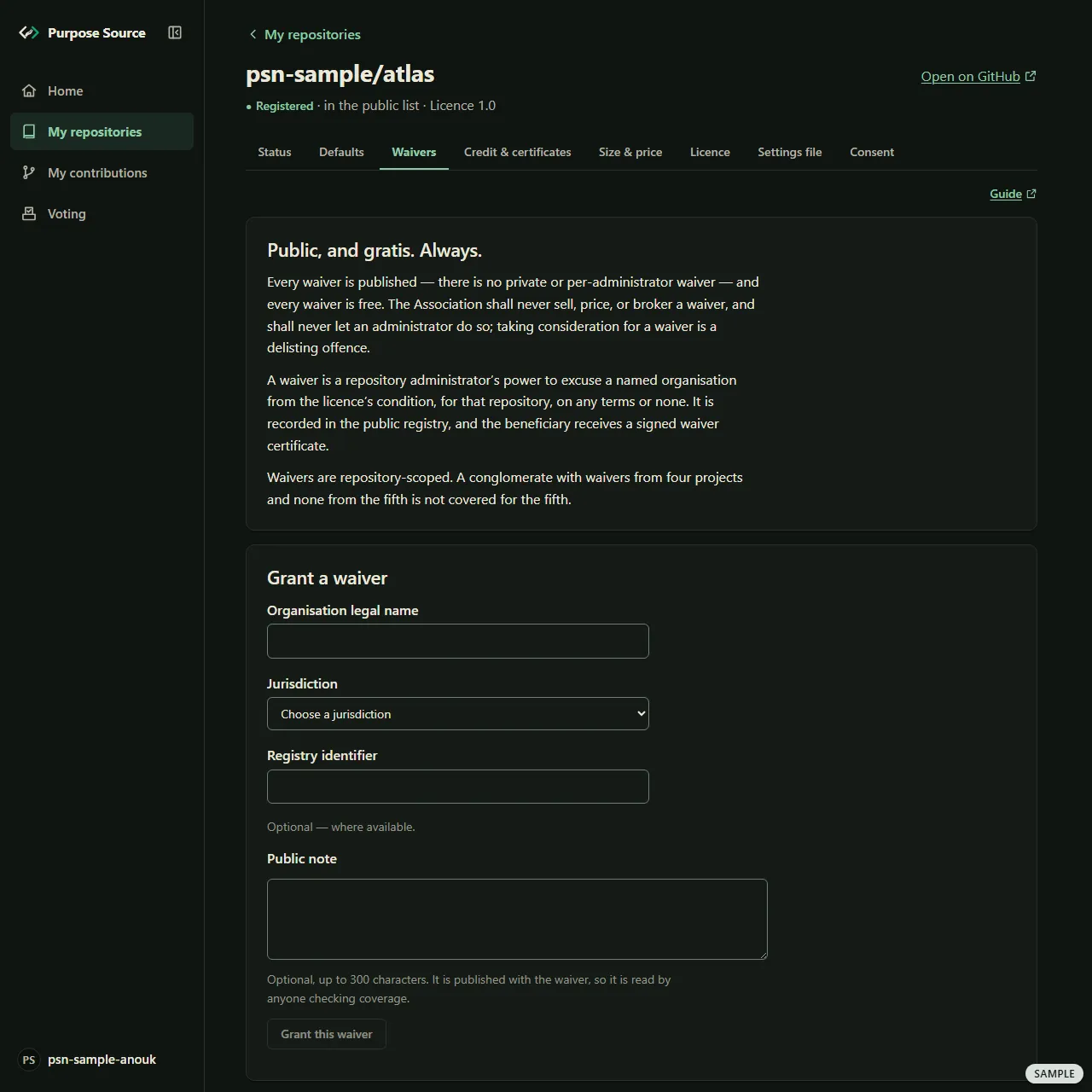
The Waivers tab. Sample screen: made-up names. -
Under Grant a waiver, type the Organisation legal name, choose its Jurisdiction, and add its Registry identifier if you have it. A Public note is optional; it’s published with the waiver.
-
Press Grant this waiver. A confirmation says what happens: the waiver takes effect at once, and what it covers vests for good only when a 72-hour cooling window closes. Every co-admin is notified, and that can’t be turned off. Press Grant it.
-
If the dashboard asks you to confirm it’s you, do so (how).
What happens next: the waiver appears under Waivers with its state: Vesting pending while the cooling window runs, then Vested. The public registry shows it the next time this site is rebuilt (every six hours on purposesource.org), and the organisation receives a signed waiver certificate. The Waiver log records every grant, approval and revocation.
Ask a second administrator to approve
Section titled “Ask a second administrator to approve”When your repository has more than one verified administrator, you can require two of you for every grant.
-
On Waivers, under Two-administrator approval, switch on Require a second co-administrator to approve a grant.
-
From then on, a new grant waits as Waiting for a second administrator.
-
Another verified administrator opens the Waivers tab and presses Approve on it.
What happens next: once approved, the waiver carries on like any other grant. The switch needs a second verified administrator: each admin who adds the repository becomes one.
Revoke a waiver
Section titled “Revoke a waiver”-
On Waivers, find the waiver and press Revoke.
-
The confirmation Revoke this waiver says what stays covered. Press Revoke it.
What happens next: the waiver’s state becomes Revoked, or Revoked — nothing vested inside the cooling window. Revoked inside the window, it vests nothing. Revoked after it, every part of the software it covers that is public by the time you revoke it stays the organisation’s to keep for good, even if no release carries it yet. Either way, revoking never makes earlier permitted use unlawful (revocation).
See your contributors’ credit
Section titled “See your contributors’ credit”-
Open the repository’s page and press Credit & certificates.
-
This month’s credit shows the Counting method, the Month, when it was Counted on and its Status. A figure marked estimate may still be corrected.
-
Under Project certificate, press Download the project certificate. It’s switched off, with the reason beside it, until a payout to a charity has been recorded for this repository.
What happens next: each person’s credit is shown only to them, on My contributions after they sign in, so none is shown here. How credit works: contributors.
Check your repository’s size
Section titled “Check your repository’s size”A repository’s size sets what an organisation pays for a Project licence of it: Standard, or Utility for a small library, which costs less. Our staff count it; you never type a number.
-
Open the repository’s page and press Size & price.
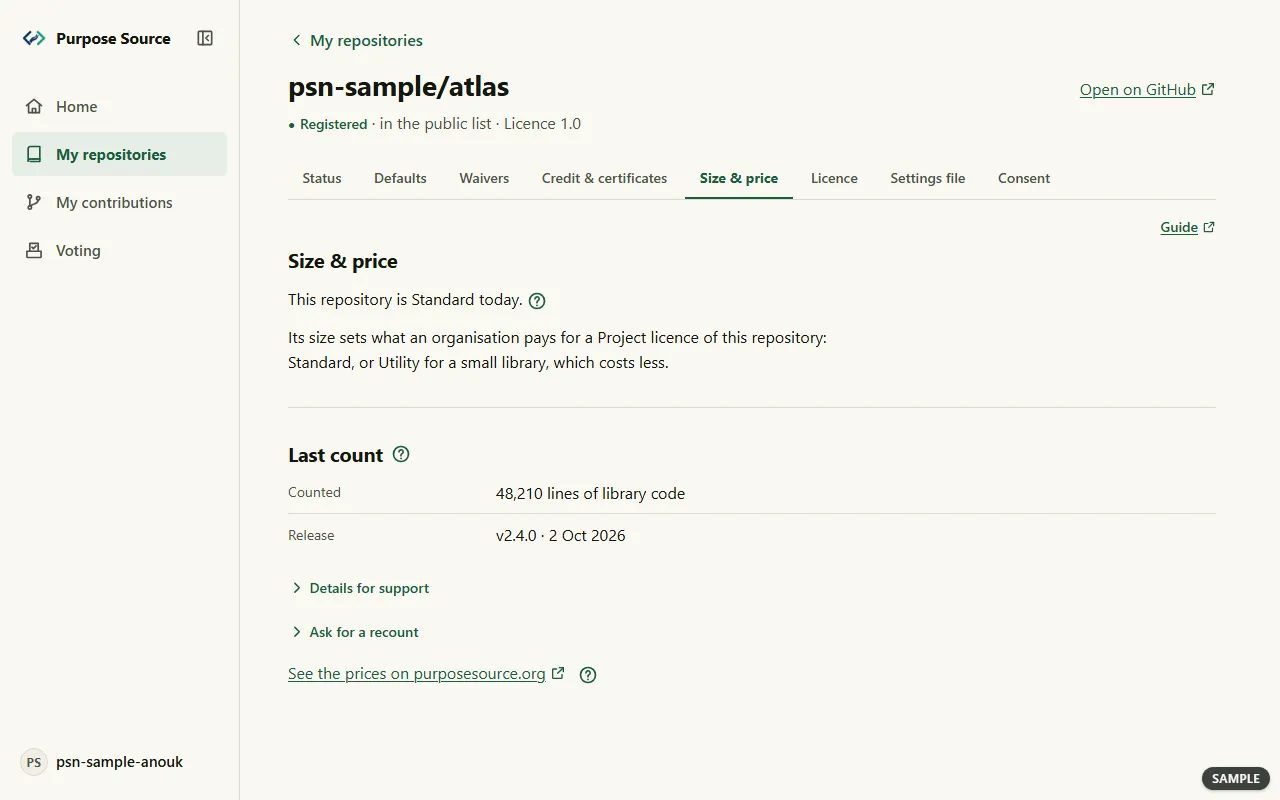
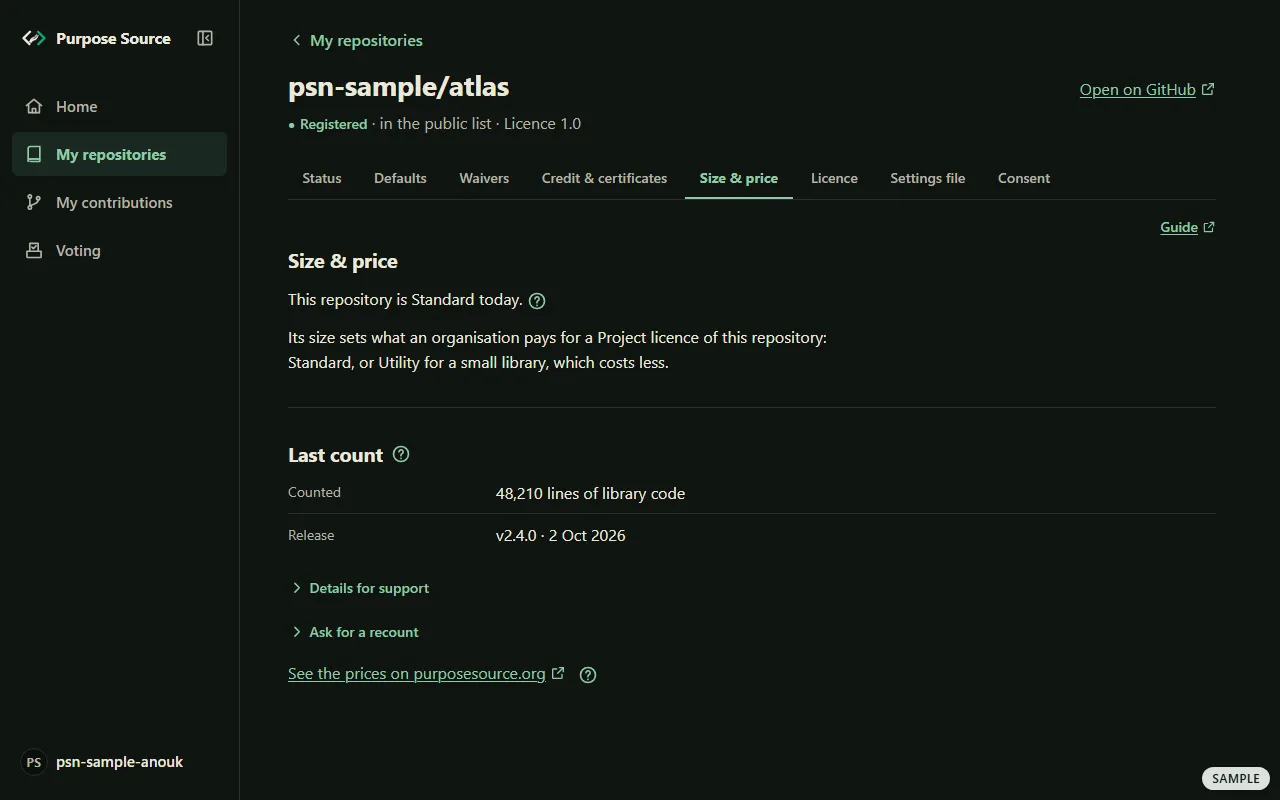
The Size & price tab. Sample screen: made-up names. -
Read the size, for example This repository is Standard today., and Last count: the lines of library code counted, and in which release.
-
Is the count wrong, or should a newer release be counted? Open Ask for a recount. Fill in the Release tag, the Release commit ID (the full 40-character code) and Why should it be counted again?, then press Ask for a recount.
What happens next: the tab says Sent. Nothing changes until our staff answer it. Our staff count again, or say no and tell you why. A repository is Utility when its library code has fewer than 5,000 lines in its registered release. Tests, samples, documentation, generated code and code copied in from other projects aren’t counted. A third size, Major, isn’t offered at launch. See the prices and the rule.
Check your settings file
Section titled “Check your settings file”PURPOSE.yml is an optional settings file in your repository. Without it, the standard settings apply. The Settings file tab checks a file before you commit it.
-
Open the repository’s page and press Settings file. The tab first shows the published standard settings that apply without a file.
-
Under Check a settings file, paste your file into Your settings file, or the part you’re unsure about. To start from an example, press Show an example, then Use this example.
-
Press Check the file.
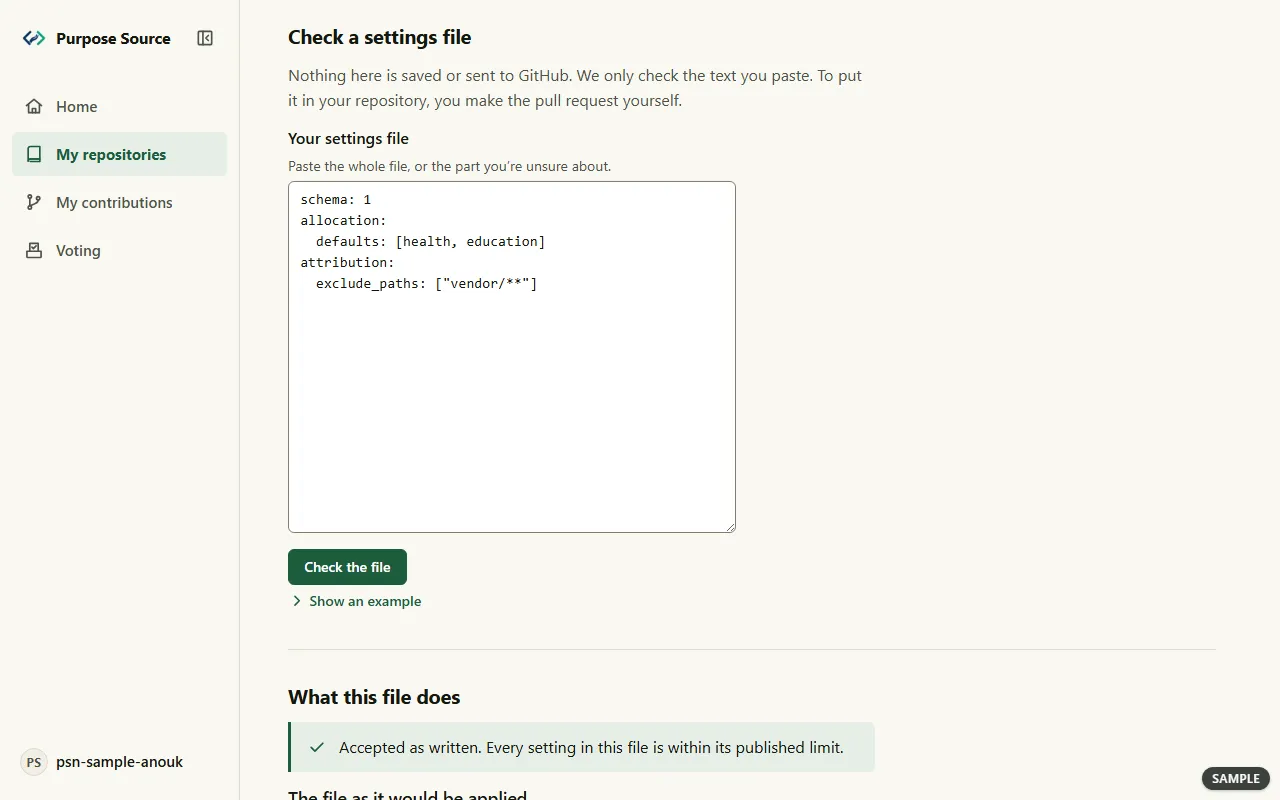
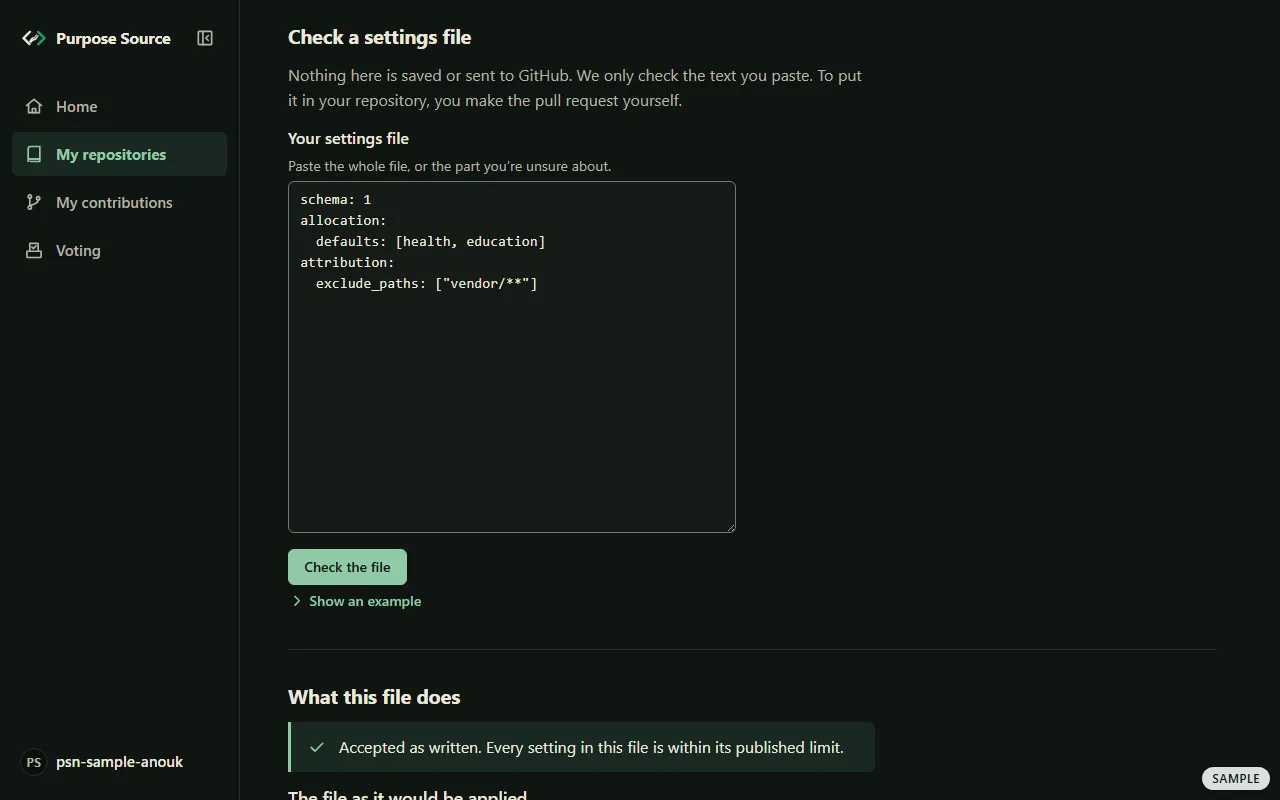
Checking a settings file. Sample screen: made-up names.
What happens next: What this file does says whether the file would be accepted, partly applied or not read at all, and Settings that won’t be applied lists each setting past a published limit, with what you wrote. Nothing is saved or sent to GitHub. To put the file in your repository, make the pull request yourself, or tick PURPOSE.yml in the adoption popup. Every field is on the PURPOSE.yml reference.
What the Consent tab is for
Section titled “What the Consent tab is for”The Consent tab is for licence changes that need your contributors’ agreement. That part of the dashboard is built after launch; until then, the tab says what happens in the meantime.
Leave Purpose Source
Section titled “Leave Purpose Source”You can leave at any time for future releases, with no exit fee and no notice form. There’s no button for it in the dashboard: leaving is a change to the licence in your repository.
-
Choose the first release that will carry another licence, and change the licence file on GitHub.
-
Tell your contributors and users, as you did when you joined.
What happens next: the registry notices the change, and the repository’s status on My repositories changes to Left the list. Earlier releases keep their terms, and what was vested stays vested. The full rules are on leaving.